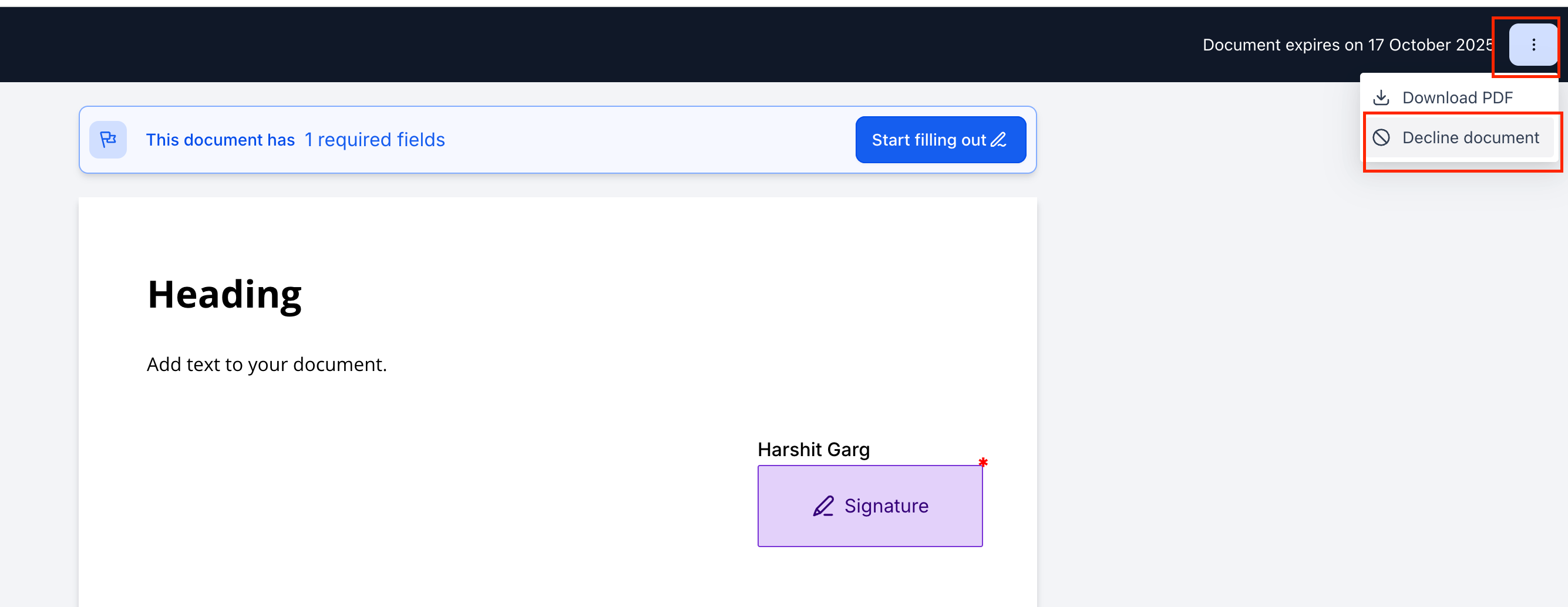
Document recipients can choose Decline on signature requests. The document moves to Declined, the sender is notified, and the reason is saved in the timeline and audit trail.
Decline button available to recipients on the signing page
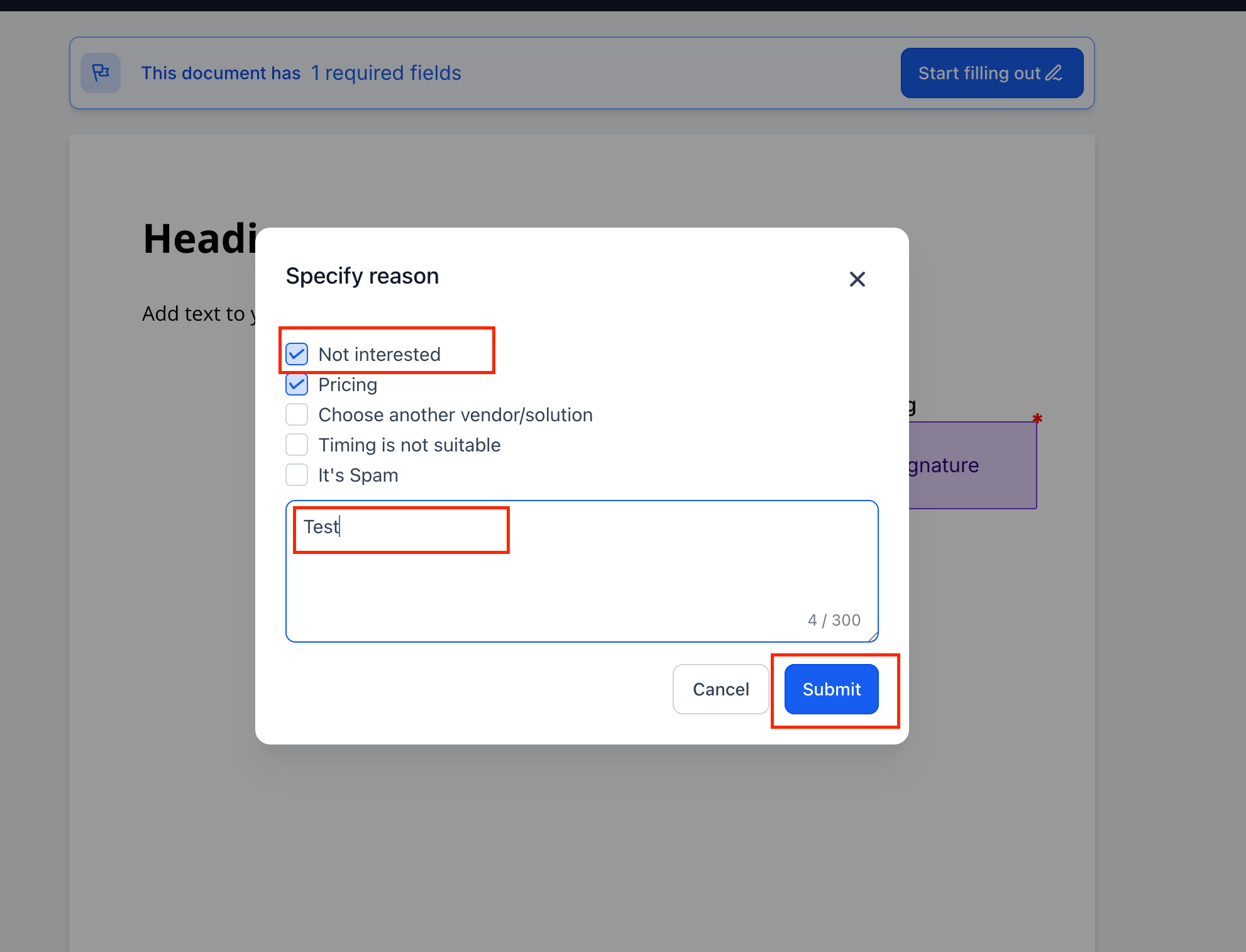
Optional reason field captured with the decline
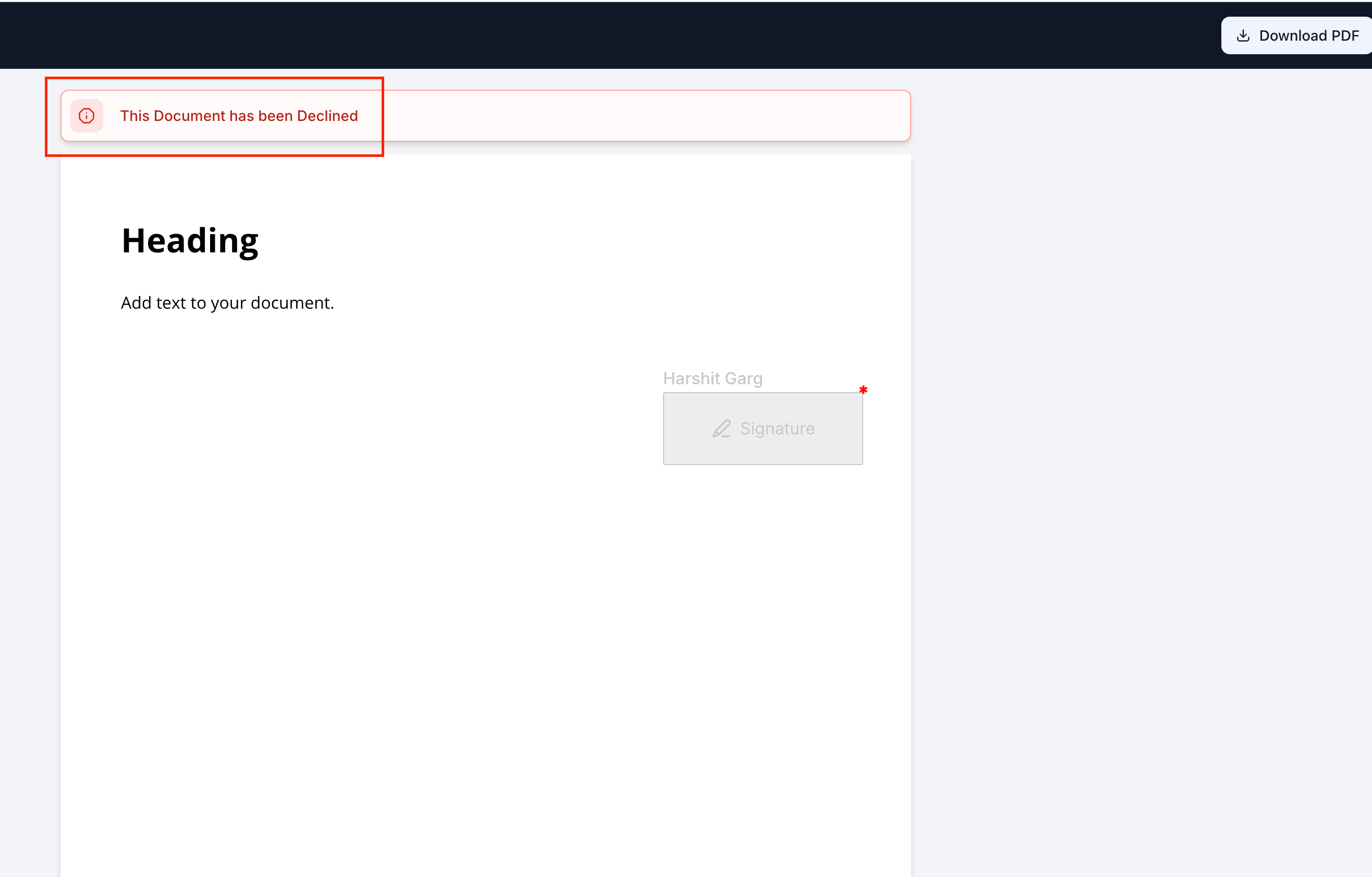
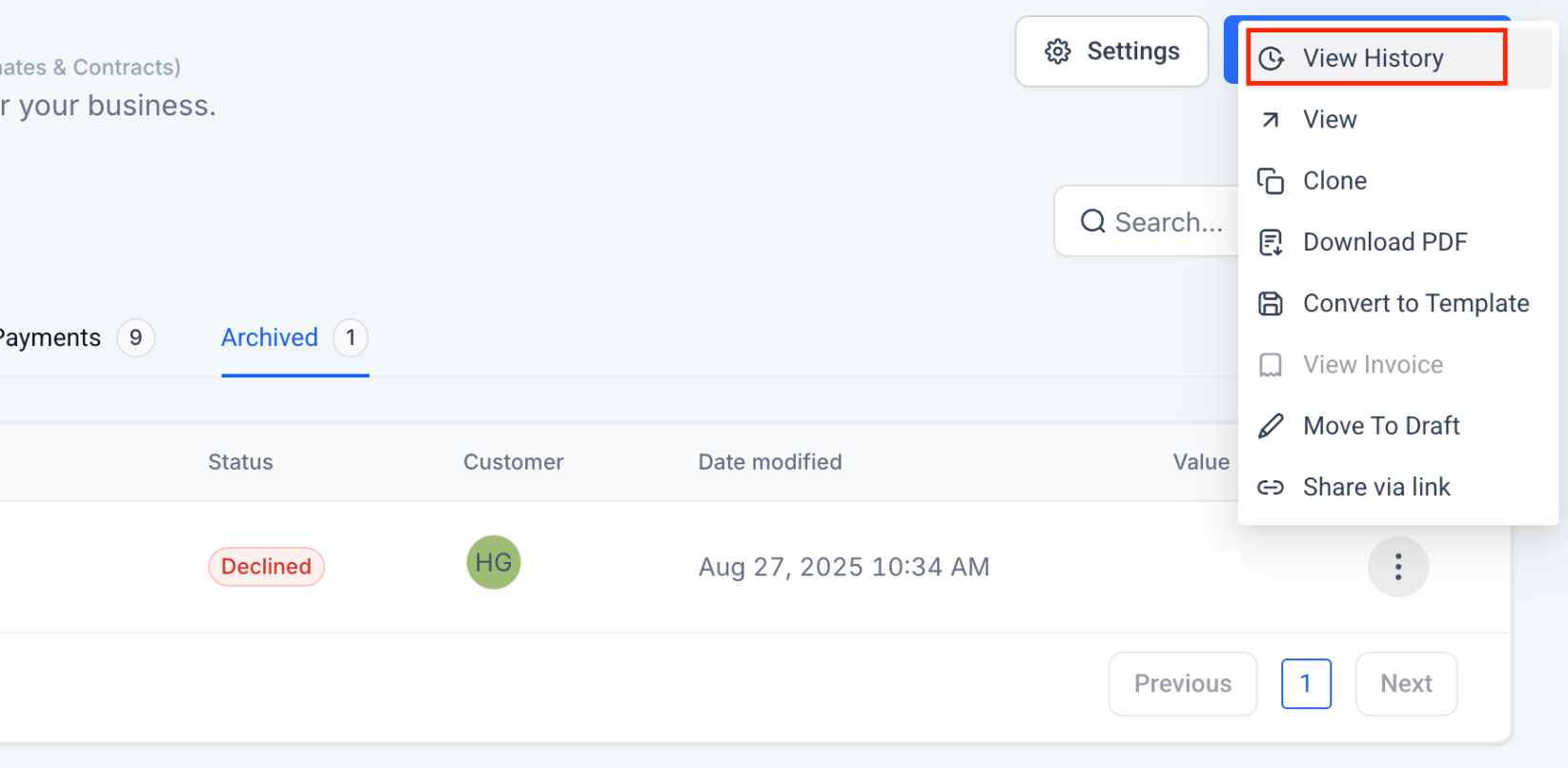
Status updates to Declined in the Documents list and details
Notification to the sender when a document is declined
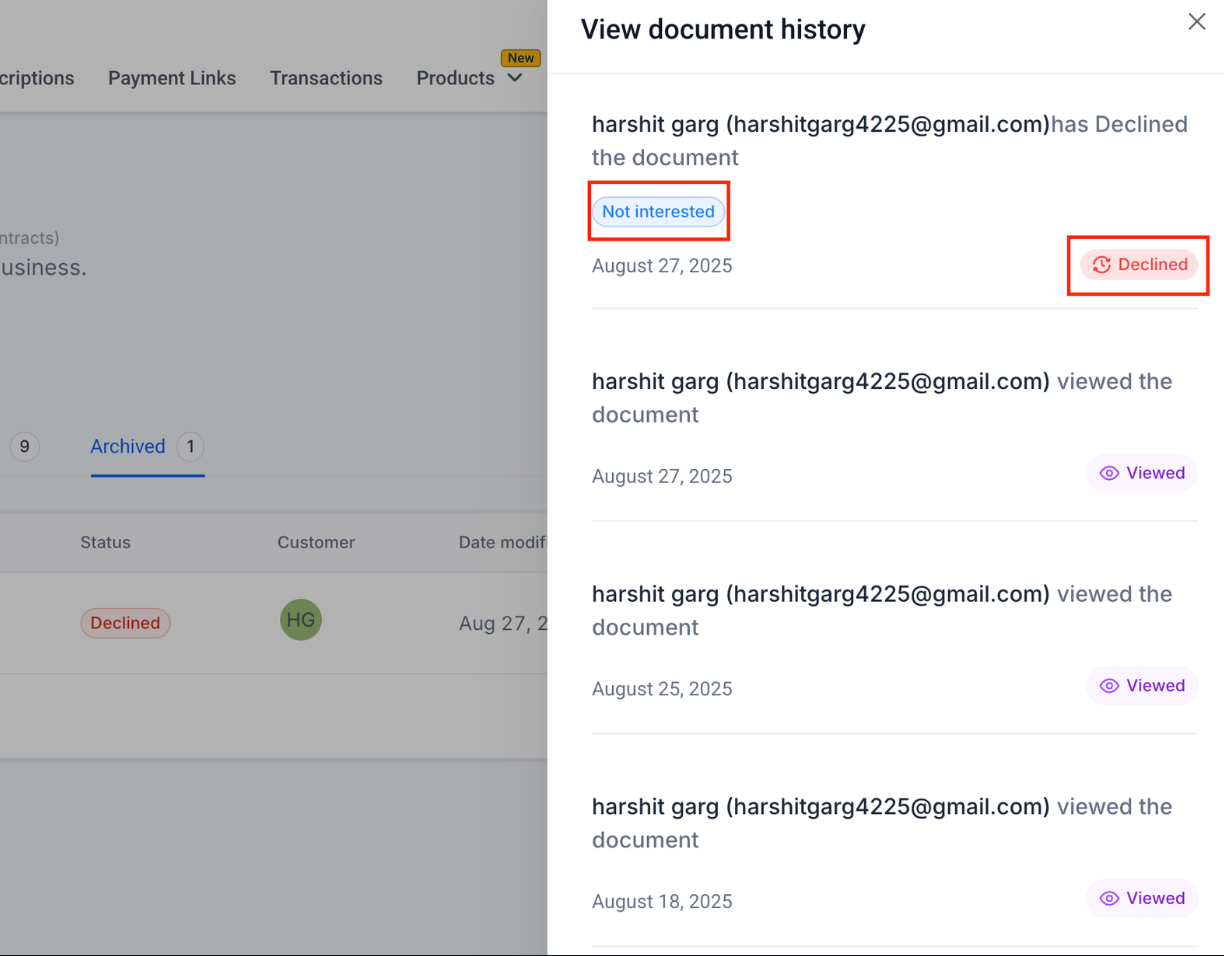
Timeline and audit trail entries that include the decline and reason
Filters and search support for Declined documents
Ask recipients to include a short reason so you know what to change
Use clear pricing and term sections to reduce avoidable declines
If you expect negotiation, include a contact method or counteroffer note in the email
Step 1
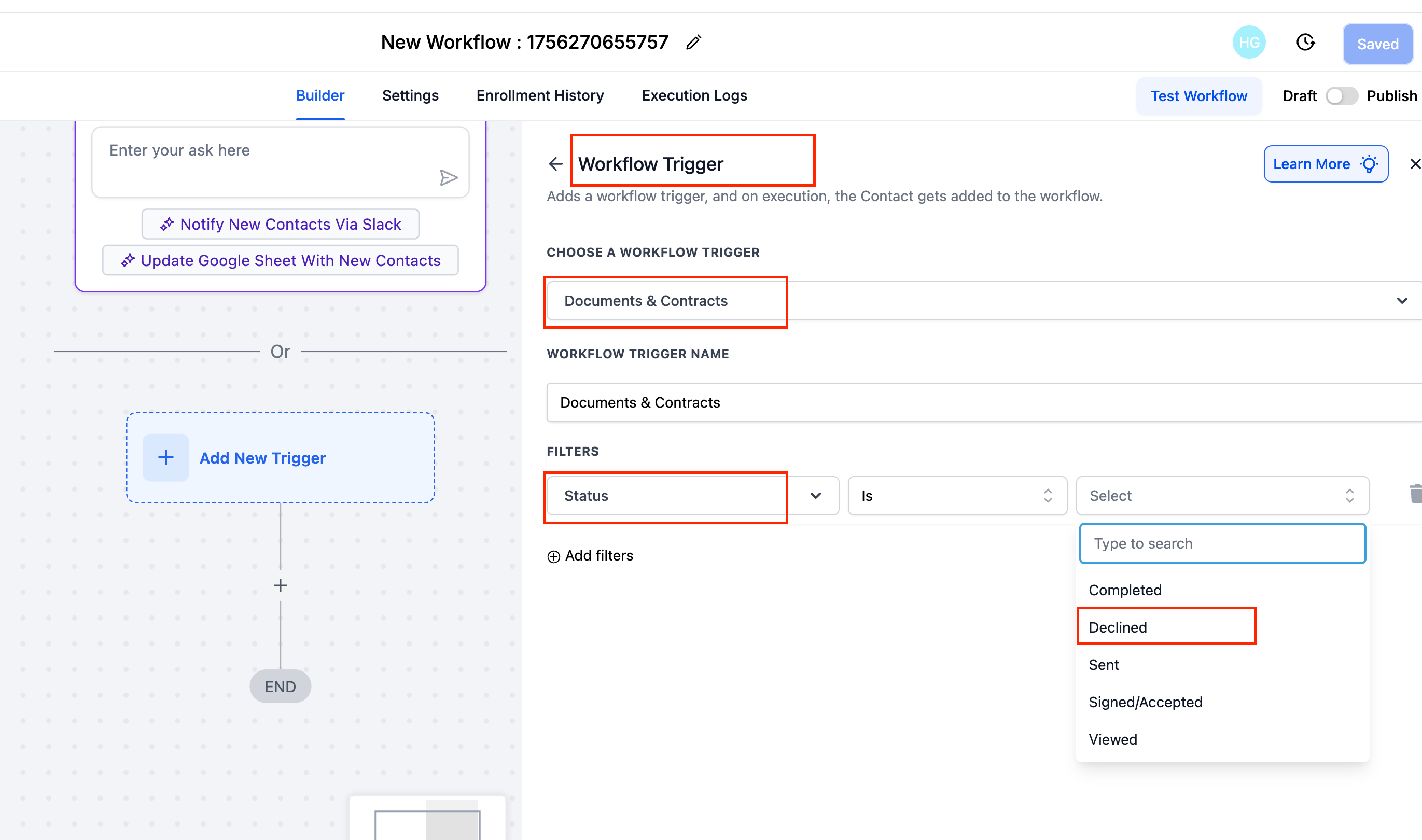
Create a Workflow to receive notifications if a client declines the document.
Step 2
Create a document from a template or upload your file to Documents, add recipients, and send as usual.
Step 3
Open the document details to read the reason in the timeline.
If a recipient clicks Decline, you will get a notification, and the document status will show as Declined.
Where do I see the decline reason
Open the document and check the timeline or audit trail. The reason appears with the decline event.
Can I turn off the Decline option
The decline control is part of the recipient experience. Use reminders and clearer instructions if you want to discourage declines.
Can I reopen a declined document for signing
Best practice is to send a revised version. Keep the declined record for history.
Will my team be notified automatically
The sender receives a notification. If you use automations, add logic for Document status equals Declined where available.
Can multiple recipients decline
Each recipient can decline their request. The document shows Declined and captures relevant events for your review.
