Checkout now supports configurable processing fees. Define fixed or percent based amounts, set minimums or caps, and scope fees to payment methods, products, or order thresholds. Customers view the fee line item with tooltip details before payment, while reporting and refunds accurately handle fees for finance and support.
Optional processing fee line item at checkout
Fixed amount or percentage of order subtotal with min and max caps
Rules by payment method, product tags, cart total, or customer type
Clear fee display with label and tooltip description before paying
Taxable or non taxable fee option based on region
Reporting fields for revenue vs fee breakdowns and exports
Refund handling that prorates or excludes fees per policy
Permissions and logs for who created or changed fee rules
Use a percentage with a low cap to avoid surprisingly high value orders
Label the fee plainly and link to a short policy note for trust
Apply fees only to payment methods with higher costs
Test mixed carts and discounts to confirm the fee calculation order
Review abandonment after launch and tune caps or thresholds
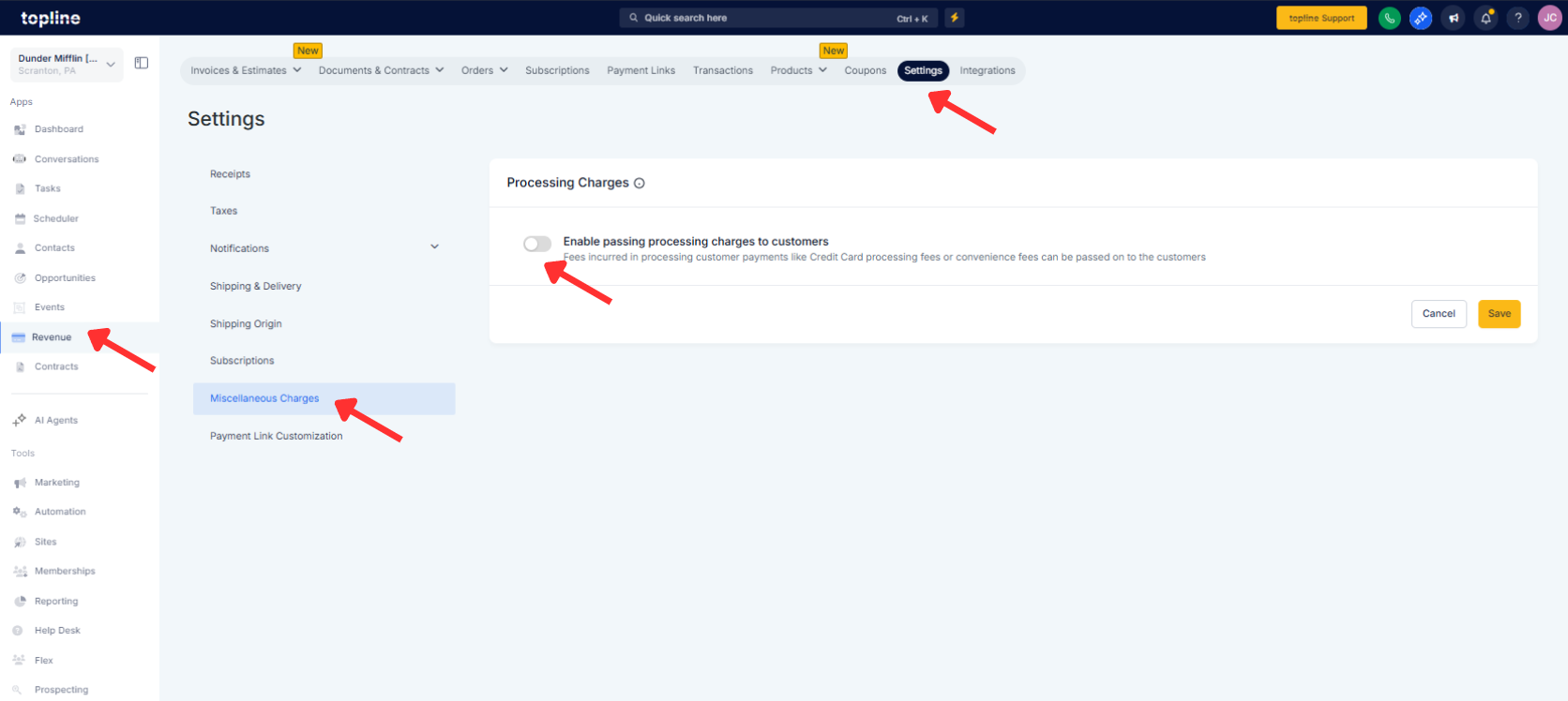
Step 1
Open Revenue, then click on Settings, and proceed to Miscellaneous Charges. Then activate the Processing Charges.
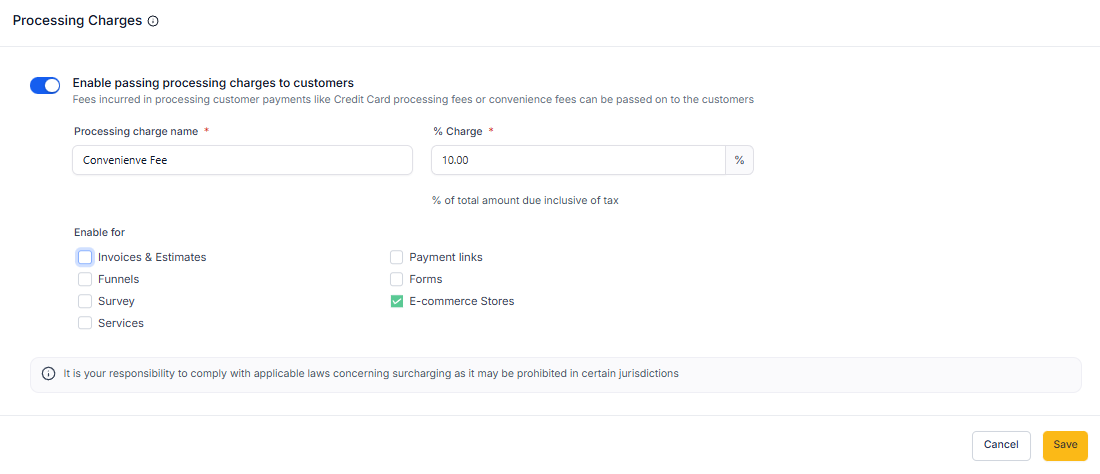
Step 2
Create a new Processing Fee and choose Fixed or Percentage. Set amount, optional minimum and maximum caps, and tax treatment. Add rules for when the fee applies, such as payment method, product tags, or order thresholds.
Which fee types are supported?
Fixed amount or percentage with optional caps.
Can I apply the fee only to certain payment methods?
Yes, scope rules apply to methods like cards or wallets.
Is the fee taxable?
Configure as taxable or non-taxable based on your region.
How are refunds handled?
Fees can be excluded or prorated according to your refund policy.
Will customers see the fee before paying?
The fee appears as a separate line item with a label and tooltip at checkout.
