Invoice payment schedules now support fully editable notifications. Choose when reminders are sent, tailor the subject and body with dynamic fields, and set different rules per invoice or template. Add multiple reminders before and after due dates, include receipts on success, and track delivery with logs. This reduces missed payments and the back-and-forth.
Editable templates for installment reminders, due today, overdue, and payment success
Dynamic fields for invoice number, due date, amount due, balance, schedule name, and pay link
Per invoice overrides or reusable templates at the account level
Flexible timing rules like days before or after due, and at specific times
Optional CC, BCC, and internal notifications for finance teams
Timezone-aware scheduling and quiet hours to prevent late-night sends
Preview, test send, and activity logs with delivery and open status
Pause or skip notifications for individual installments when needed
Keep subjects short with the invoice number and due date for clarity
Use a single primary CTA like Pay Now with a secure pay link
Add one pre due and one post due reminder to avoid inbox fatigue
Include support contact info and invoice PDF link to reduce questions
Set quiet hours and timezone awareness for a better customer experience
Review logs weekly to spot failed sends or common questions to improve copy
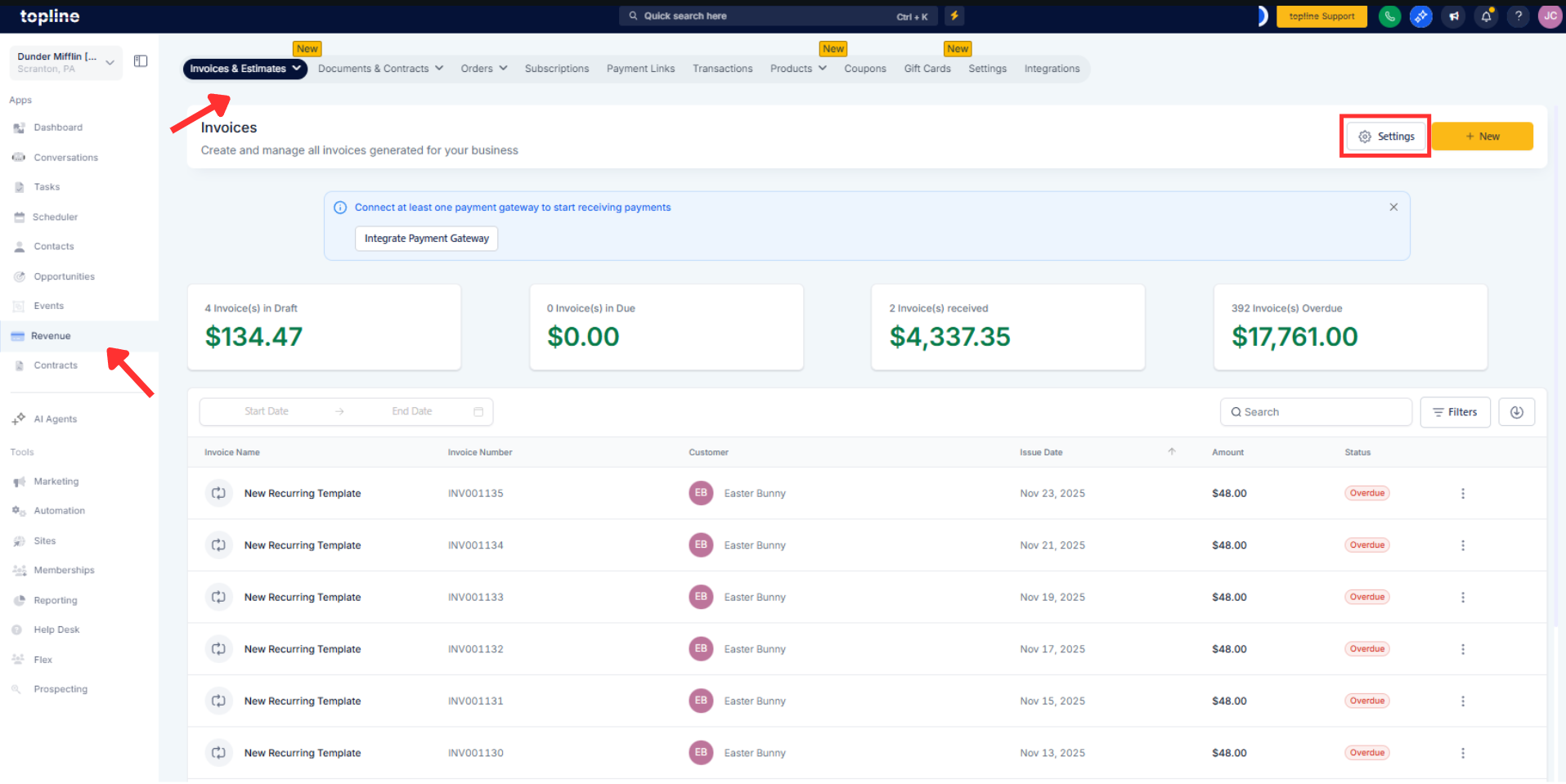
Step 1
Open Revenue and select Invoices & Estimates, then go to Settings.
Step 2
Click on Notifications > Customer Notifications. Choose a template type such as Upcoming Installment, Due Today, Overdue, or Payment Received.
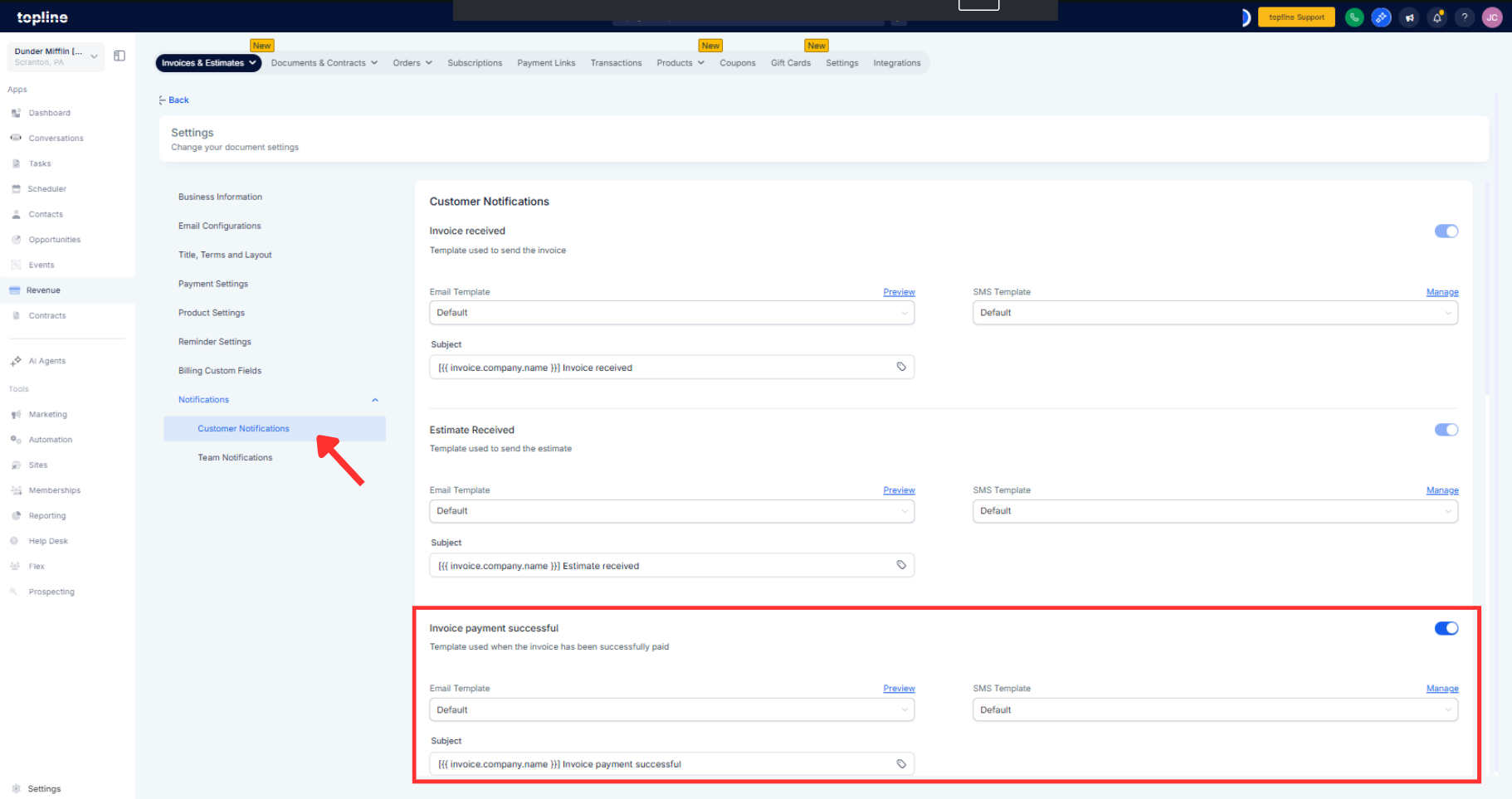
Step 3
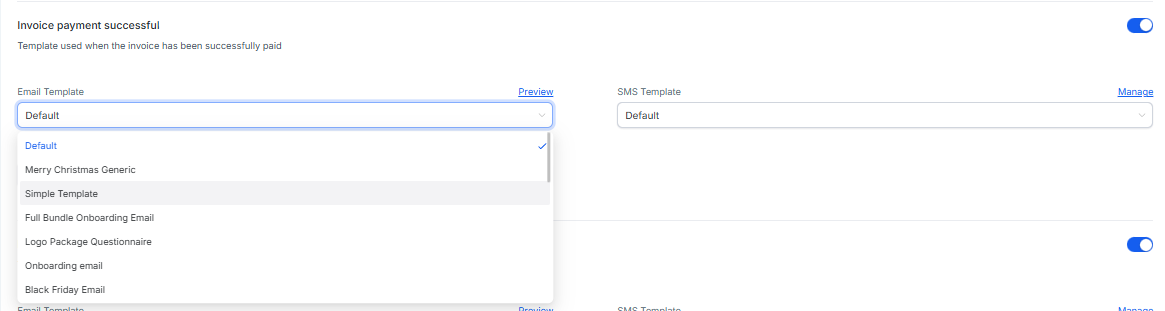
Edit subject and body, inserting dynamic fields for invoice number, due date, amount due, and pay link.
Which notifications can I edit?
Reminder, due today, overdue, and payment success templates with dynamic fields.
Can I set different rules per invoice?
Yes, use per-invoice overrides or apply an account-level template.
How are send times determined?
Schedule by days before or after due at a specific time with timezone awareness.
Can I pause notifications for one installment?
Yes, pause or skip notifications for selected schedule entries.
Do internal teams get alerts too?
Add CC or BCC recipients or enable internal notifications.
How do I verify delivery?
Use preview, test send, and activity logs for delivery and open status.
