Trigger naming is now faster and more reliable. You can rename directly in the header or canvas, see type badges and last edited info, and rely on validation that prevents duplicate or empty names. Names appear in lists, search, versions, and activity logs so teams can find and troubleshoot workflows with less guesswork.
Inline rename for triggers from the header, canvas, and side panel
Clear type badge and icon next to the trigger name
Unique name checks and empty name guardrails with quick fixes
Auto suggested defaults that include the trigger type and key detail
Consistent display of trigger names in lists, search, versions, and activity logs
Hover tooltips with full name, ID, and last edited details
Bulk backfill of readable names for existing workflows
Keyboard support for rename, confirm, and cancel
Use a consistent pattern like Event Audience Variant for quick scanning
Include the key filter or source in the name to aid troubleshooting
Avoid dates in names unless they truly matter to the trigger’s logic
Let autosuggest propose a base name, then add one unique qualifier
Review backfilled names after upgrade and tidy any legacy labels
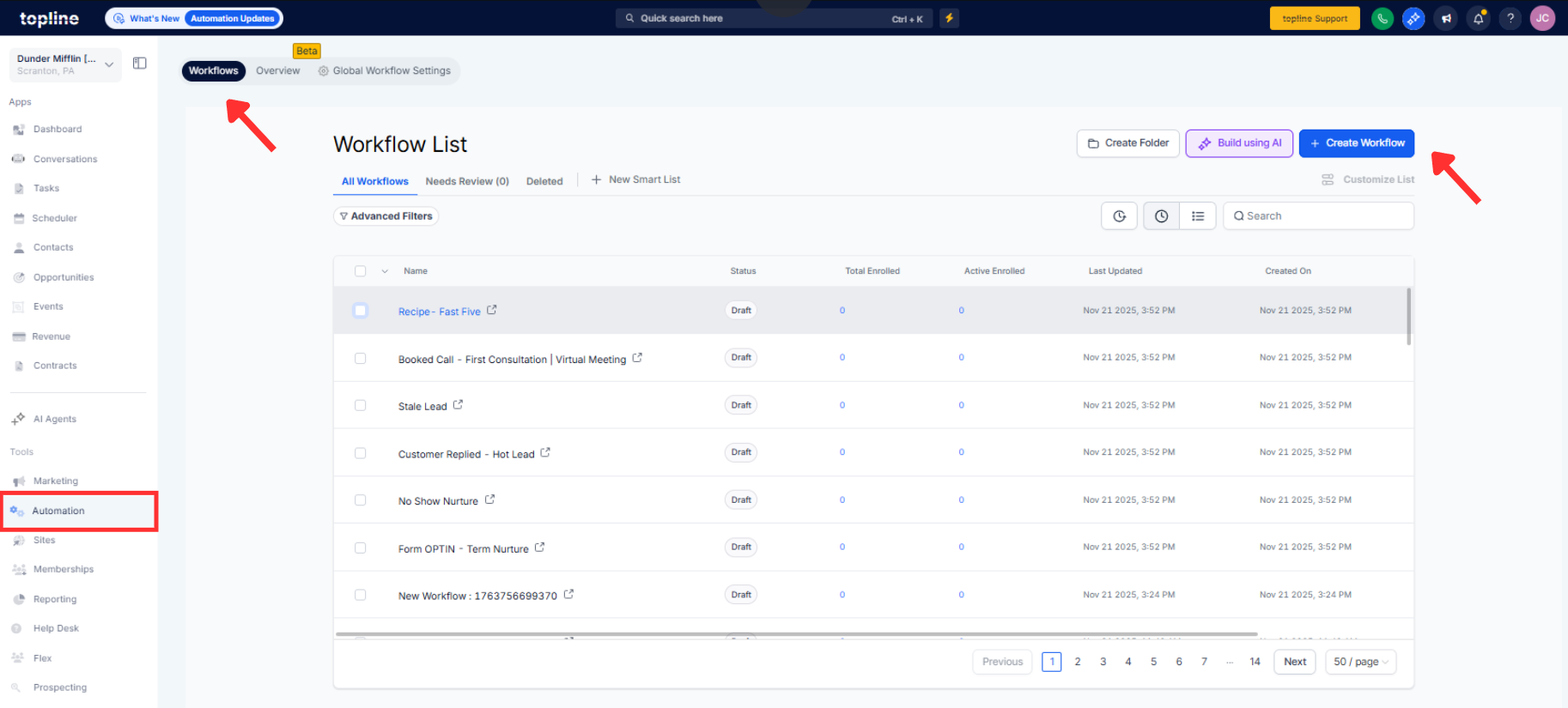
Step 1
Open any workflow and select the trigger in the builder.
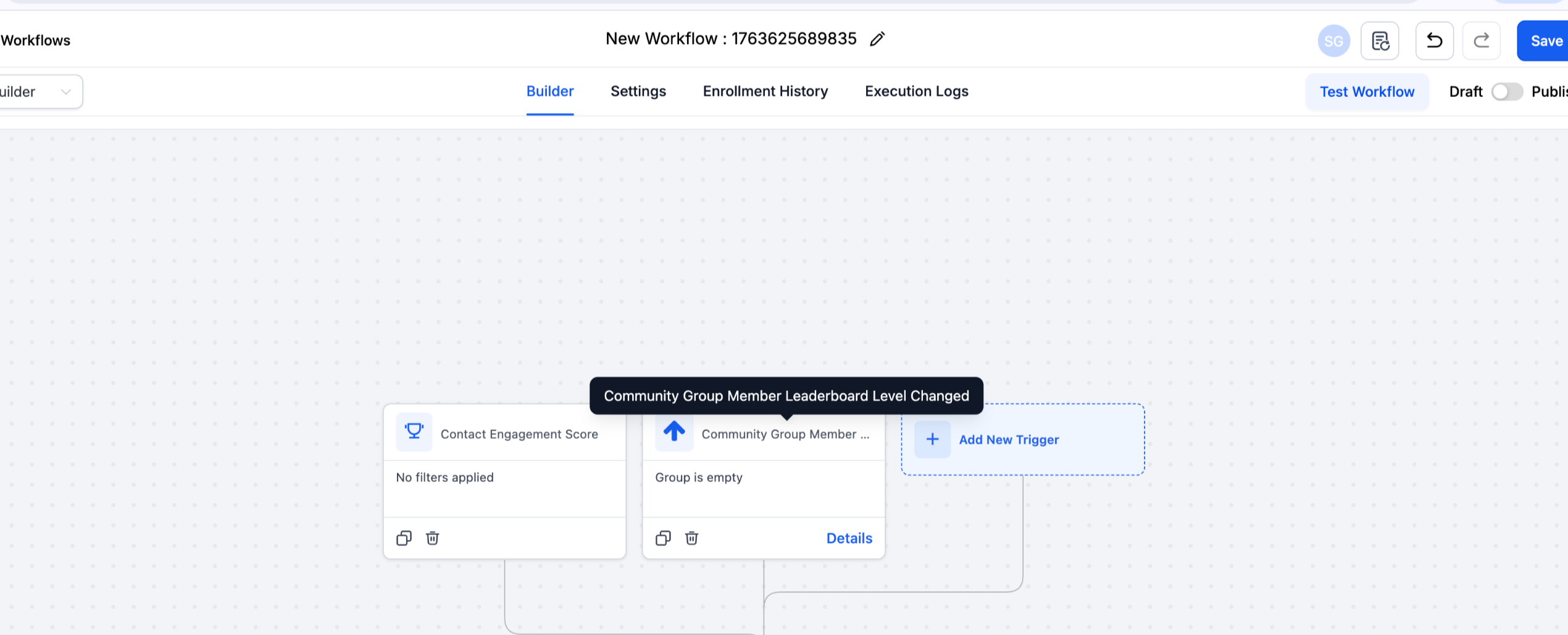
Step 2
Click the trigger name in the header or side panel to enter rename mode. Type a clear, unique name and confirm to pass validation.
What changed about trigger names?
You can rename in place with validation, type badges, and consistent display across lists, search, and logs.
Can I rename a trigger without opening a separate dialog?
Yes, inline rename is available from the header, canvas, and side panel.
How does validation work for names?
It prevents empty and duplicate names in the same workflow and prompts quick fixes.
Will existing workflows get better trigger names?
Yes, readable defaults are backfilled, and you can refine them inline.
Where will the trigger name show up?
In the workflow list, search results, versions, and activity logs for easier discovery.
