The Advanced Builder now streamlines large workflow edits. Select groups of nodes to enable or disable, format labels and notes selectively for clarity, and add common steps from a compact Quick Add menu. Multi select, keyboard support, and consistent confirmations help teams move quickly while keeping structures clean and predictable.
Bulk enable and disable for selected nodes
Multi select with click or marquee to act on groups
Selective formatting for node titles, notes, and badges
Quick Add menu for common steps with a single click to insert
Inline rename and color tagging to improve scanning
Keyboard shortcuts for select, enable, disable, and add
Confirmation prompts with impact summaries on bulk changes
Activity log entries showing who changed what and when
Group select related nodes before toggling to avoid breaking logic
Use color tags and short titles to make critical paths stand out
Keep notes focused on entry and exit conditions for faster reviews
Add steps from Quick Add to maintain consistent patterns across flows
Practice keyboard shortcuts to speed up repetitive edits
Review the activity log after large updates to verify results
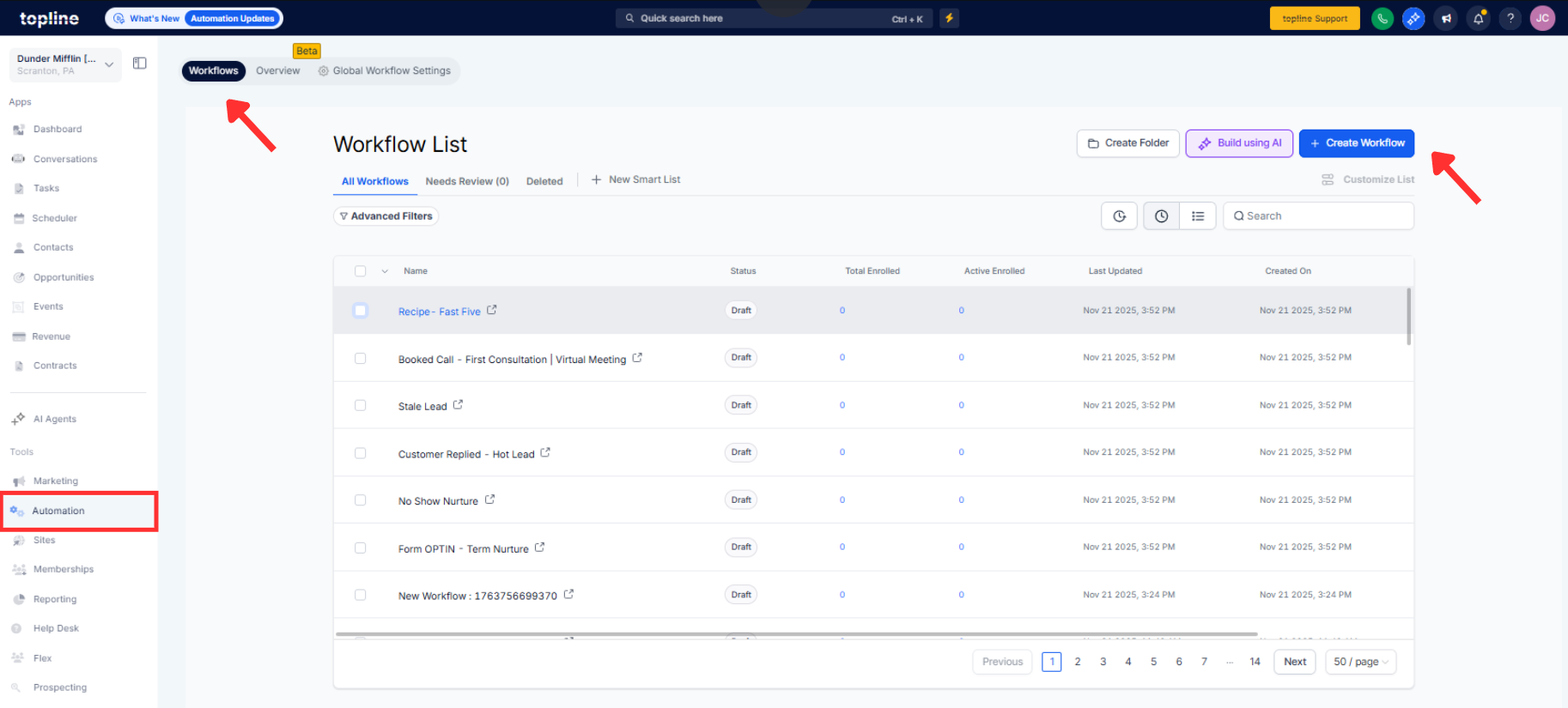
Step 1
Open any workflow and select the Advanced Builder and switch to Select mode to enable multi select.
Step 2
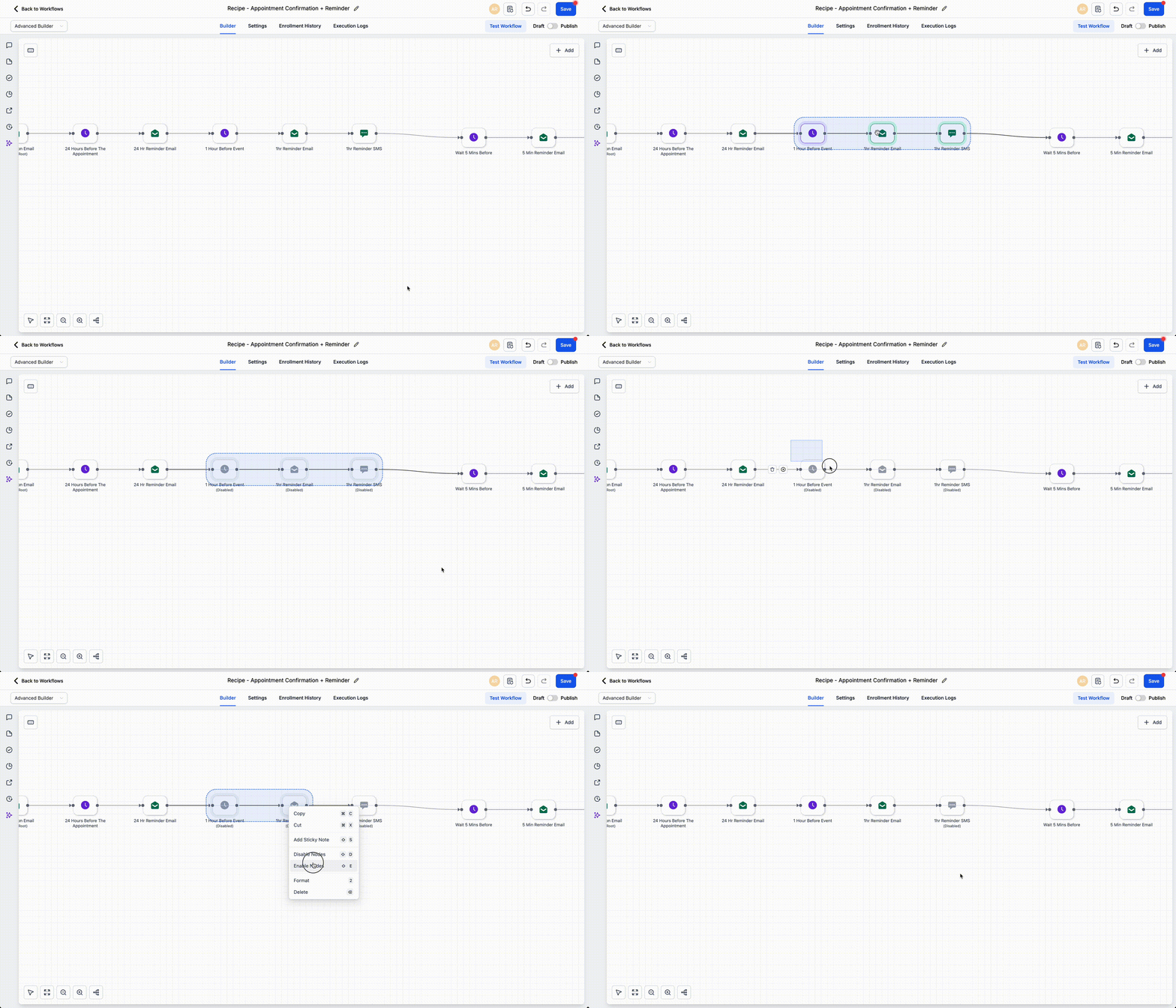
Click or drag to select multiple nodes, then choose Enable or Disable from the toolbar.
Step 3
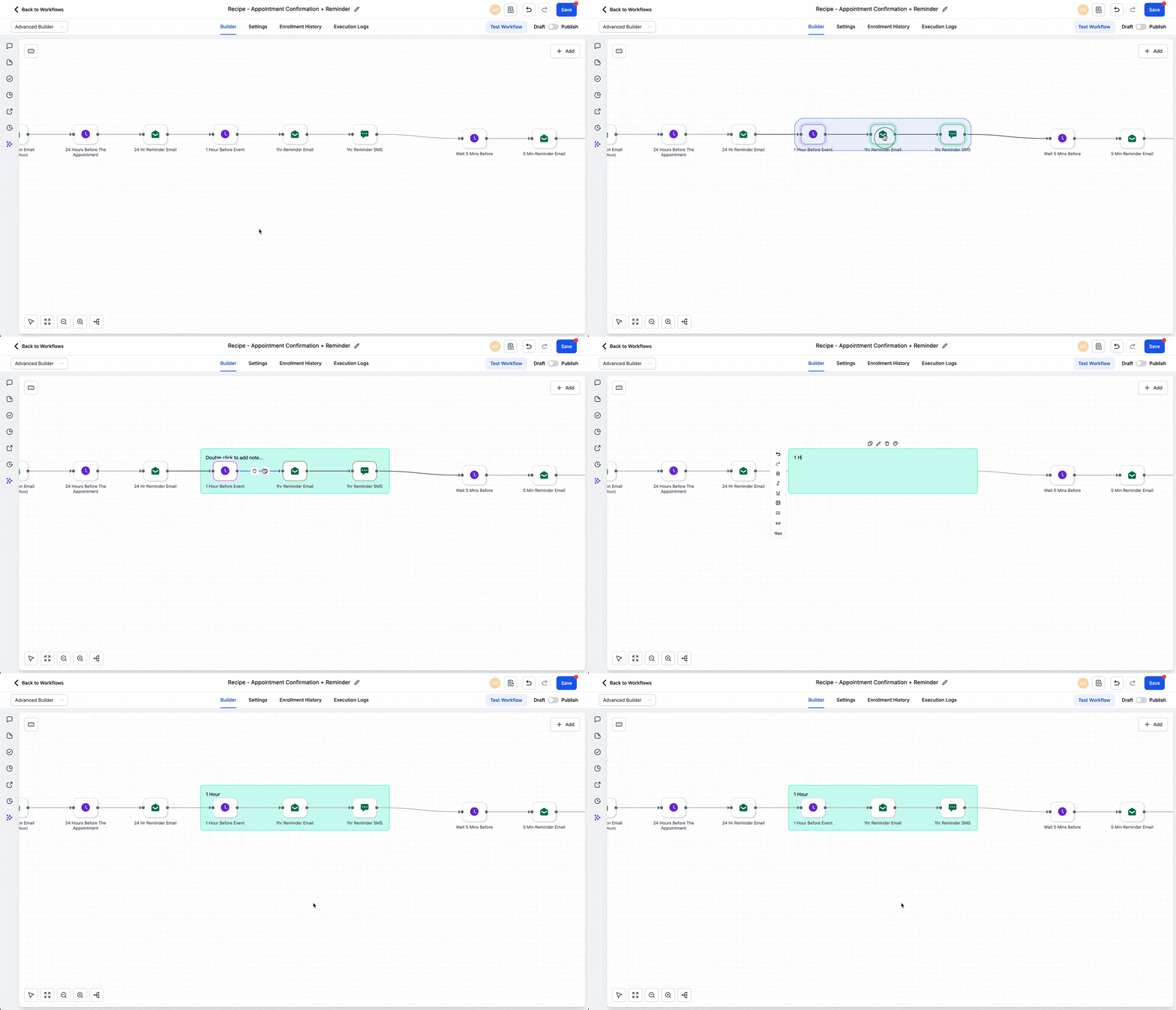
Open formatting to edit titles, notes, and color tags for the selected nodes.
How do bulk enable and disable work?
Select multiple nodes and choose Enable or Disable from the toolbar or use the keyboard shortcut.
Can I format multiple node titles at once?
Yes, selective formatting lets you update titles, notes, and tags for all selected nodes together.
What is included in Quick Add?
Common steps, such as waits, conditions, messages, and actions, can be inserted with one click.
Will bulk actions affect running items?
Bulk changes update the builder state, and live effects follow normal publish rules with confirmations.
Are there keyboard shortcuts?
Yes, shortcuts cover select, enable, disable, and quick add to speed editing.
Can I undo a bulk change?
You can use undo where supported, and all changes appear in the activity log for review.
