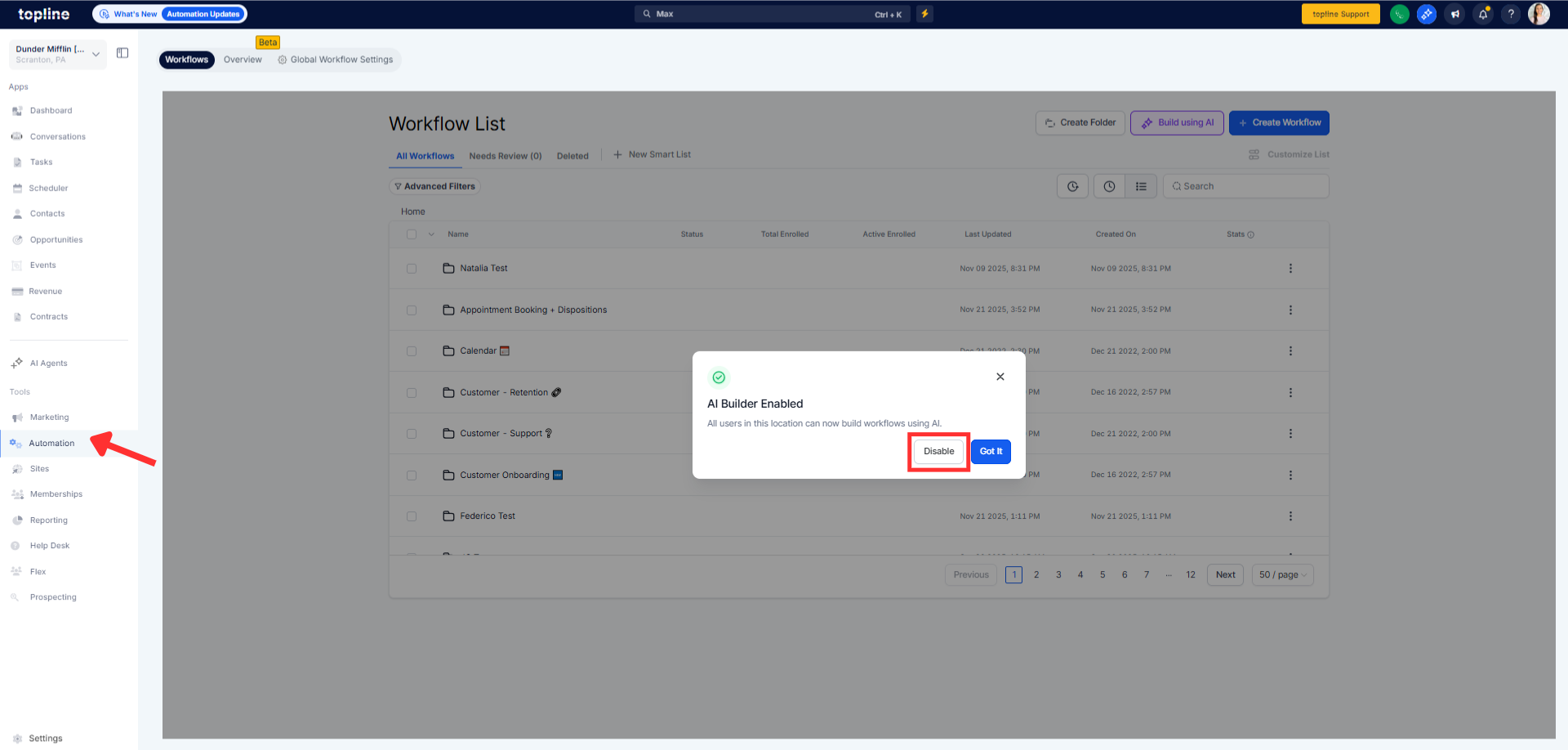
AI Builder is now enabled. Administrators retain granular control to disable it for specific locations. A lightweight in app notification confirms activation and offers a quick disable option, helping more teams draft workflows with natural language while maintaining governance.
Per location control to disable AI Builder from global workflow settings
No manual installs or per account setup required
Enable at off peak hours so teams can explore without interrupting work
Share a short naming convention for AI generated workflows to keep lists tidy
Start with low risk automations and review outputs before publishing
Use per location disable for accounts that are not ready or have strict controls
Document approval steps so editors know when to move AI drafts to live
Step 1
Go to Automations and choose Disable AI Builder for that location and save.
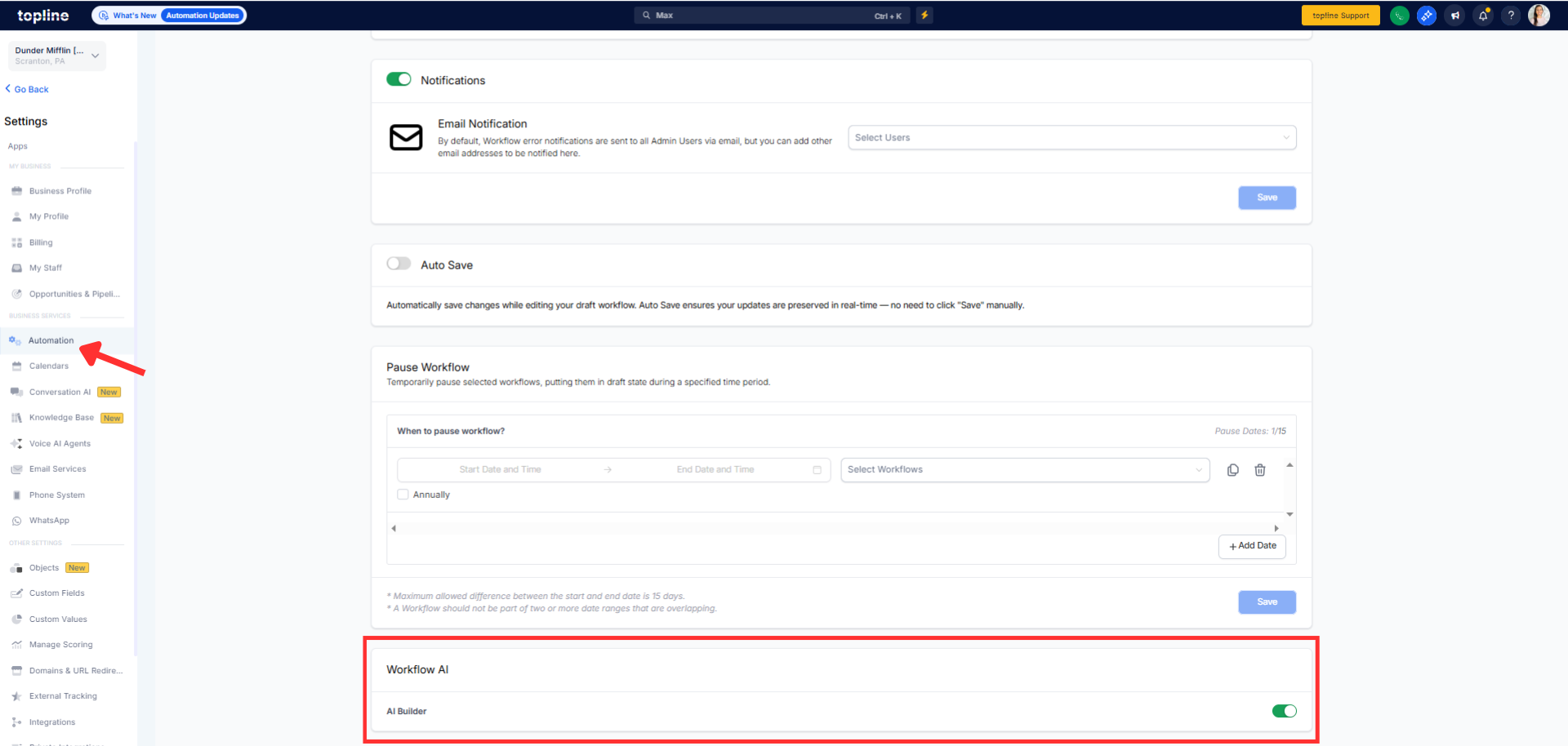
Step 2
If you would like to activate or deactivate go to settings, then automations and scroll down.
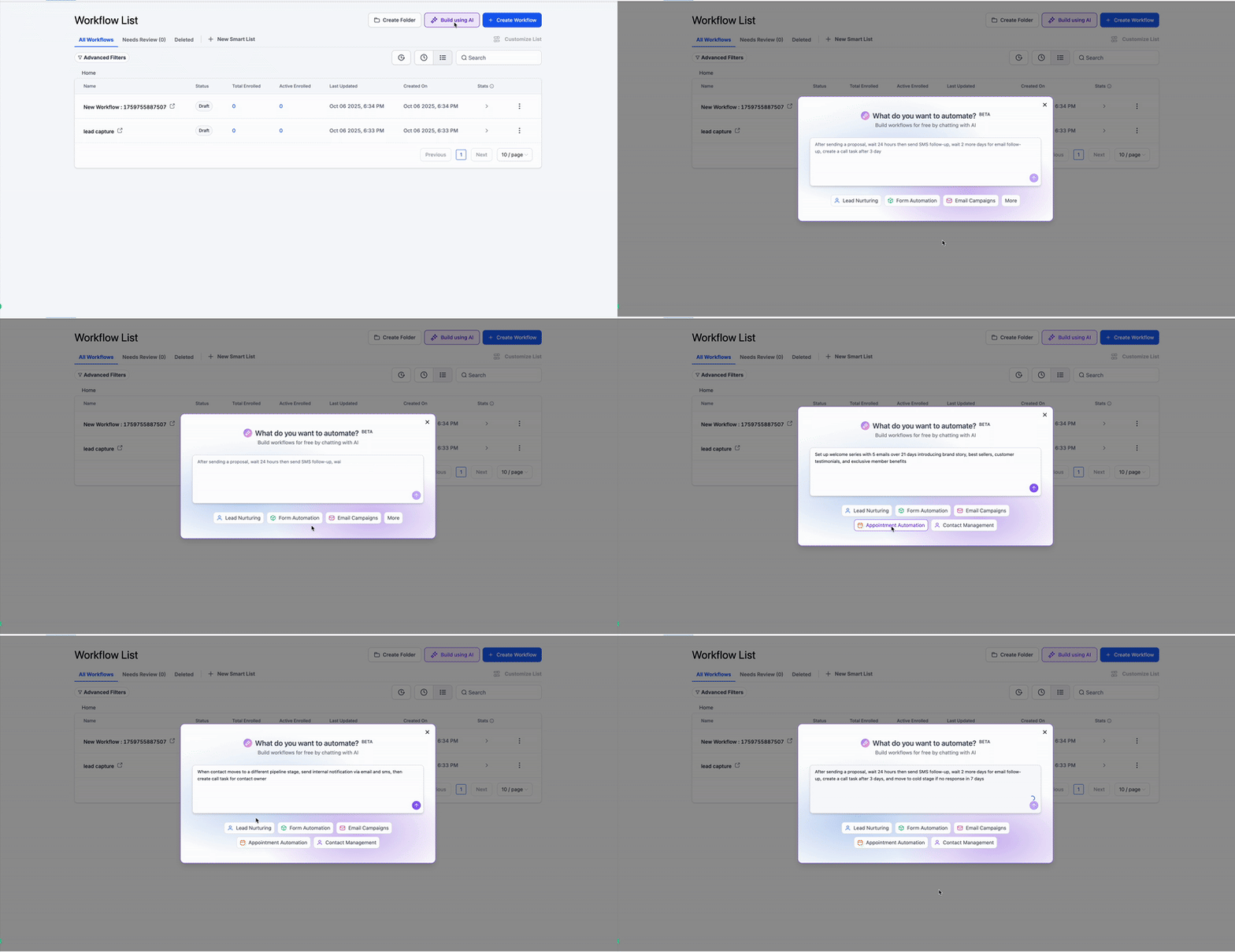
Step 3
If you activate the option, create a new workflow.
How does the automatic rollout work?
Turning on AI Builder at the account settings, then automations.
Can I disable it for a single location?
Yes, use Automations then Global Workflow Settings and select Disable AI Builder for that location.
Do the account need any manual setup?
No, there is no per account installation or configuration required.
Does enabling it affect existing workflows?
Existing workflows remain unchanged; AI Builder simply becomes available for creating new ones.
