Surveys and Quizzes now support multiple Terms and Conditions fields, matching the flexibility already available in Forms. This delivers a consistent builder experience and enables granular, compliant consent collection when your project requires multiple agreements.
Multiple Terms and Conditions fields in Surveys and Quizzes
Consistent behavior with Forms for a unified building experience
Flexible consent collection for privacy, data use, marketing, and custom policies
Cleaner UI handling for multiple checkboxes within one survey or quiz
Improved compliance options for teams with layered policy requirements
Label each checkbox clearly so respondents know exactly what they are agreeing to
Link each checkbox to its specific policy page for transparency
Make only the essential consent required, and keep marketing opt ins optional
Group related checkboxes together near the submit step for better completion
Use concise copy to prevent fatigue and boost completion rates
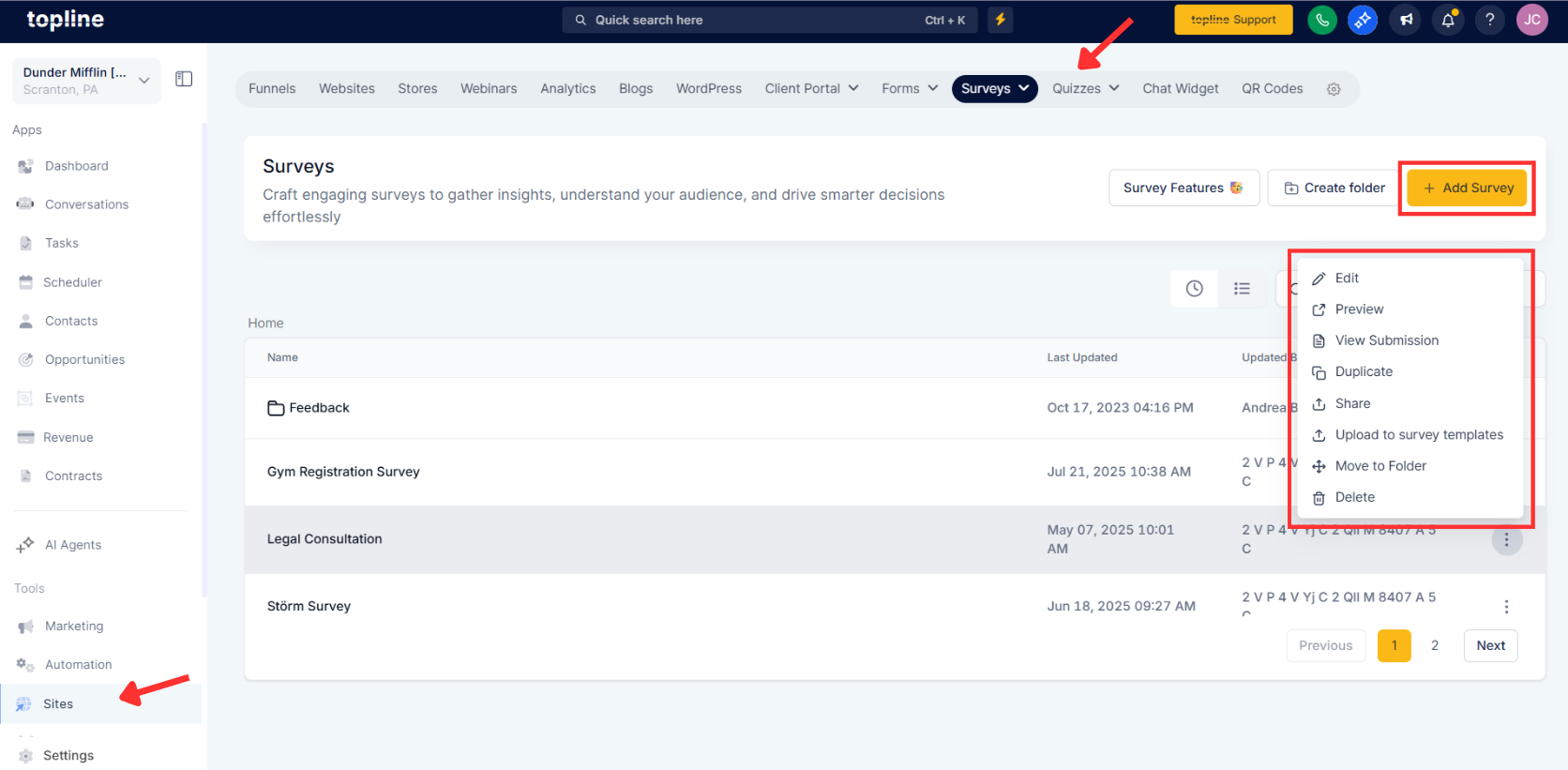
Step 1
Open Surveys or Quizzes and edit your target build.
Step 2
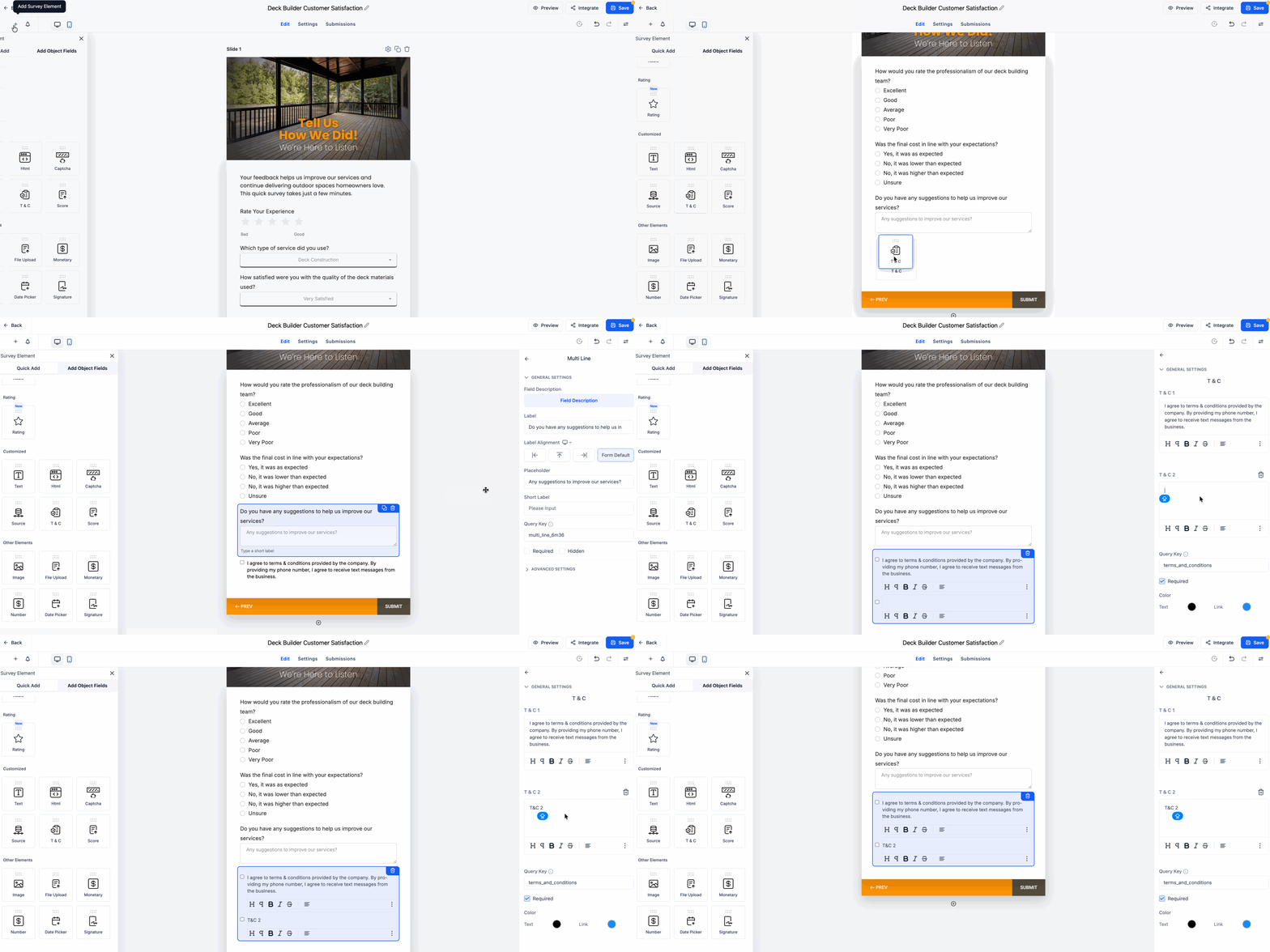
Add a Terms and Conditions field from the elements panel. Customize the label and link it to the correct policy URL. Toggle Required on or off based on your compliance needs.
How many terms and conditions fields can I add?
You can add multiple fields as needed to cover separate policies.
Can I make some consents optional?
Yes, set essential consents to required and leave marketing or optional policies unchecked by default.
Where should I place multiple checkboxes?
Group them near the submit step or in a dedicated consent section for clarity.
Can each checkbox link to a different policy page?
Yes, assign a unique label and URL to every Terms and Conditions field.
Will respondents see errors if they skip a required consent?
Required checkboxes show validation messages until selected.
