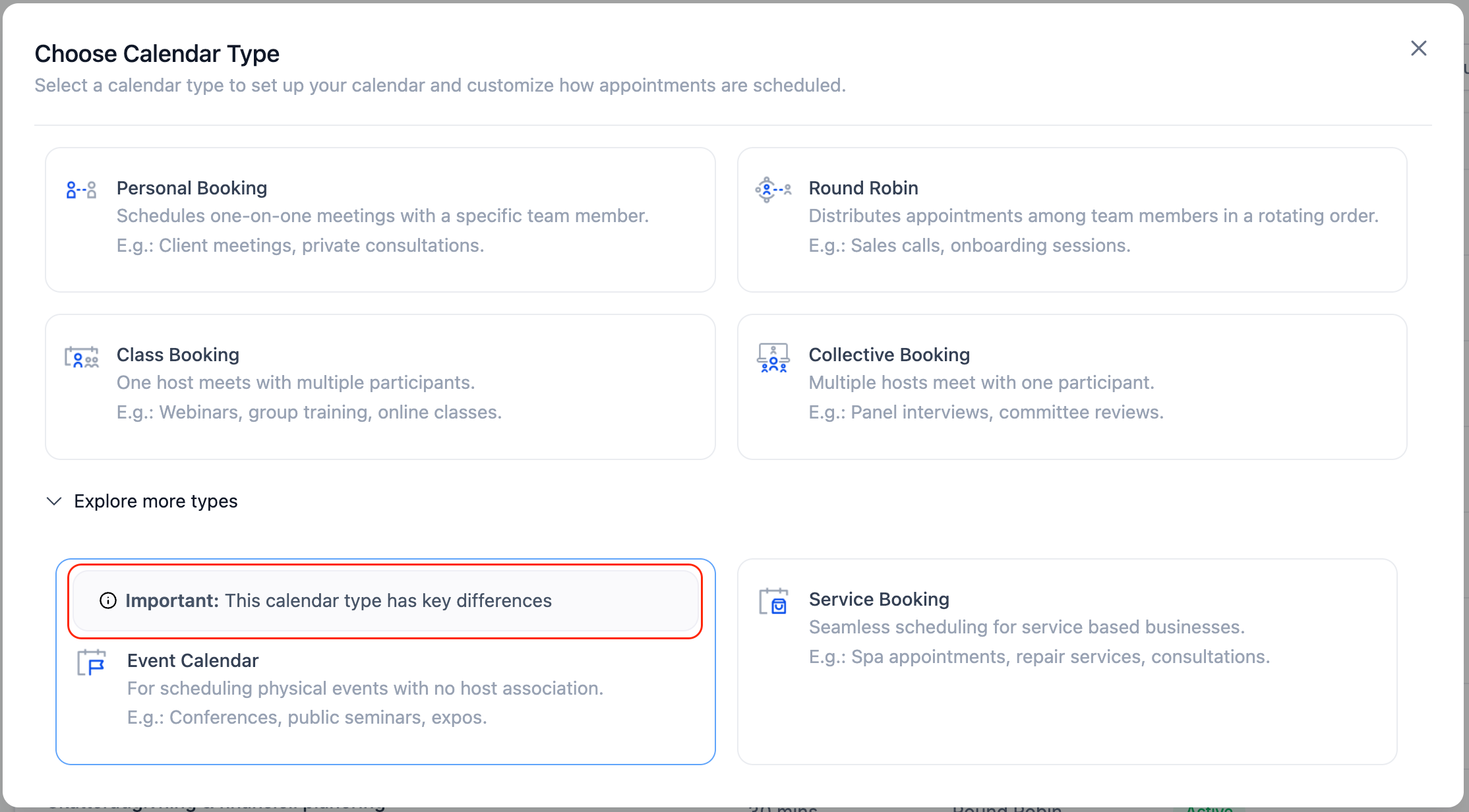
When creating or editing an Event Calendar, a helper label and info tooltip surface functional differences, such as sync behavior, assignments, and integrations. This guidance reduces confusion, aligns expectations, and reduces support requests by making important limitations and capabilities visible at the point of setup.
Helper label on Event Calendar setup and edit screens that flags key differences
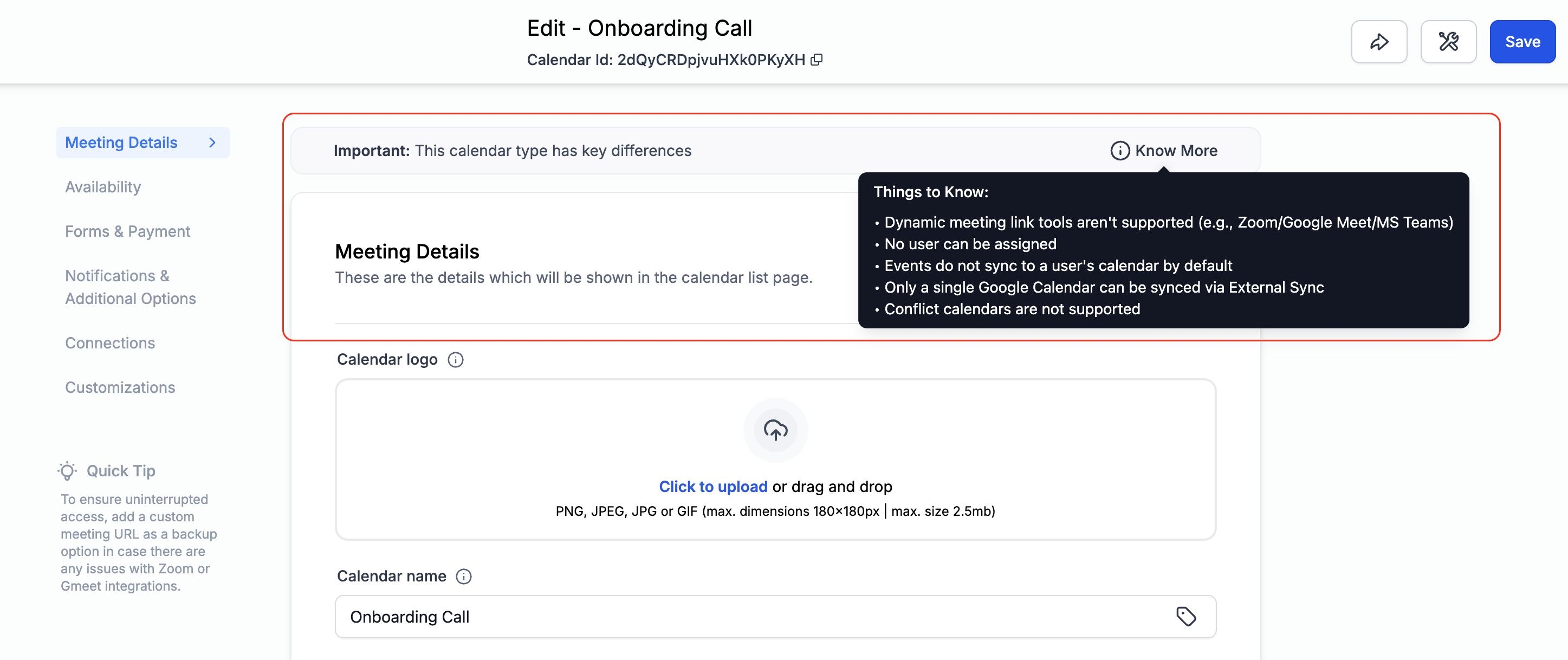
Info icon with a tooltip listing core functional differences
Contextual guidance is positioned exactly where you make calendar choices
Transparency that prevents misconfiguration and supports back and forth
Hover the info icon before finalizing to confirm Event Calendar behaviors match your use case
Share a quick internal note summarizing Event vs standard differences for your team
If you need features like advanced syncing or assignments, double check the tooltip details
Capture a screenshot of the tooltip for onboarding docs to keep everyone aligned
Revisit existing Event Calendars and add notes describing the intended behavior
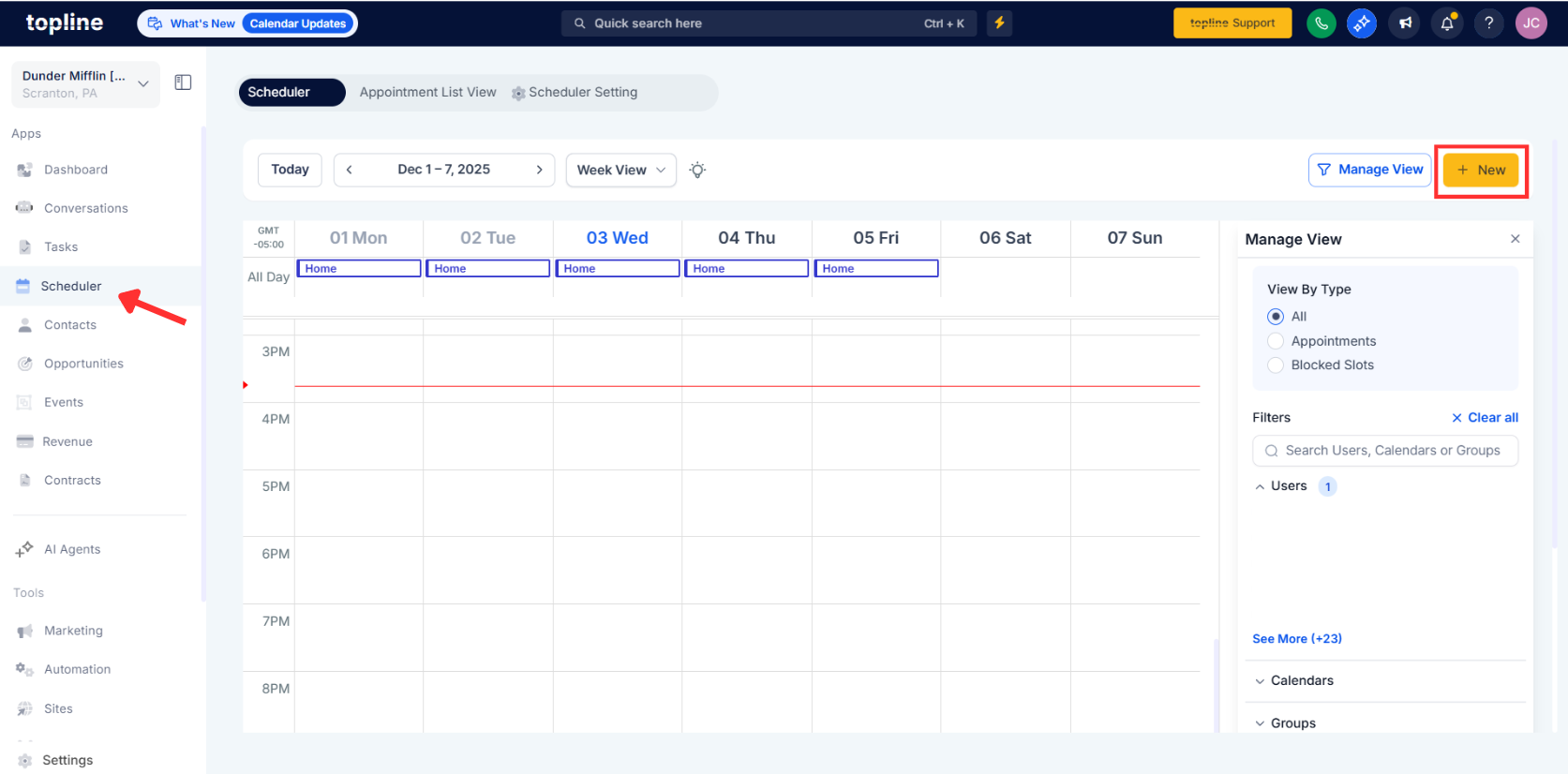
Step 1
Open Calendars and choose to create or edit an Event Calendar.
Step 2
Look for the helper label indicating this calendar type has key differences. Click or hover the info icon to read the list of functional differences.
Step 3
Confirm the behaviors fit your scenario, then proceed with configuration.
What changed on the setup screen?
A helper label and info icon now call out Event Calendar differences with a detailed tooltip.
Where do I see the key differences?
On the create or edit view for Event Calendars, hover the info icon to view the full list.
Does this affect standard calendars?
No, the messaging targets Event Calendars to clarify how they differ.
Will this change any existing events?
No, it adds guidance only and does not modify existing data or behavior.
What kinds of differences are highlighted?
Functional areas like syncing, user assignments, and integrations may work differently.
