You can now edit unpaid service appointments end to end from the appointment modal. Make structural changes like swapping services or staff, adjust add ons and variants, and update location or timing. For paid appointments, structural edits remain restricted, but you can duplicate the booking to rebook with changes. Clear messages indicate what can be edited, reducing friction and errors.
Full editing for unpaid service appointments from the appointment modal
Add or remove services and add ons with immediate updates
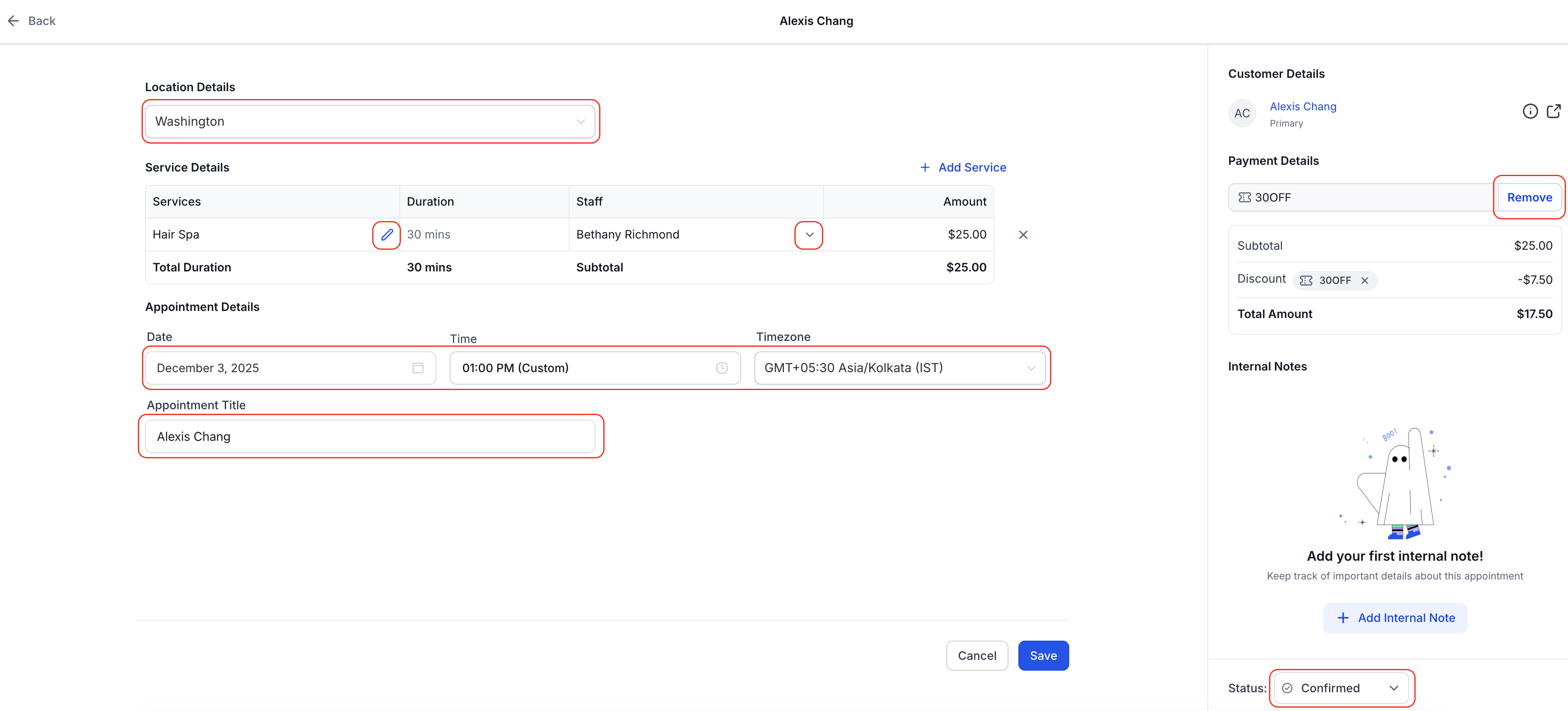
Change staff, service variants, location, title, date, time, timezone, and coupons
Guardrails and messaging that explain limits for paid appointments
Quick Duplicate option for paid bookings to clone and rebook with edits
Streamlined access from calendar and appointment list views
Confirm whether the appointment is unpaid before attempting structural edits
Use Duplicate for paid bookings to rebook with new services or staff
Standardize appointment titles so changes remain searchable
Double check timezone when moving cross location appointments
Reapply relevant coupons after editing to keep pricing accurate
Add notes summarizing the changes for a clear team handoff
Step 1
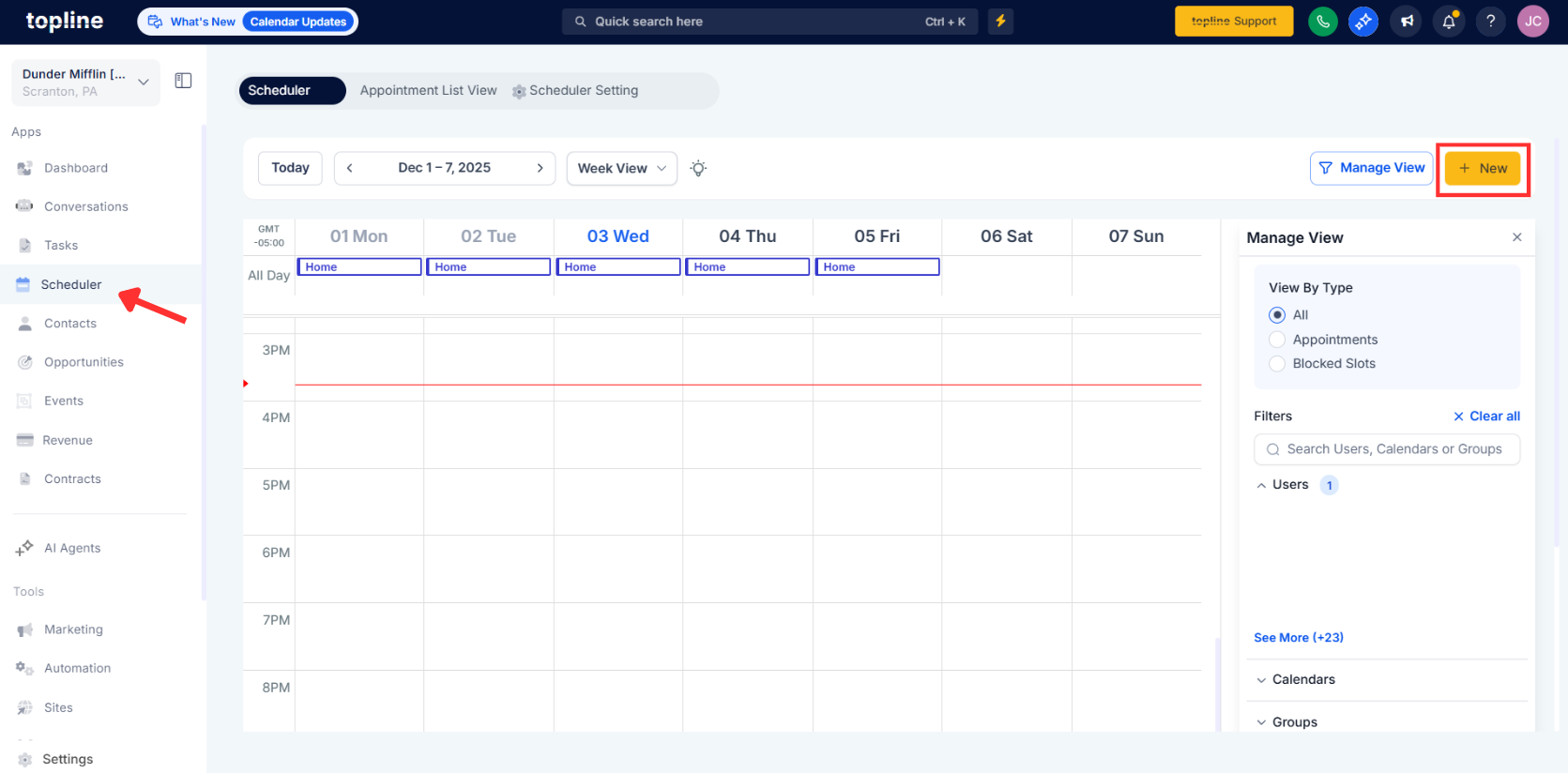
Open Calendars and switch to Scheduler view or Appointment list view.
Step 2
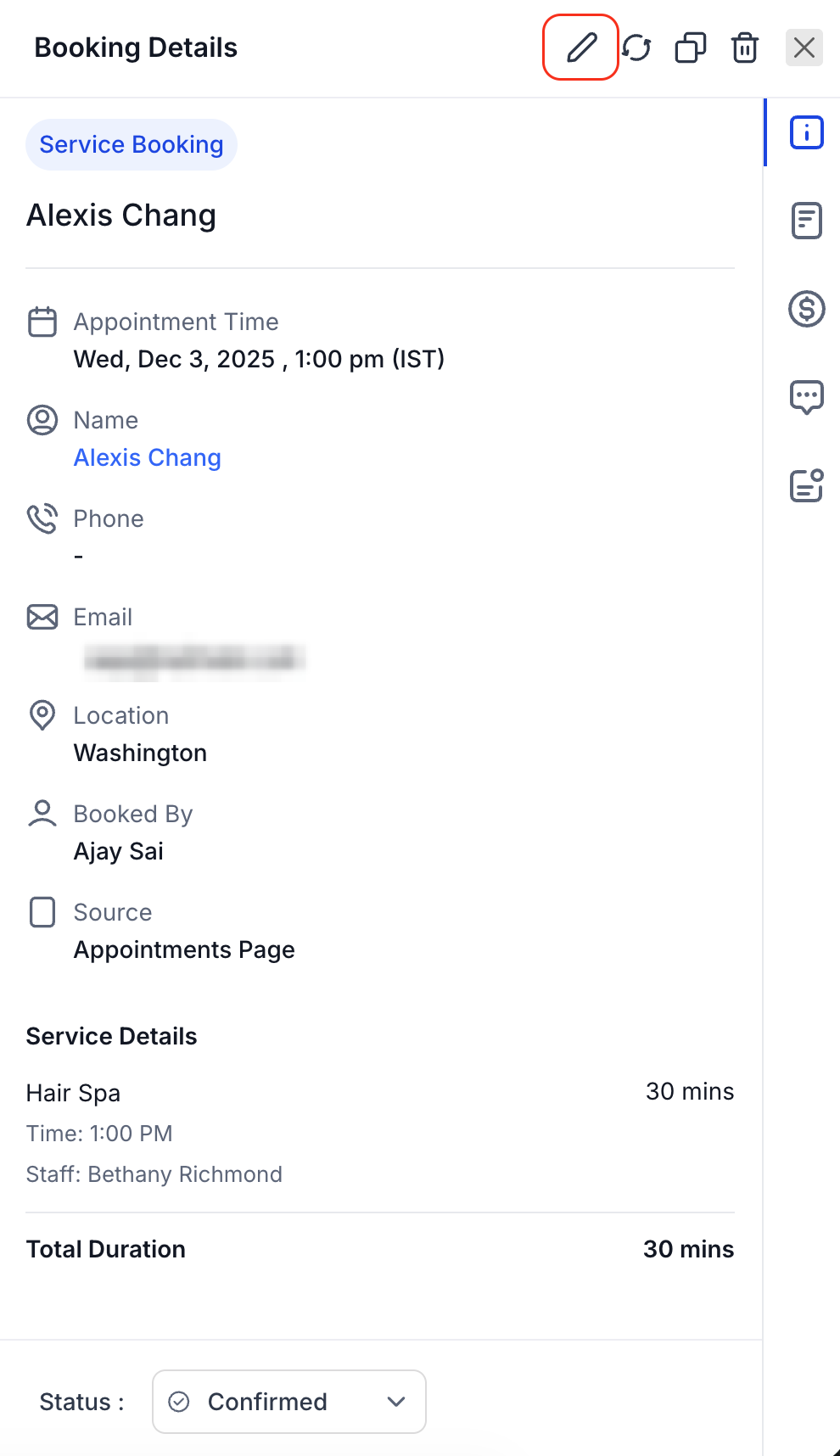
Click the pencil icon to open Edit.
Step 3
Select the service appointment you need to change.
What can I edit on an unpaid appointment?
You can change services, add-ons, staff, variants, location, title, date, time, timezone, and coupons from the edit screen.
How do changes work for paid appointments?
Structural edits remain restricted; use Duplicate to clone the booking, make changes, and rebook.
Where do I access the edit option?
Open the appointment from Calendar or Appointment list view and use the pencil icon to edit.
Will I need to cancel and rebook for small fixes?
Not for unpaid bookings. You can edit directly and save.
Do guardrails explain what is allowed?
Yes, the edit screen displays a clear message about what can and cannot be changed.
