A new notification lets assigned users know when an appointment lacks a meeting location or link. The alert respects individual notification preferences and can be delivered by email or in-app. This reduces no-shows, flags broken integrations, and ensures meetings have the necessary details before attendees arrive.
Notifications when an appointment is scheduled without a location or meeting link
Delivery channels include email and in-app, based on user preferences
Applies to cases like failed video integration or blank custom location fields
Per-user control in Notification Settings for Calendar notifications
Enable both email and in-app notifications if your calendar is busy
Verify video integrations after password or scope changes to avoid missing links
Add a checklist step for coordinators to confirm the location before sending invites
Use a standard naming pattern for custom locations to spot blanks quickly
Review recent alerts weekly to fix recurring integration issues
Step 1
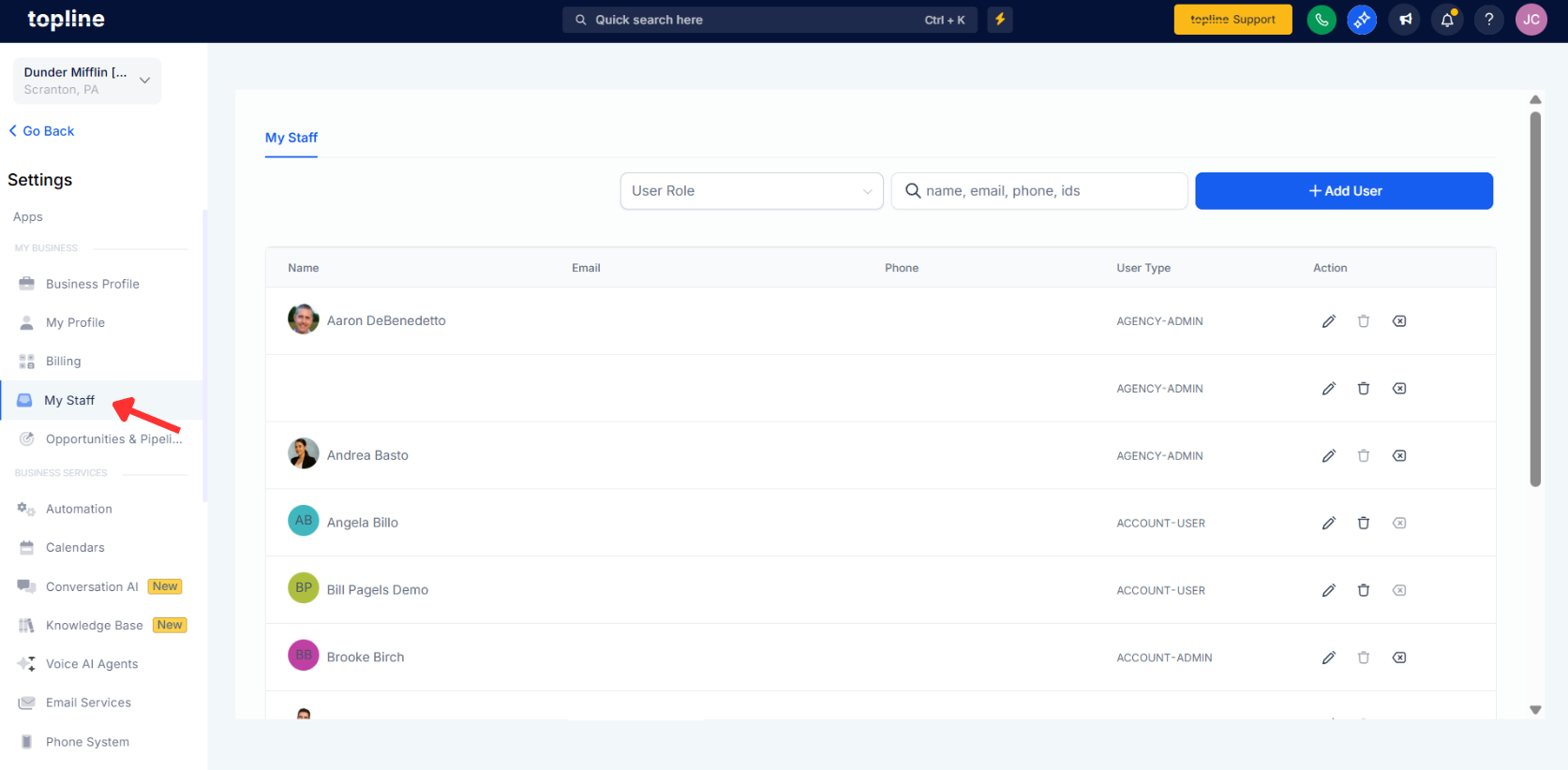
Open Settings and go to My Staff.
Step 2
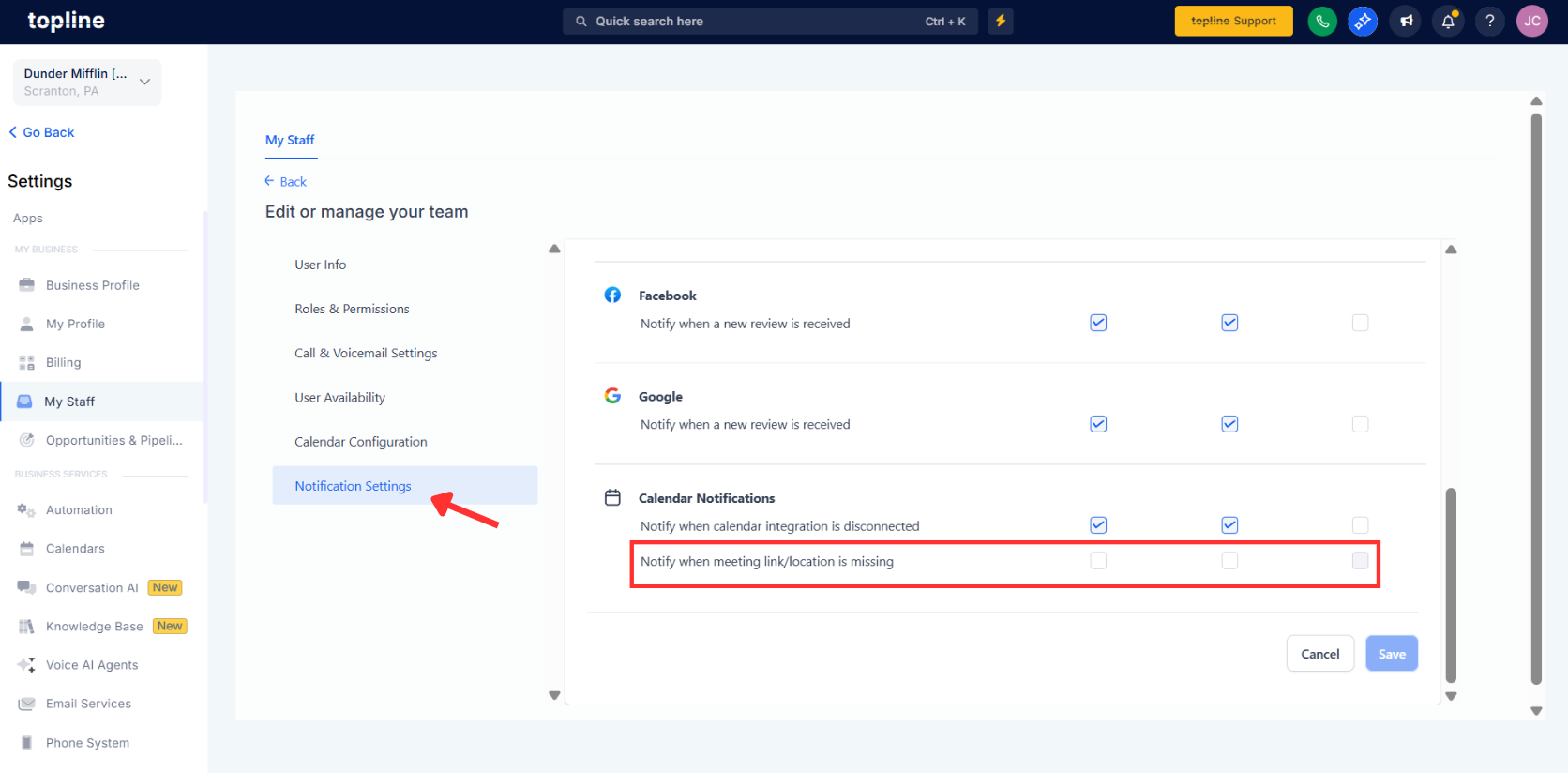
Select the staff member and open Notification Settings. Under Calendar Notifications, enable Notify when meeting link or location is missing.
Step 3
Choose delivery channels like Email and In App.
When will I get an alert?
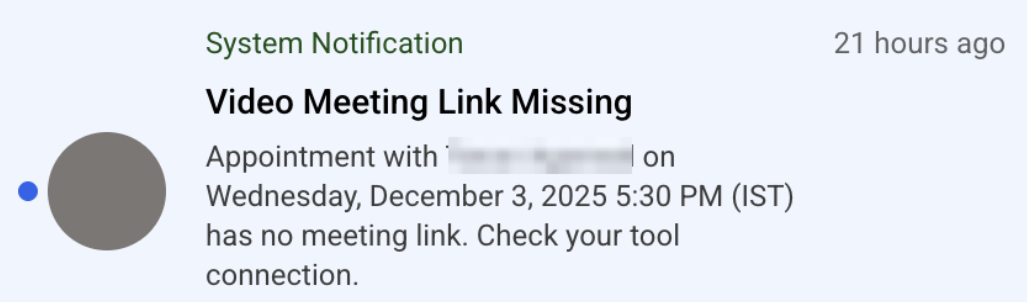
An alert is sent when a meeting is scheduled without a location or link, and you have the notification enabled.
Which notification channels are supported?
Email and in-app notifications are available based on your preferences.
Does this cover failed video integrations?
Yes, if a Zoom, Google Meet, or Teams link fails to attach, you can be notified.
Can each staff member control the alerts?
Yes, preferences are set per user in their Notification Settings.
Will every affected meeting trigger a notification?
Yes, each appointment without a location or link can generate its own alert.
