Social Planner now supports multiple watermarks. Add branded PNGs, name and preview them, and assign one per connected social account or apply to all at once. Edit or delete any watermark later with safeguards. This streamlines brand consistency across platforms while saving time.
Upload multiple watermark files and name them for easy selection
Assign a unique watermark per connected social account
Select All option to apply a watermark across all socials at once
Preview before saving and manage edits or deletes with confirmations
Existing single watermark auto migrates into the list as All Socials
Use transparent PNGs at adequate resolution so overlays look crisp on all platforms
Keep names descriptive such as Brand A Square or Brand B Dark BG
Maintain both light and dark variants to match different creative backgrounds
Standardize placement and opacity in your post templates for consistency
Review previews on mobile dimensions to ensure the mark does not obscure key content
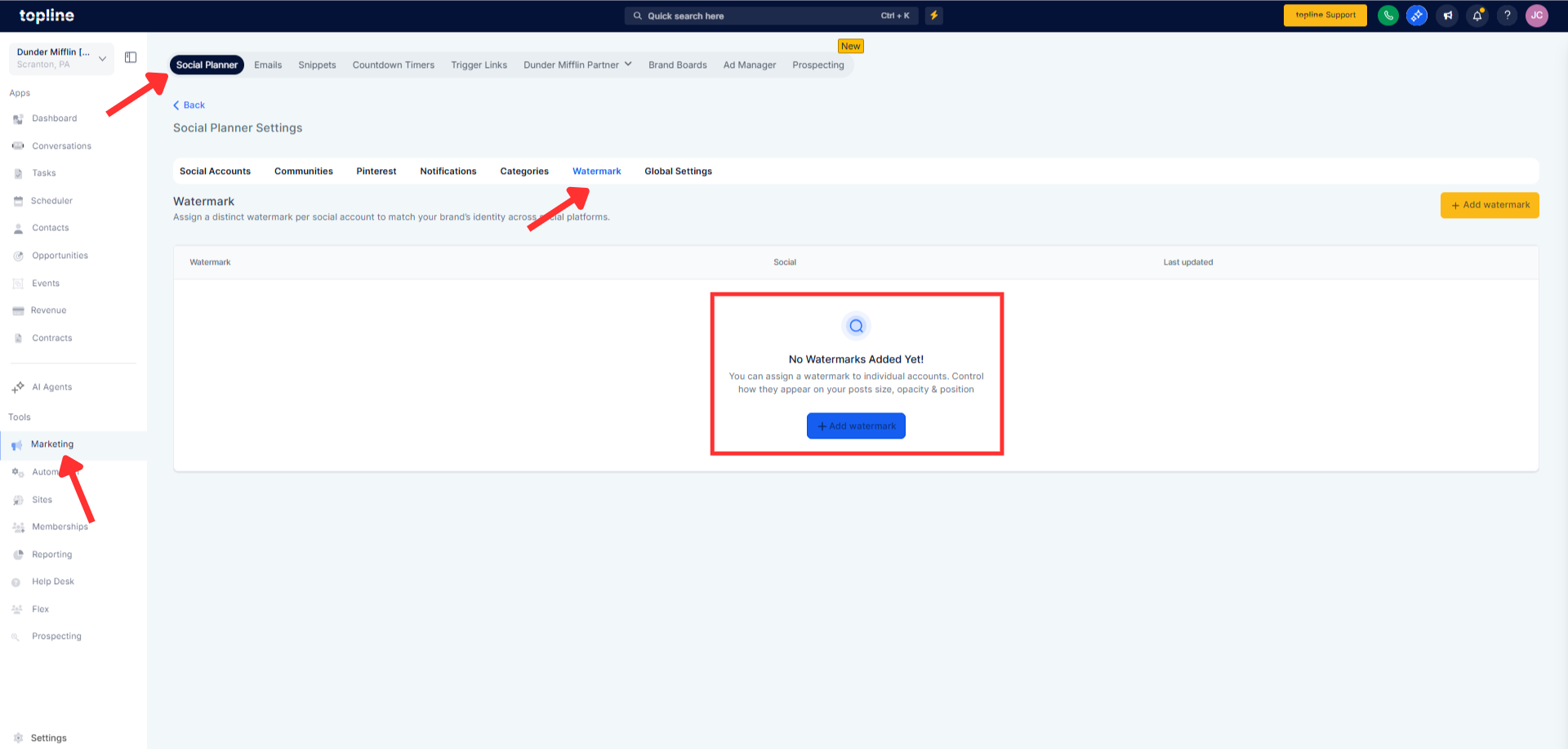
Step 1
Open Marketing then Social Planner and go to Settings. Select Watermark and click Add Watermark to upload a PNG.
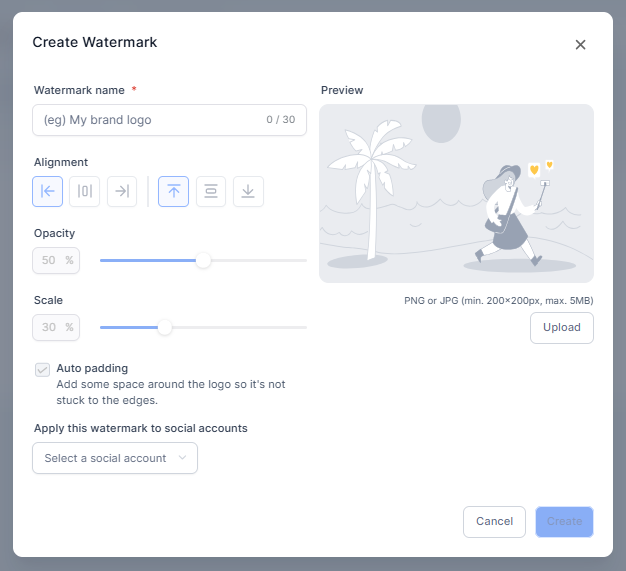
Step 2
Name the watermark and preview it to confirm clarity. Assign it to specific social accounts or choose Select All to apply widely.
Can I assign different watermarks to different social accounts?
Yes, assign one watermark per connected social account or apply one to all.
What file type and size should I upload?
Upload PNG files, with a maximum size of 5 MB for best results.
Will my old single watermark be preserved?
Yes, it appears in the new list as All Socials and can be reassigned per account.
Can I change or remove a watermark later?
Yes, you can edit or delete watermarks, with confirmations if they are in use.
Does this apply automatically when scheduling posts?
Once assigned, the correct watermark is applied to posts for the associated account.
