The On Submit message experience is upgraded with a built in rich text editor, better structure, and smart backgrounds. You can format text, split headline and subtext, customize desktop and mobile independently, and preview changes live against your actual background for confident publishing.
Built in rich text editor with bold, italics, font sizes, colors, emojis
Structured layout with headline and subtext support
Background Blur overlay that adapts to your background image
Separate desktop and mobile controls for styles and layout
Live visual preview that reflects updates instantly
Keep headlines short and clear, then use subtext for details
Enable Background Blur to boost contrast on busy images
Tweak mobile font sizes and padding to prevent wrapping on small screens
Use brand colors sparingly to keep the message readable
Preview on multiple backgrounds to ensure contrast and clarity
Step 1
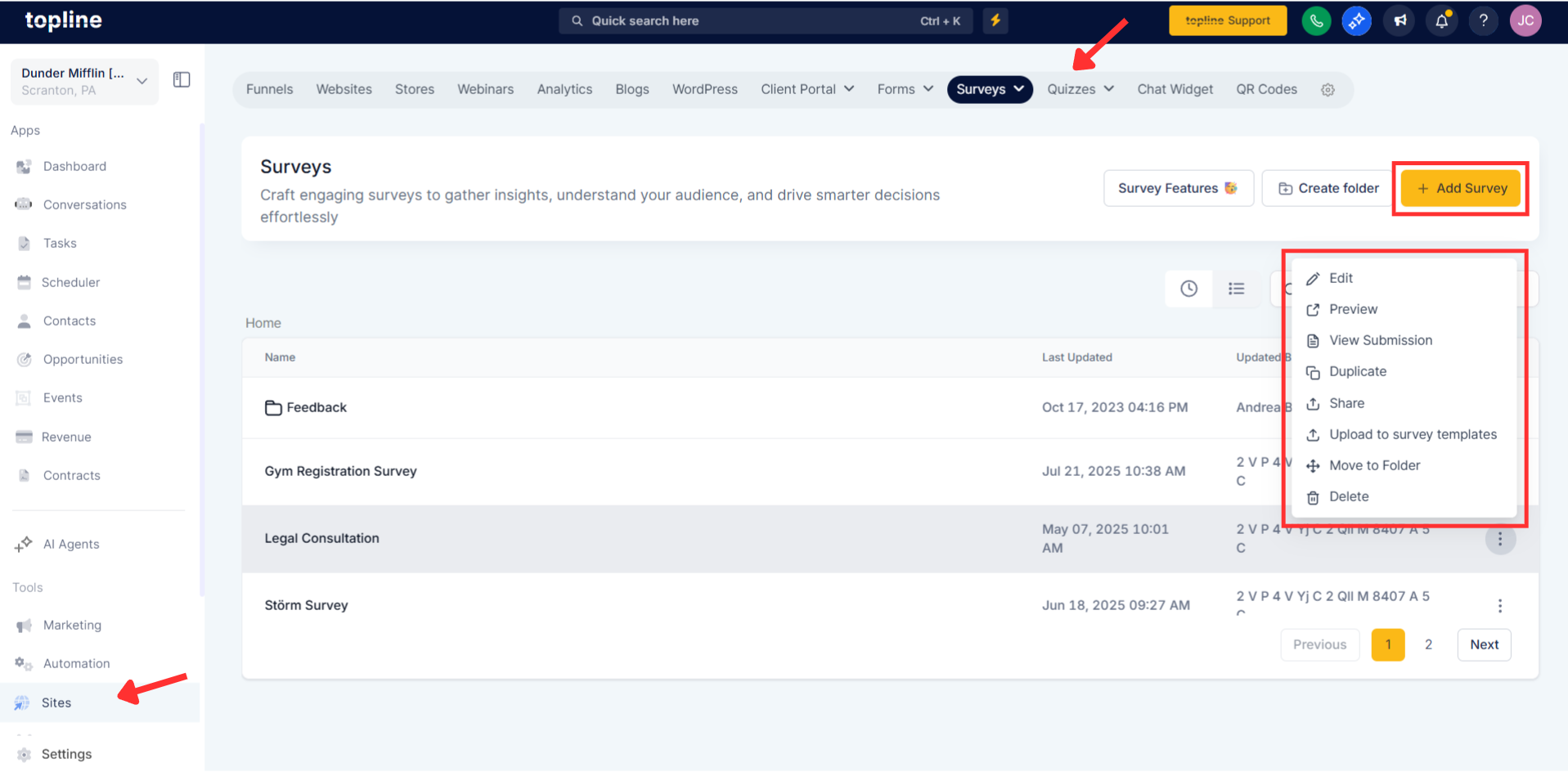
Open your Form, Survey, or Quiz and go to Settings on submit the message styling.
Step 2
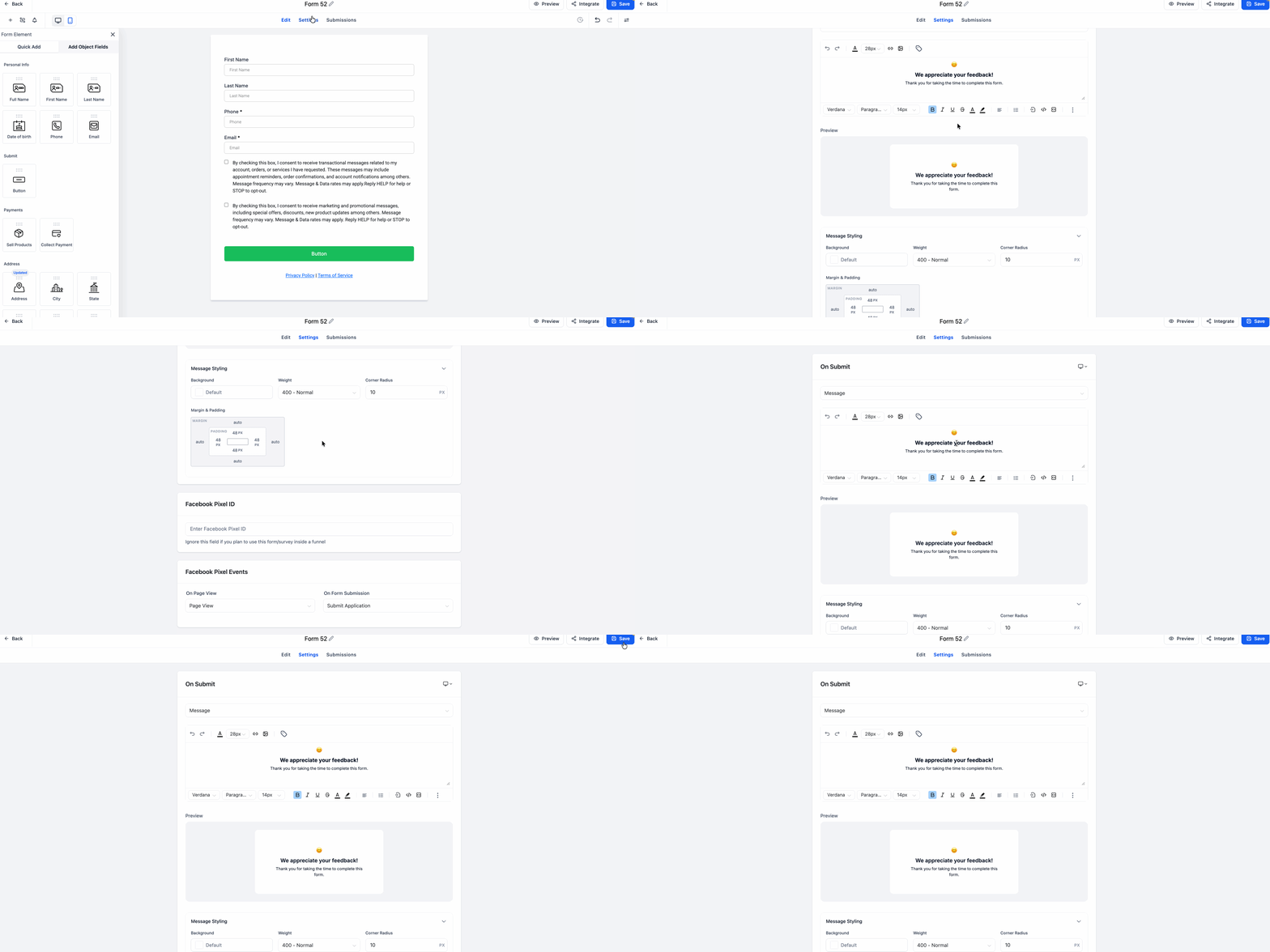
Write and format the message using the rich text editor. Use the device toggle to customize desktop and mobile independently. Turn on Background Blur or set a solid or transparent background.
What can I format in the on-submit editor?
Inline styles like bold, italics, sizes, colors, and emojis for headlines and subtext.
Can I set different styles for mobile and desktop?
Yes, device-specific controls let you style each independently.
How does background blur work?
It adds a subtle overlay that adapts to your background image for better contrast.
Where do I preview the message?
Use the live preview in the builder to see updates instantly on your background.
Do I need custom code for styling?
No, all controls are available directly in the editor and style panel.
