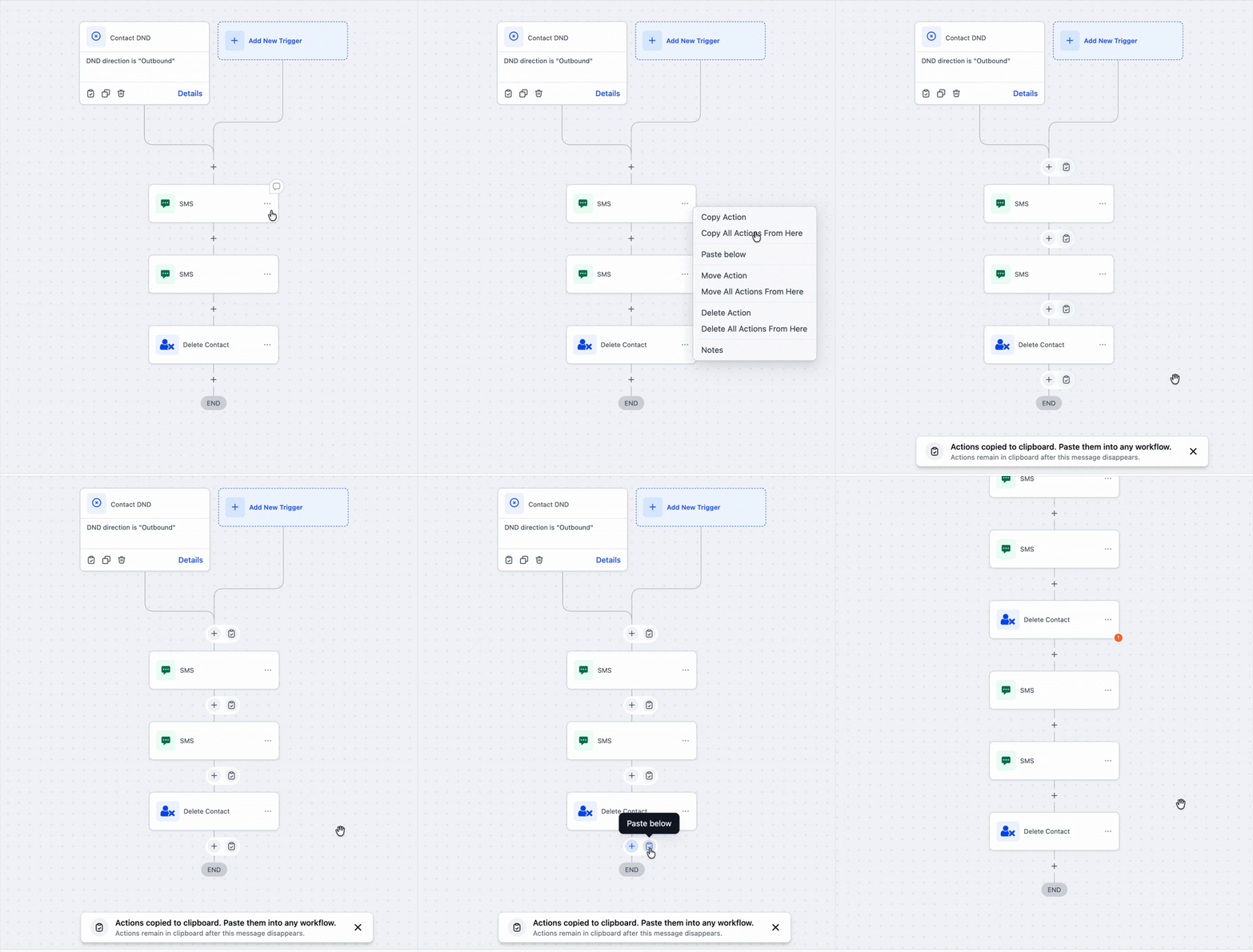
The copy and paste experience in the workflow builder now shows where actions can be pasted with clear, glowing guides, supports rapid repeat pasting near the plus icon, and auto-hides the Actions Copied banner after eight seconds to reduce clutter.
Visual paste guides with glowing animations that show valid paste targets
Quick re-paste by hovering near the plus icon to reuse the last copied action
Auto-hiding Actions Copied banner after eight seconds for a cleaner canvas
Paste guidance works in the same workflow, across different workflows, and in separate tabs
Use visual paste guides to avoid misplacing actions in complex branches
Keep frequently reused actions on your clipboard to speed repetitive builds
Paste near plus icons to drop actions exactly where you intend
After large copies, wait for the banner to auto hide to keep your view clear
Test pasted actions once to confirm mappings and references carried over
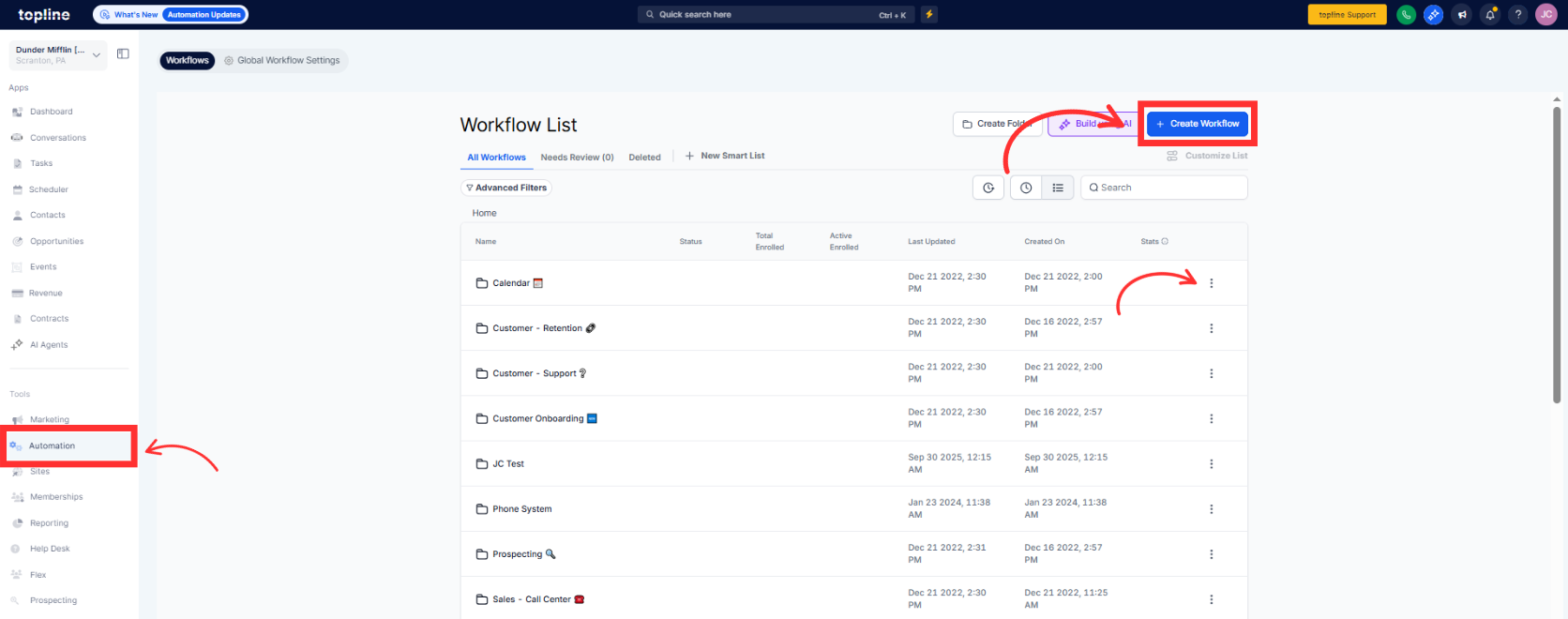
Step 1
Go to Automations, then create a new workflow or edit an existing one.
Step 2
Open a workflow and copy an action you want to reuse. Navigate to the paste location in the same workflow or another workflow tab.
Where do visual paste guides appear?
Guides show valid drop targets in the same workflow, other workflows, and separate tabs.
How do I paste the same action multiple times quickly?
Hover near the plus icon and use the quick re-paste behavior without re-copying.
Will the actions copied banner block my view?
No, it auto-hides after eight seconds to reduce clutter.
Can I paste across different workflows?
Yes, paste guides appear when switching workflows or working in another tab.
Do you know if past actions retain their settings?
Pasted actions bring their configuration; review any references or mappings after pasting.
