Media Storage is now integrated into Services V2, so teams can pull images from uploaded assets or connected sources like Unsplash, Pixabay, and Google Drive. Use it wherever visuals appear, including service images and booking page logos, to speed setup and keep branding consistent.
Browse and insert images directly from Media Storage inside Services V2
Manage the Service Image and the Company Logo from the same library
Access assets from uploads and connected sources such as Unsplash, Pixabay, and Google Drive
Consistent, centralized media handling across the module for faster setup
Standardize image sizes and aspect ratios for services to keep listings uniform
Create folders by location or category in Media Storage for quick selection
Use high contrast logos for booking pages to improve readability on all backgrounds
Add descriptive file names so teammates can find the correct asset quickly
Audit old uploads periodically and archive unused files to reduce clutter
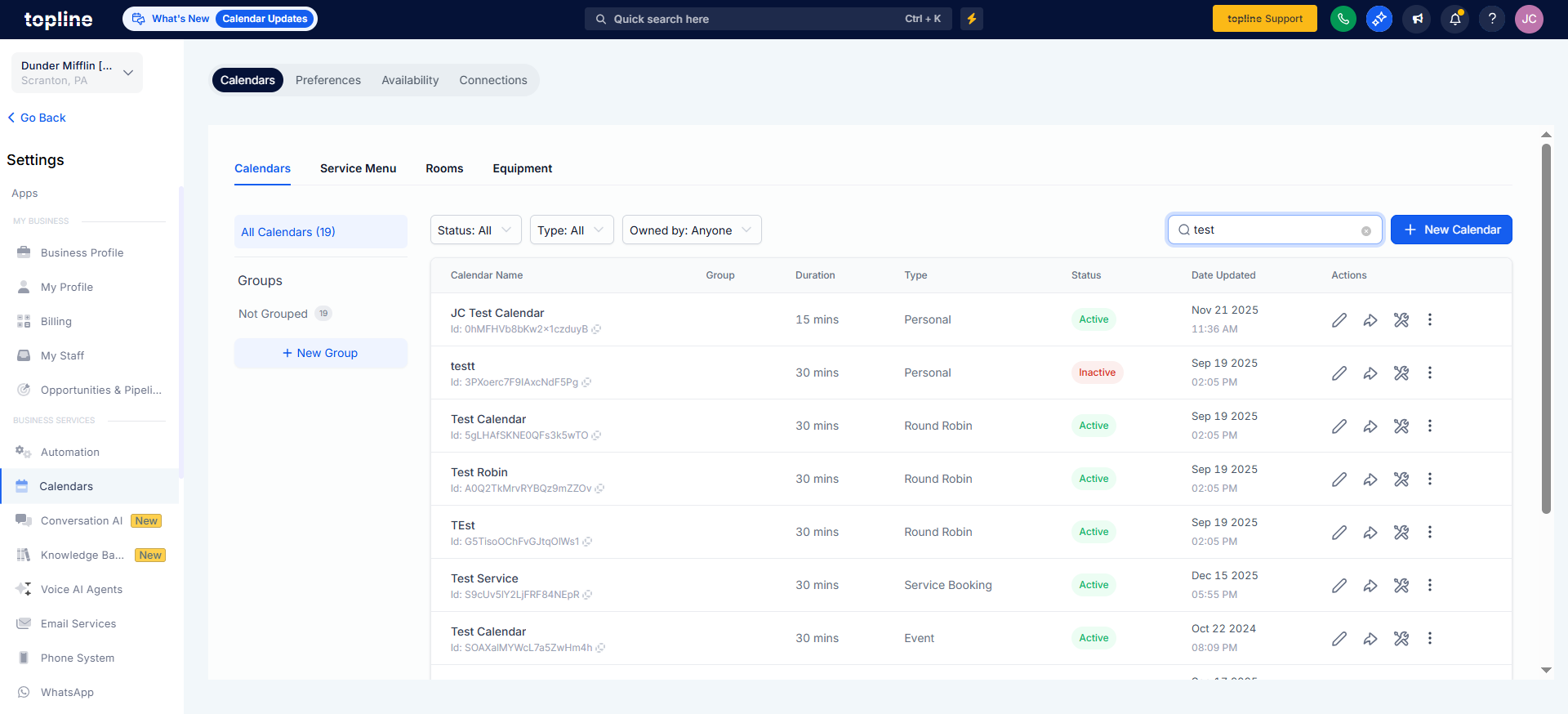
Step 1
Open Services and choose the area you want to edit, such as Services, Staff, or Locations.
Step 2
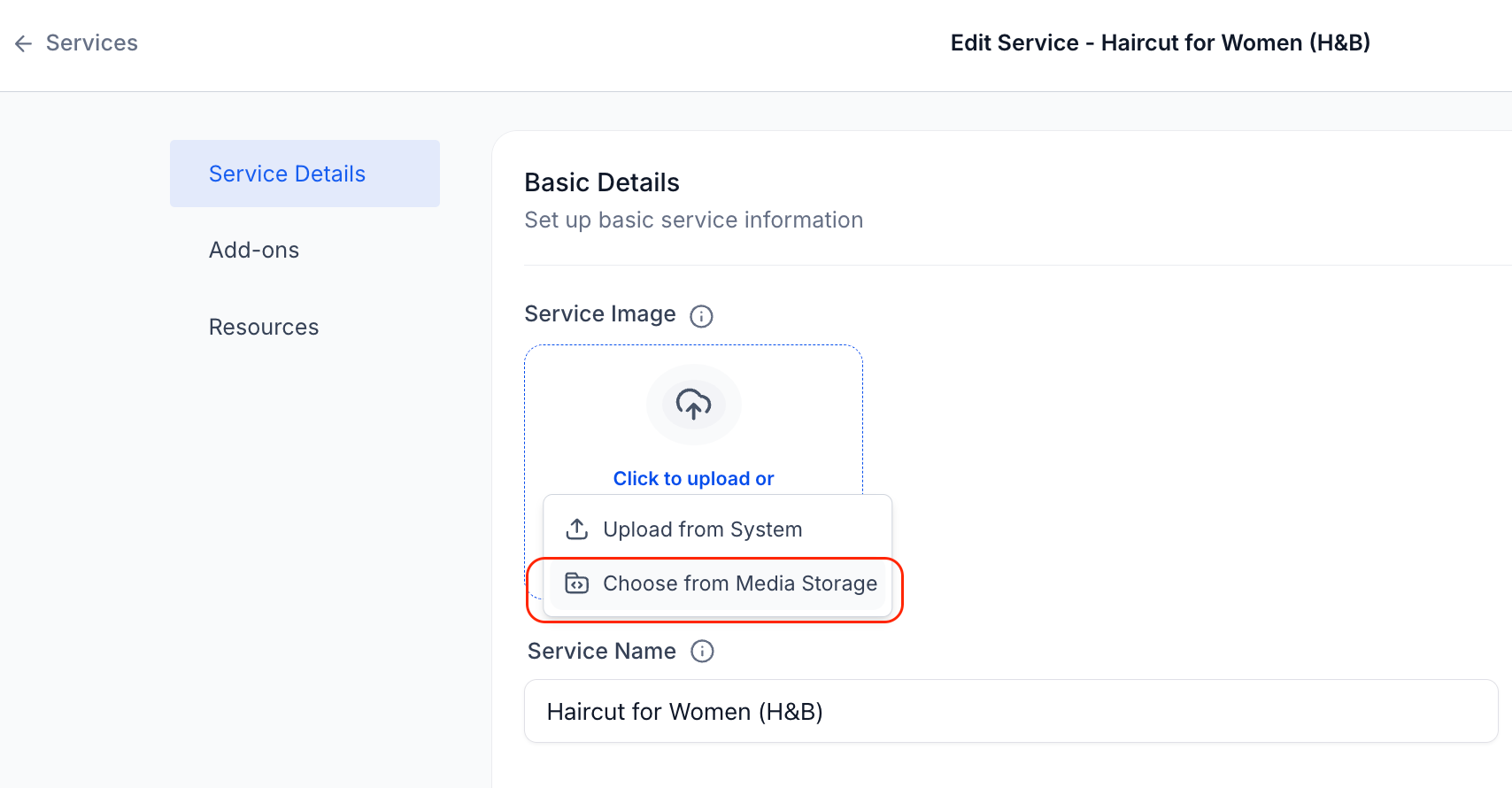
Click the image field and select Media Storage.
Step 3
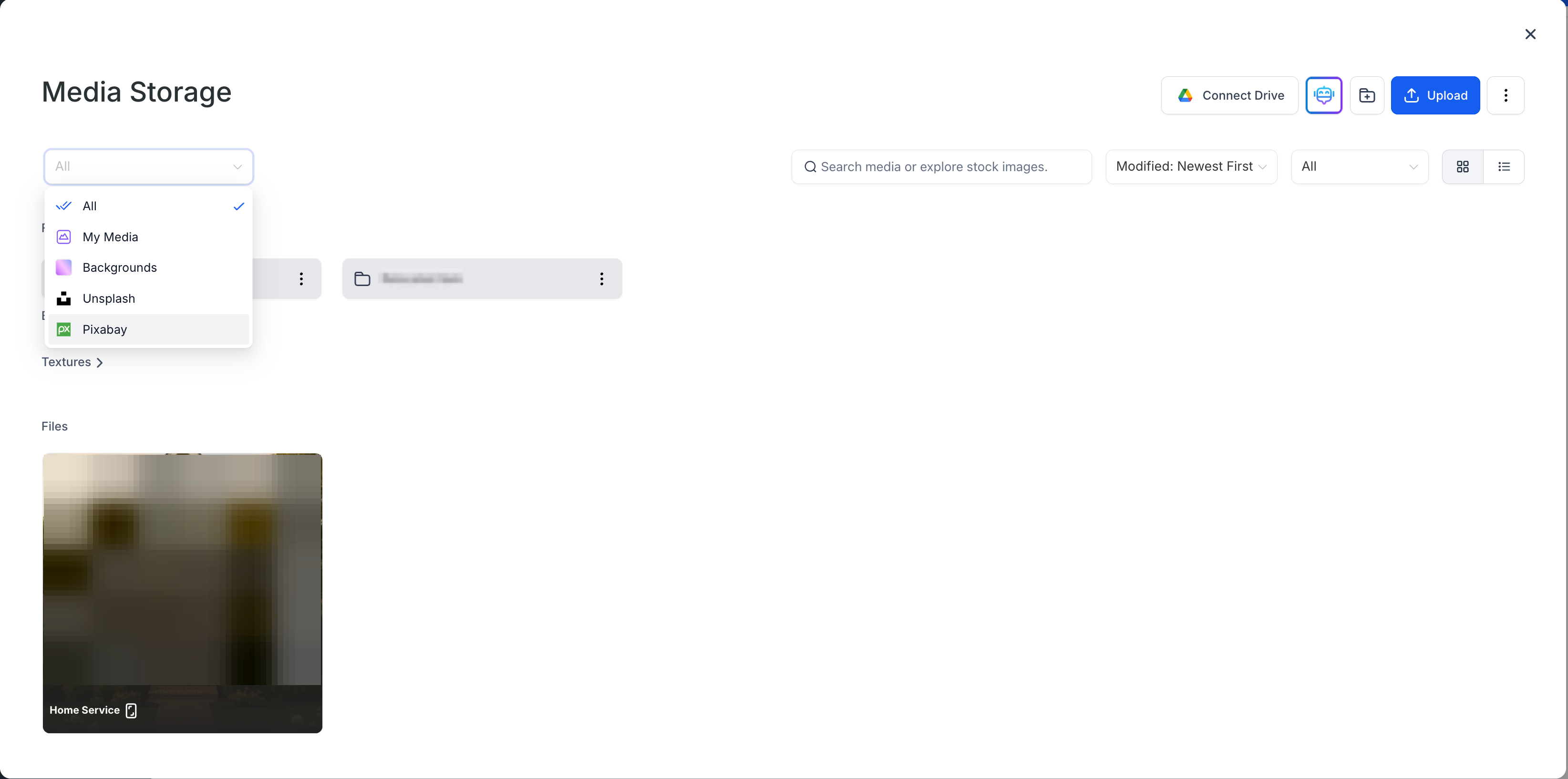
Browse existing uploads or pick from connected sources like Unsplash, Pixabay, or Google Drive.
Where can I use media storage inside Services v2?
Service images and the booking page company logo can all be pulled from Media Storage.
What sources are available in media storage?
Your uploaded files plus connected sources such as Unsplash, Pixabay, and Google Drive, where available.
Do I need to re upload the same file for different sections?
No, select the same asset from Media Storage wherever you need it to maintain consistency.
Will existing images be affected when I switch to media storage?
Existing images remain as is. You can replace them by choosing files from Media Storage when you edit.
Can I organize assets for faster selection?
Yes, use folders and clear file names to help your team find the right images quickly.
