You can now right-click on workflow actions to quickly duplicate, delete, or edit items without navigating through multiple menus. This enables building and updating workflows more rapidly and efficiently, particularly for complex automation paths.
• Right-click menu added to workflow actions
• Quick access to duplicate edit and delete options
• Faster workflow editing with fewer navigation steps
• Improved builder usability for large workflows
• Smoother experience when managing multiple actions
• Use right-click to duplicate actions when building similar paths
• Clean up workflows faster by deleting actions directly from the canvas
• Combine right-click actions with zoom and drag for quicker edits
• Use duplication to preserve settings while testing variations
• Review workflows after edits to ensure logic remains intact
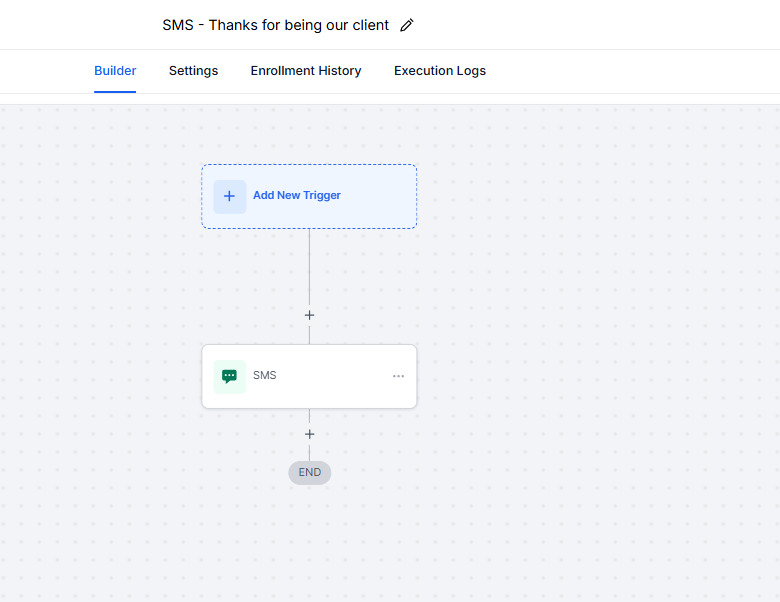
Step 1
Go to your automation section and open any existing or new workflow. Find the action block you want to modify on the canvas.
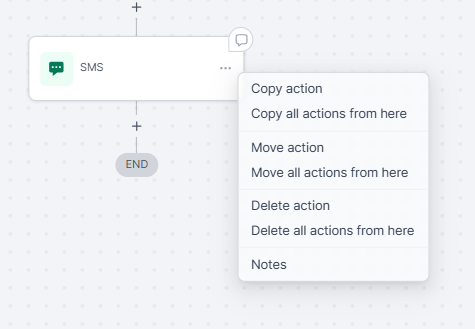
Step 2
Right-click directly on the action to open the quick action menu. Select edit, duplicate, or delete based on your needs.
What does right-click editing do?
• It lets you quickly edit, duplicate, or delete workflow actions.
Do I need to enable this feature?
• No, it is automatically available in the workflow builder.
Can I right-click any action type?
• Yes, most workflow actions support right-click options.
Does this change how workflows run?
• No, it only improves how workflows are edited.
Can I undo a delete action?
• Deleted actions cannot be restored, so review before confirming.
