You can now create well structured notes inside workflows using rich text formatting. This allows teams to add clearer internal notes with headings spacing and emphasis, improving visibility and usability across contact records.
• Rich text editor added to the Add Notes workflow action
• Support for formatted text such as bold and lists
• Improved readability of notes on contact timelines
• Better consistency for internal documentation
• Enhanced usability when adding detailed notes through workflows
• Use formatting to highlight important details in notes
• Keep notes structured for faster review by team members
• Add clear headings when notes include multiple updates
• Avoid overly long notes to keep timelines readable
• Standardize note formats across workflows for consistency
Step 1
Navigate to your automation section and open an existing or new workflow.

Step 2
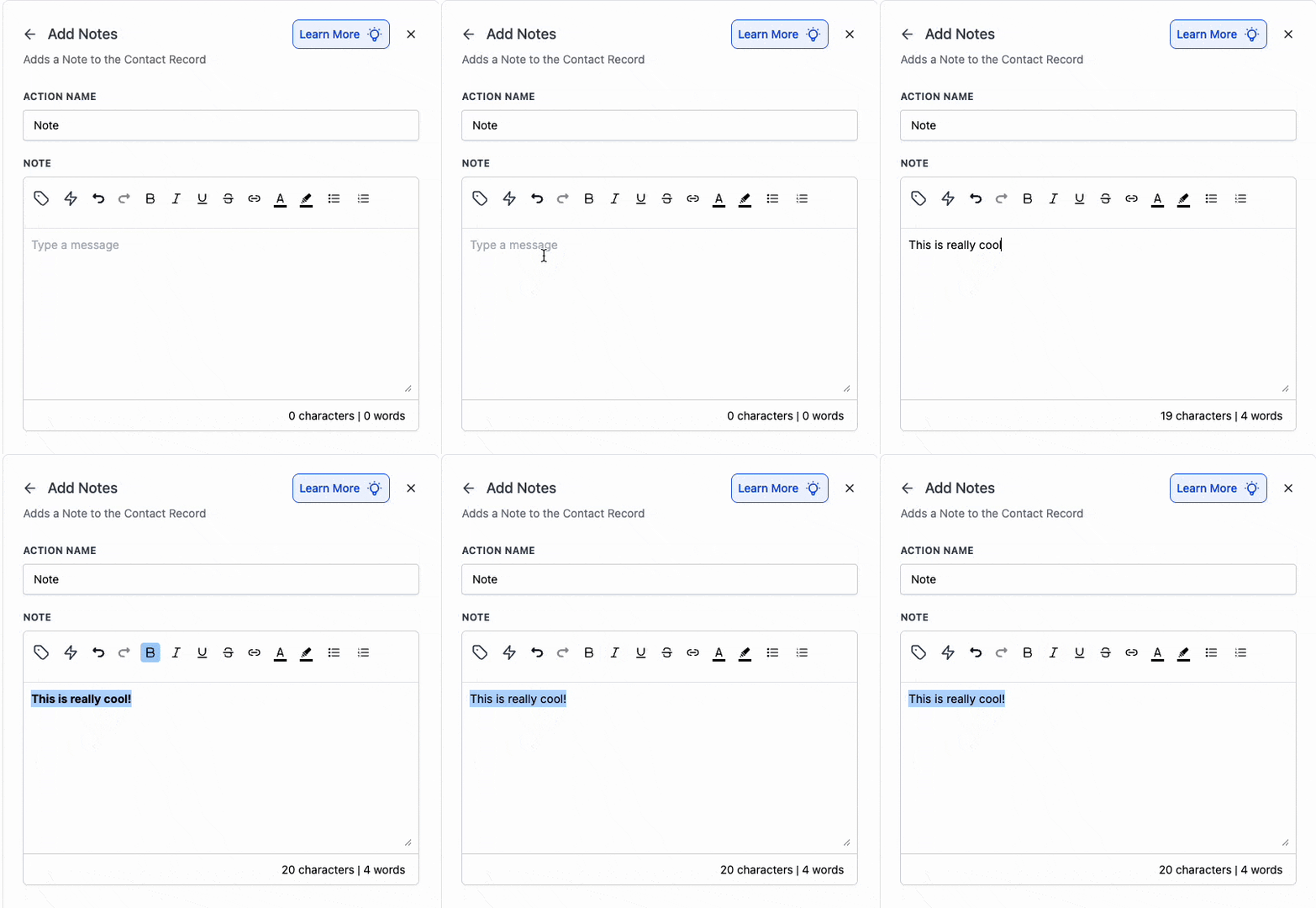
Insert the Add Notes action at the desired point in the workflow. Enter your note content using the formatting options available. Use bold spacing and lists to structure the note clearly.
What is the benefit of the rich text editor in notes?
• It allows better formatting, making notes easier to read and understand.
Does this affect existing workflows?
• No, existing notes remain unchanged unless edited.
Can I use formatting in automated notes?
• Yes, formatting applies to notes added automatically by workflows.
Are formatted notes visible to all users?
• Yes, notes display with formatting based on user access permissions.
Can I copy and paste formatted text into notes?
• Yes, pasted content retains supported formatting.
