Live chat sound notifications have been enhanced to provide clearer alerts when new messages arrive. Users can now rely on improved notification behavior to respond faster and avoid missing important conversations.
• Expanded sound notifications for live chat messages
• More consistent alerts for incoming conversations
• Improved notification reliability during active sessions
• Better awareness of new messages while multitasking
• Enhanced responsiveness for chat-based communication
• Keep sound notifications enabled during active support hours
• Adjust device volume to ensure alerts are noticeable
• Use notifications to reduce response times
• Test notification sounds after updates or device changes
• Combine sound alerts with visual cues for best results
Step 1
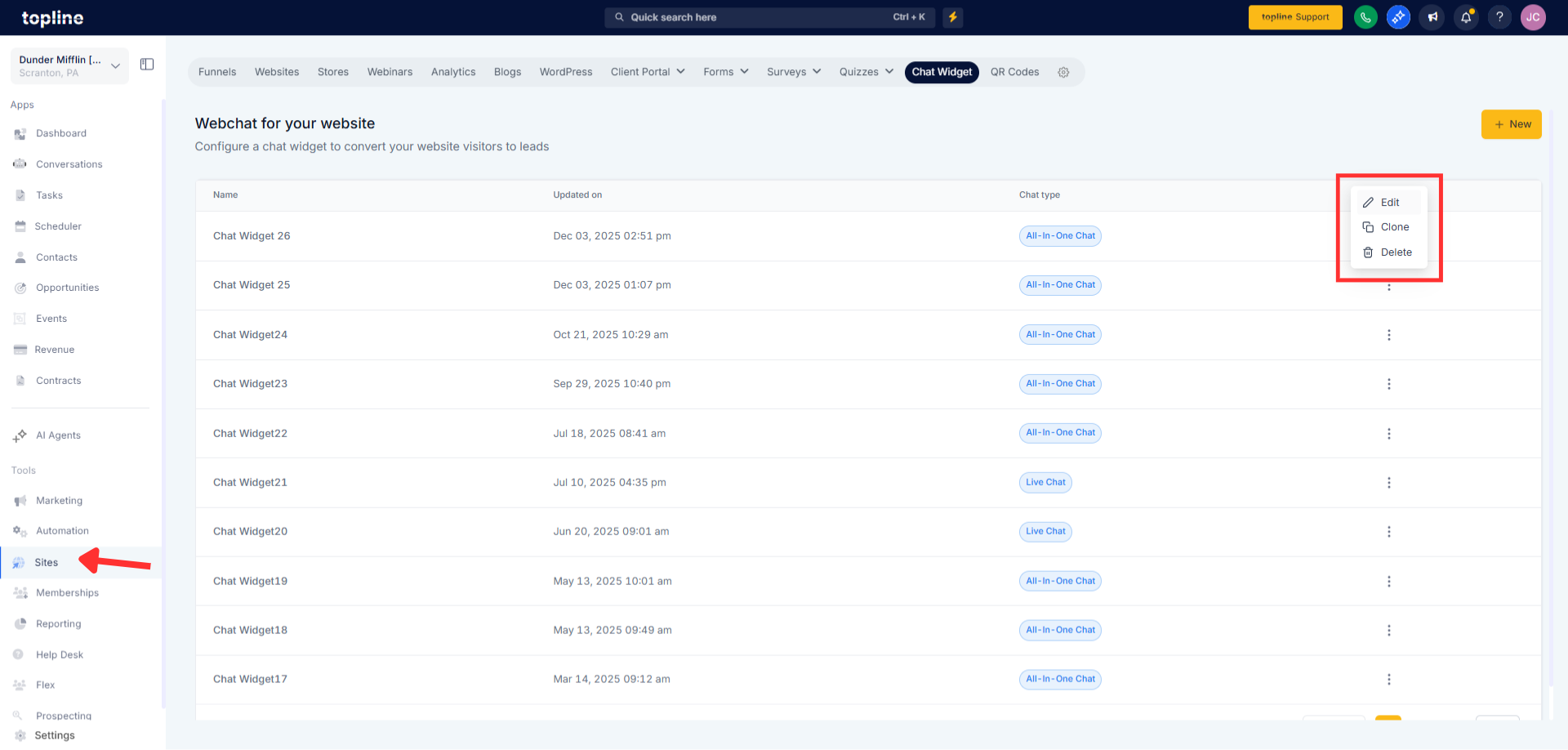
Navigate to your system or chat settings area.
Step 2
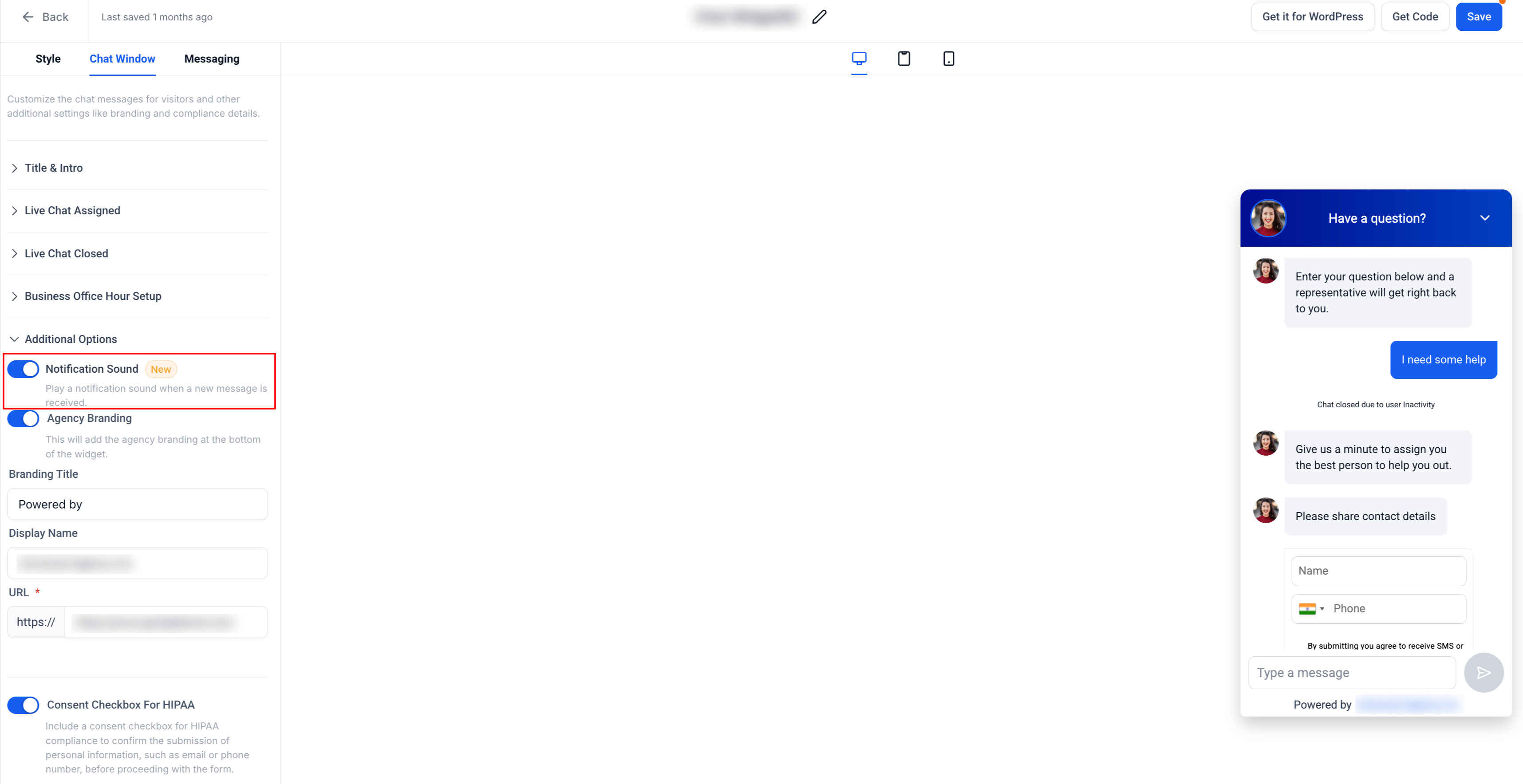
Find the section related to chat or message notifications. Turn on sound alerts for live chat messages. Confirm that your device allows sound playback and that the volume is set correctly.
What are expanded sound notifications?
• They provide improved audio alerts when new live chat messages arrive.
Do I need to enable this feature manually?
• Yes, sound notifications must be enabled in your notification settings.
Does this work on all devices?
• It works on supported browsers and devices with sound enabled.
Will notifications play if the tab is inactive?
• Yes, sound alerts can play even when the chat tab is not in focus.
Can I mute sound notifications?
• Yes, you can disable sound alerts at any time in settings.
