You can now define more than one date-specific time range for a service. This makes it easier to handle holiday special events or temporary schedule changes without modifying regular availability.
• Ability to add multiple date-specific hours for a single service
• Better handling of special dates and exceptions
• Improved scheduling accuracy for services
• Reduced need to adjust regular service hours
• Clearer visibility into date-based availability
• Use date-specific hours for holidays or one-time events
• Add all exceptions in advance to avoid booking conflicts
• Review date-based hours regularly to keep schedules accurate
• Keep service availability simple and easy to understand
• Test booking flows after adding special hours
Step 1
Navigate to your services or scheduling area. Choose the service you want to update.
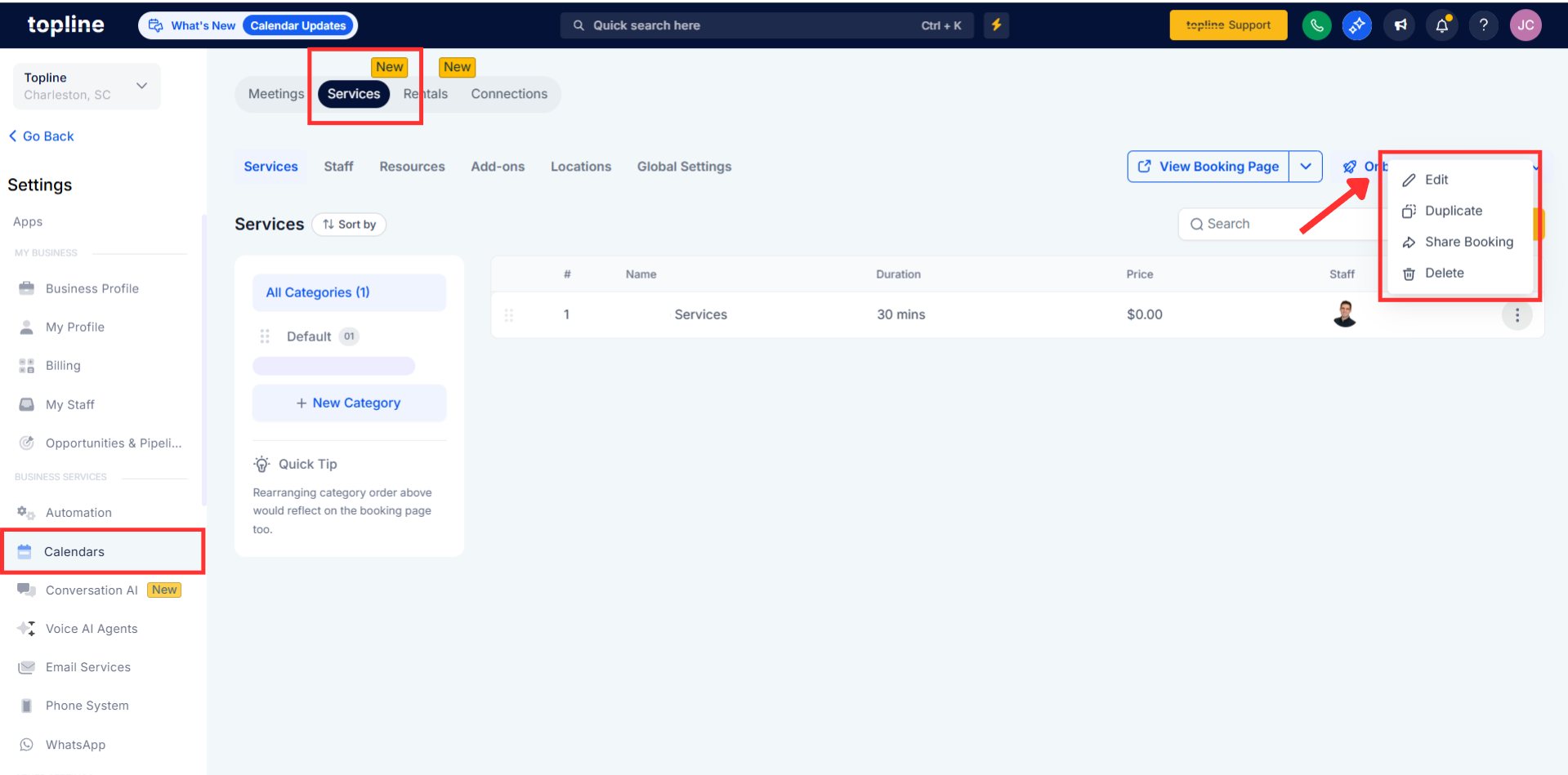
Step 2
Find the section for date based availability. Select the specific date you want to customize.
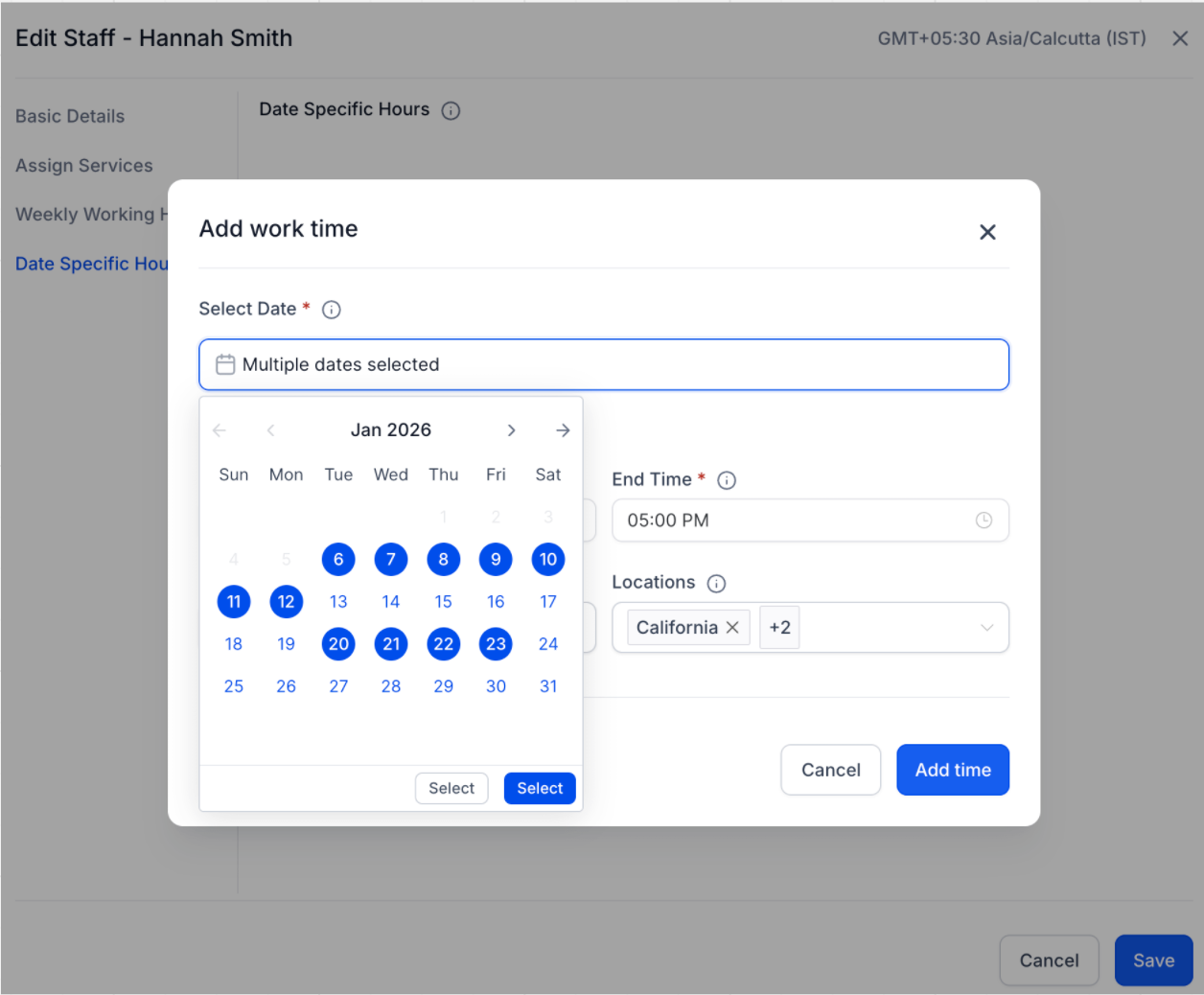
Step 3
Enter more than one available time range for that date.
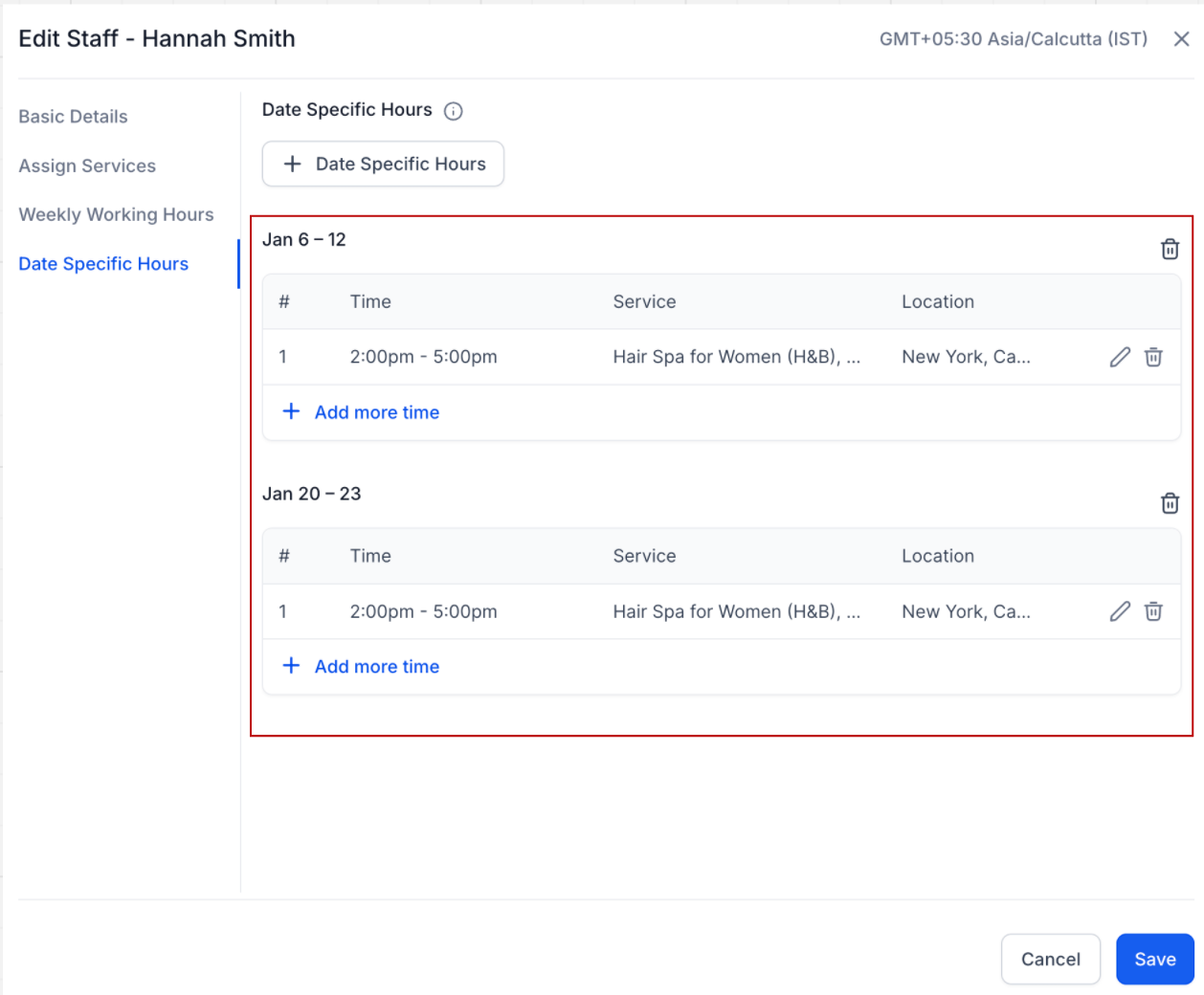
What are date-specific hours for services?
• They allow you to override normal availability for specific dates.
Can I add more than one time range on the same date?
• Yes, multiple time ranges can now be added for a single date.
Do date-specific hours replace regular hours?
• Yes, they apply only on the selected date instead of regular hours.
Is this useful for holidays or events?
• Yes, it is ideal for special schedules or limited availability days.
Do I need to enable this feature?
• No, it is available automatically.
