Calendars can now use custom values to automatically insert dynamic data such as contact details or related information. This helps personalize bookings, reduce manual updates, and keep scheduling data consistent across workflows.
• Custom values can now be used within calendar settings
• Dynamic data is automatically populated during scheduling
• Improved personalization for booking experiences
• Reduced manual entry for calendar-related information
• Better consistency between contact records and appointments
• Use custom values to personalize calendar titles and descriptions
• Insert contact details automatically to save time
• Keep custom values consistent across workflows and calendars
• Test bookings to confirm values populate correctly
• Use dynamic data to improve clarity for internal teams
Step 1
Navigate to your calendar or scheduling settings area. Choose the calendar you want to update.
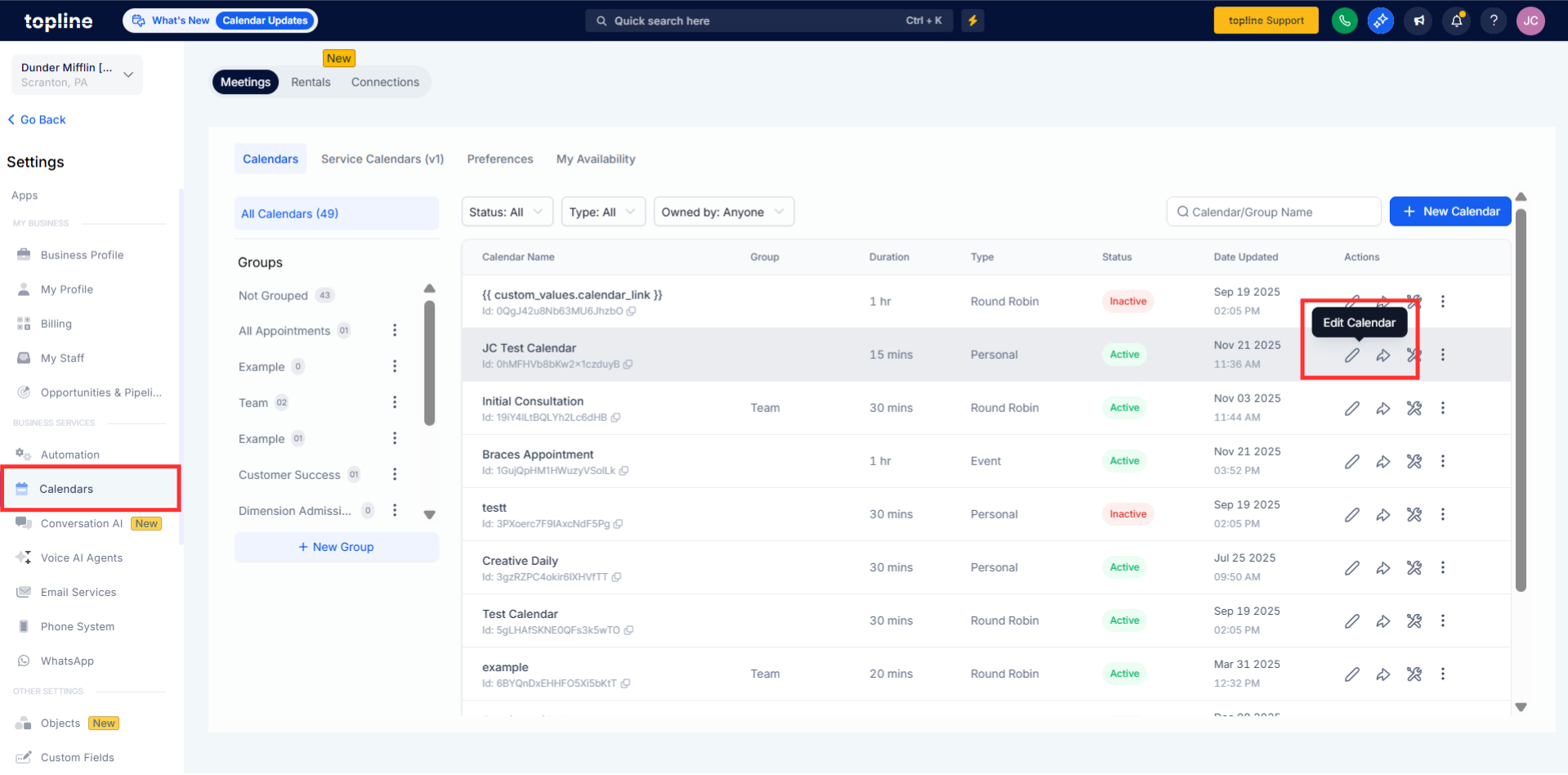
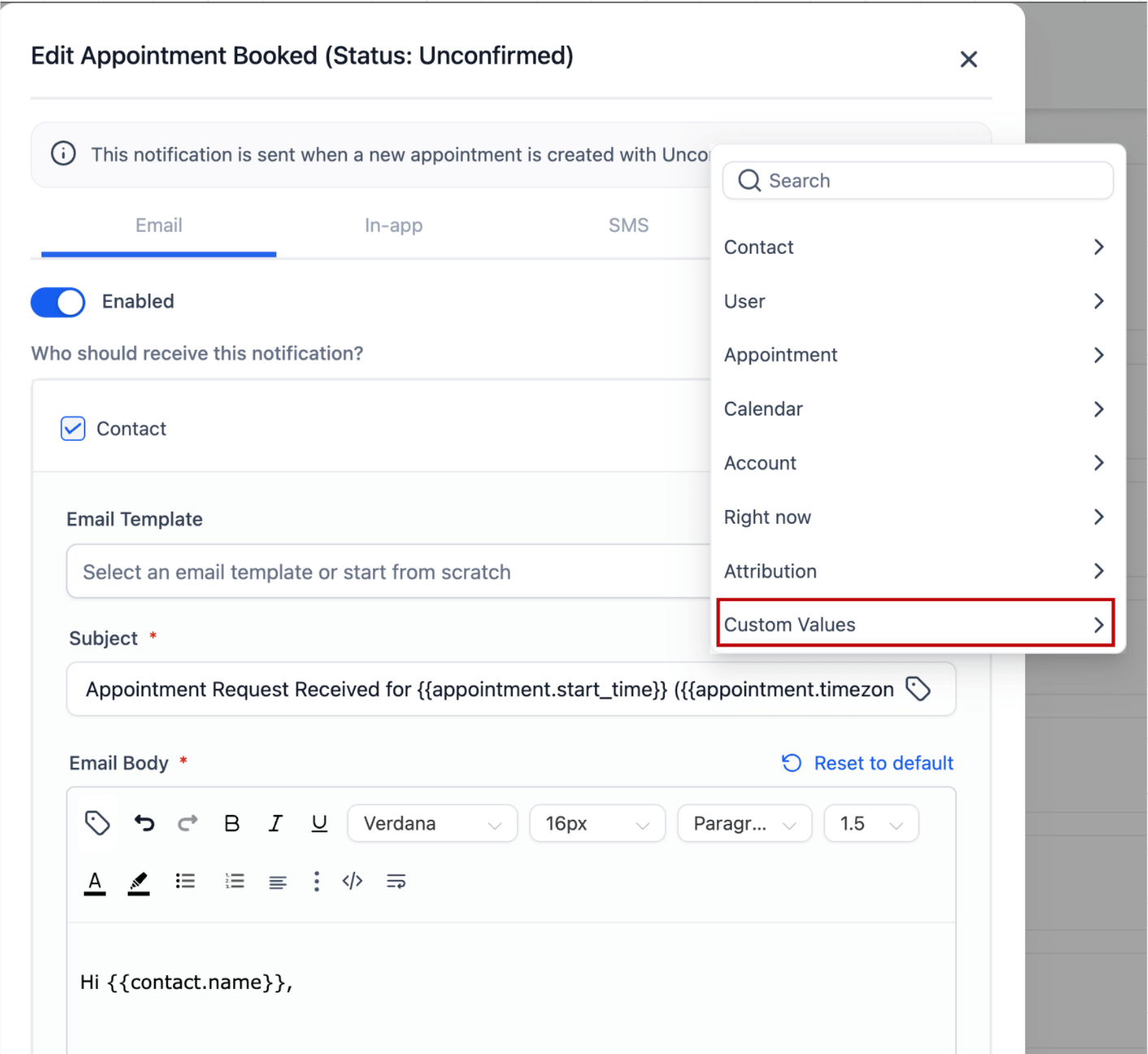
Step 2
Find areas where dynamic information can be inserted. Add the appropriate custom values into supported fields.
What are custom values in calendars?
• They allow dynamic data to be inserted automatically into calendar fields.
Do I need to enable this feature?
• No, it is available automatically where calendars support it.
What kind of data can be used as custom values?
• Common values include contact details and related record information.
Does this affect existing calendars?
• No, existing calendars remain unchanged unless edited.
Can custom values be updated later?
• Yes, values can be edited at any time in calendar settings.
