You can now choose to enable or disable the community group tab based on your needs. This helps keep the interface focused and relevant by displaying only the sections that are currently in use.
• Option to enable the community group tab
• Option to disable the community group tab
• Greater control over visible navigation items
• Cleaner interface for users who do not need community access
• Improved customization of the user experience
• Disable the tab if the community feature is not in use
• Enable the tab to encourage engagement and collaboration
• Review tab visibility when onboarding new users
• Keep navigation simple to reduce confusion
• Revisit settings periodically as needs change
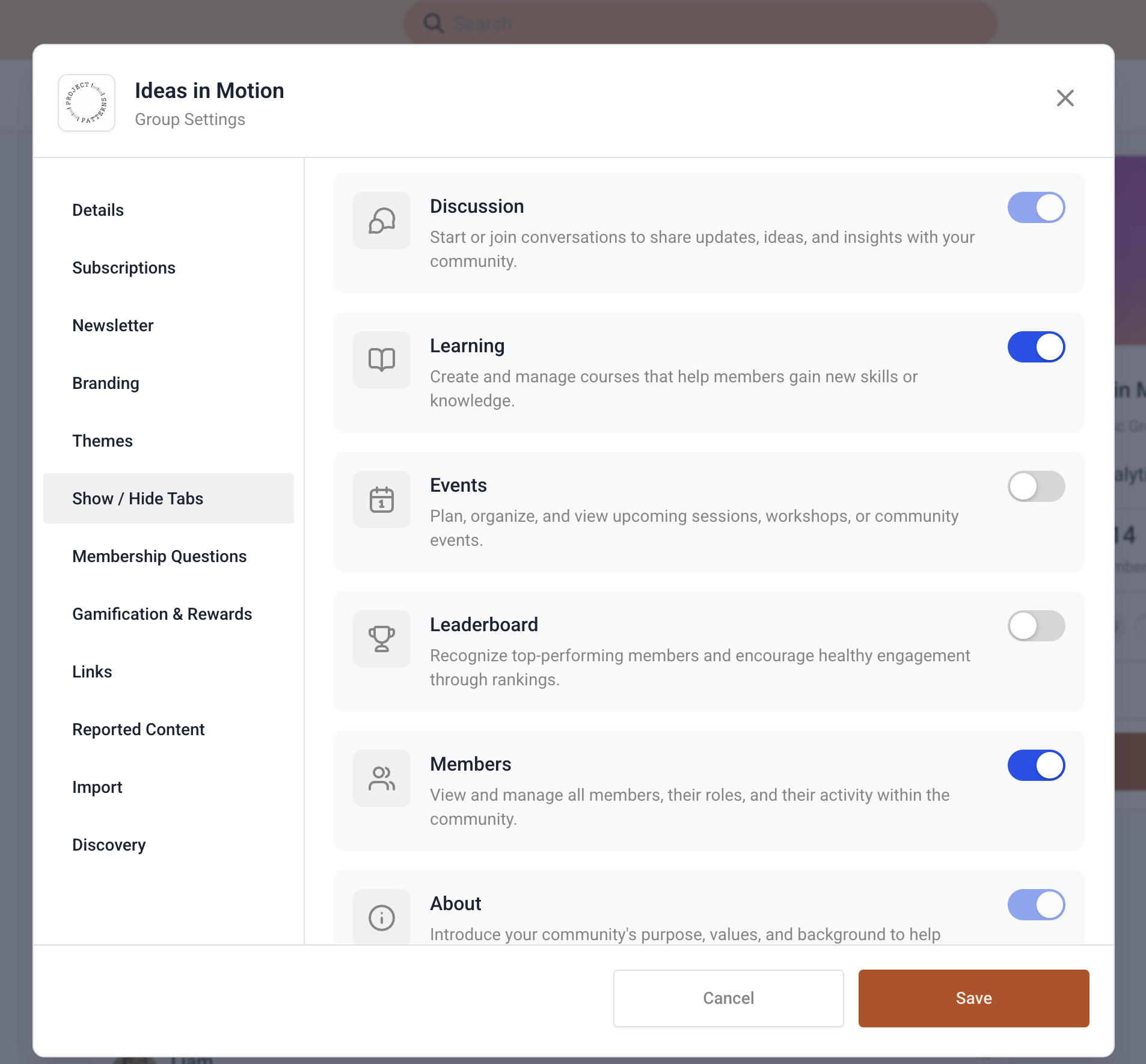
Step 1
Navigate Memberships, then settings. Look for the toggle that controls the community group tab visibility.
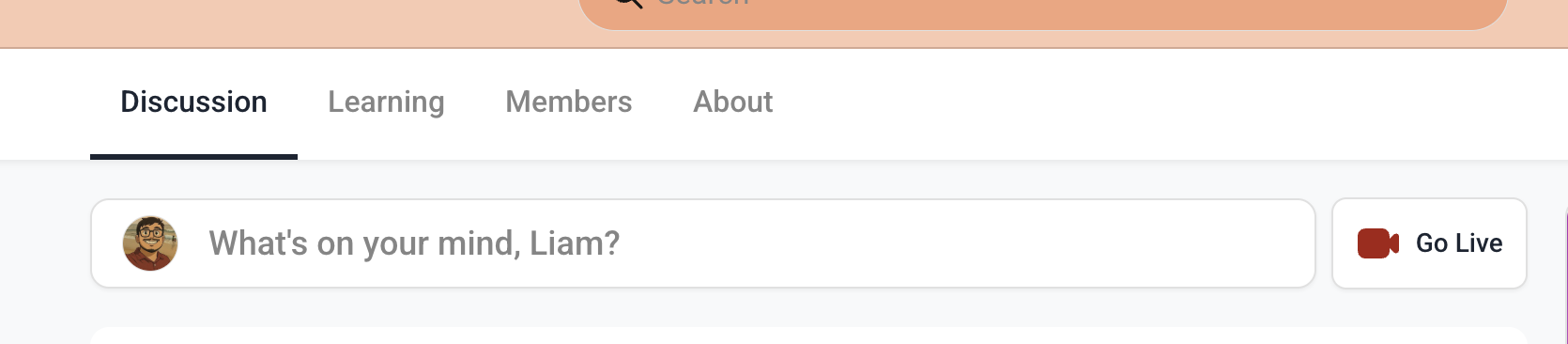
Step 2
Turn the setting on or off based on your preference and save.
FAQ’s
What does the community group tab setting control?
• It determines whether the community group tab is visible to users.
Do I need to enable this feature manually?
• Yes, you can choose to turn it on or off in settings.
Will disabling the tab delete community data?
• No, it only hides the tab and does not remove any data.
Can the tab be re-enabled later?
• Yes, the tab can be turned back on at any time.
Does this affect all users?
• Yes, the visibility applies to users based on the same setting.
