You can now add social planner statistic widgets to dashboards to view key performance data without opening the full planner. This helps teams track results faster and stay informed on social activity from a single workspace.
What’s New
• New social planner statistic widgets available on dashboards
• Quick visibility into social performance metrics
• Easier tracking of published content results
• Improved dashboard-level social reporting
• Faster access to social insights without extra navigation
Tips
• Add statistic widgets to daily reporting dashboards
• Use widgets to monitor trends over time
• Combine social stats with other performance widgets
• Review dashboard data regularly for optimization
• Adjust dashboard layout to highlight key metrics
Step 1
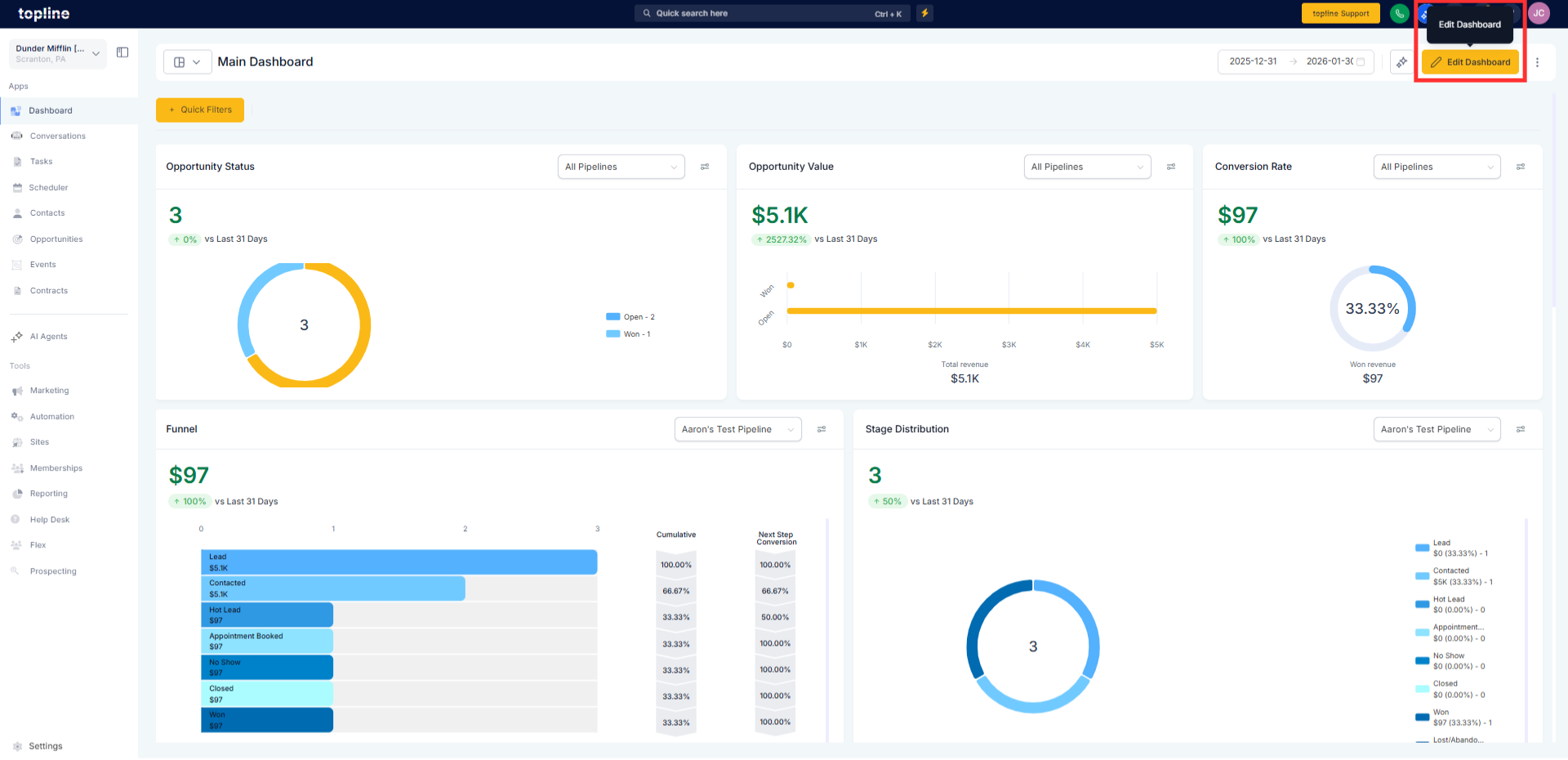
Navigate to your dashboard and enter edit mode. Select the option to add a widget to the dashboard.
Step 2
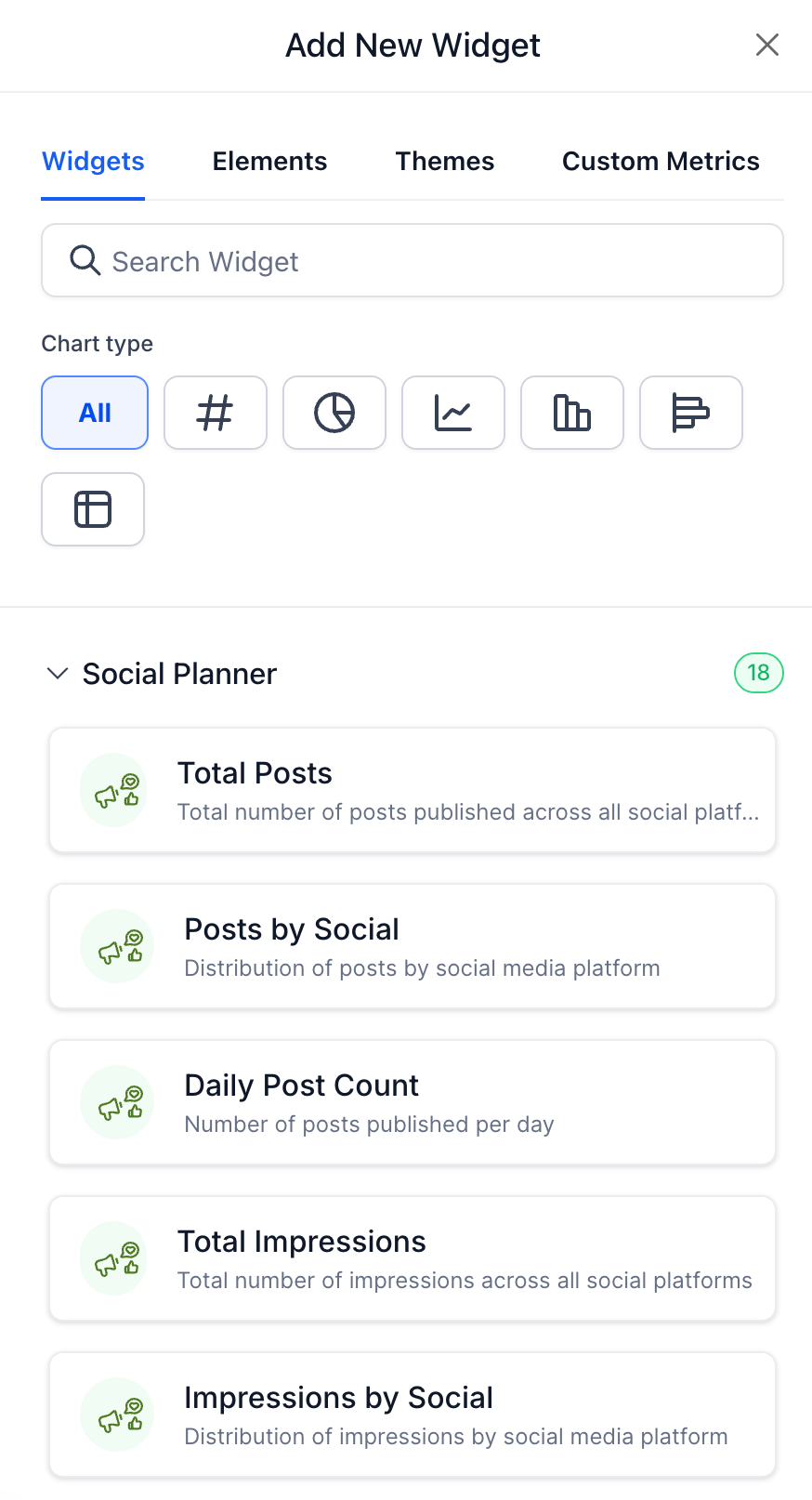
Locate and select the social planner statistic widget. Set any available options such as time range or display type.
What do social planner statistic widgets show?
• They display performance metrics related to social activity.
Do I need to enable these widgets manually?
• Yes, widgets must be added to a dashboard.
Can I add multiple statistic widgets?
• Yes, multiple widgets can be added as needed.
Does this replace the social planner's view?
• No, it provides a summary view only.
Are statistics updated automatically?
• Yes, data follows standard update behavior.
