You can now build workflows using drag-and-drop interactions in the standard builder. Triggers and actions can be added and reordered visually, reducing setup time and making workflow design easier to understand and manage.
• Drag and drop support for workflow triggers
• Drag and drop support for workflow actions
• Faster workflow creation with visual placement
• Easier reordering of steps within workflows
• Improved usability in the standard builder
• Use drag and drop to build workflows quickly without menus
• Reorder actions visually to improve workflow clarity
• Group related actions together for easier maintenance
• Review workflows after rearranging steps
• Combine drag and drop with pause and condition actions for better flow
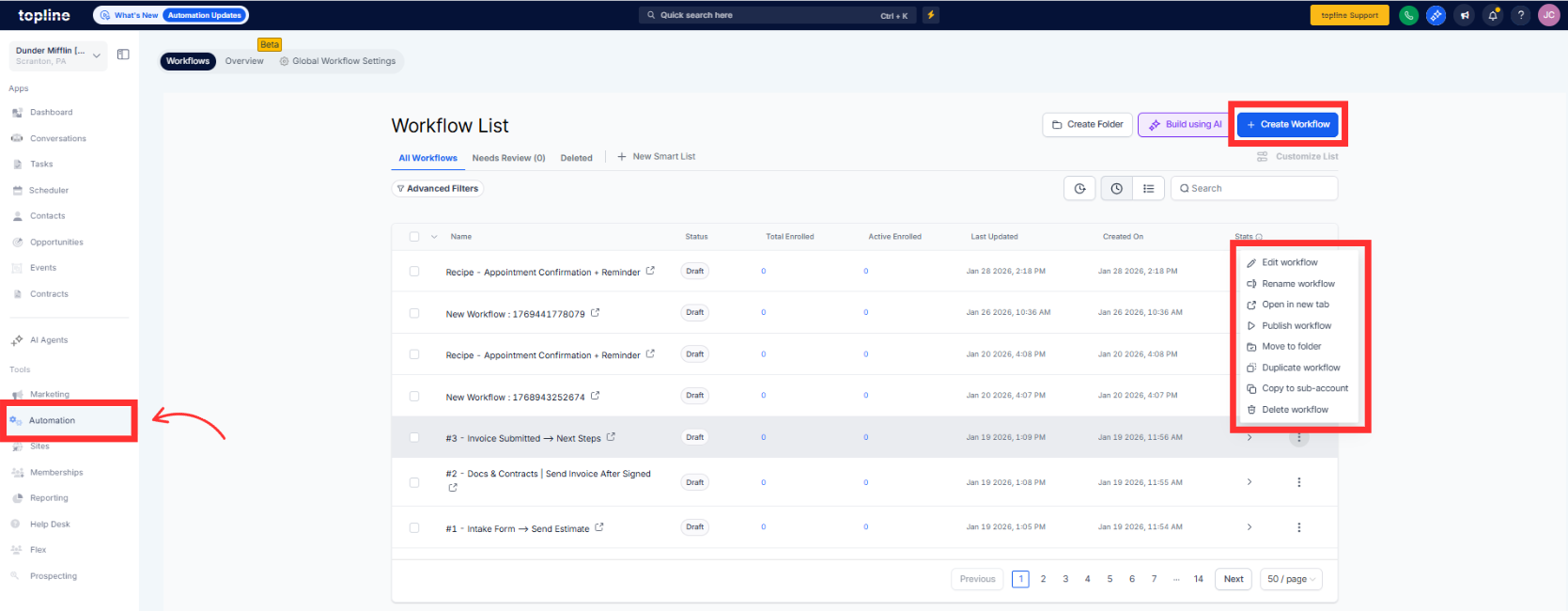
Step 1
Navigate to your automation section and open the standard builder.
Step 2
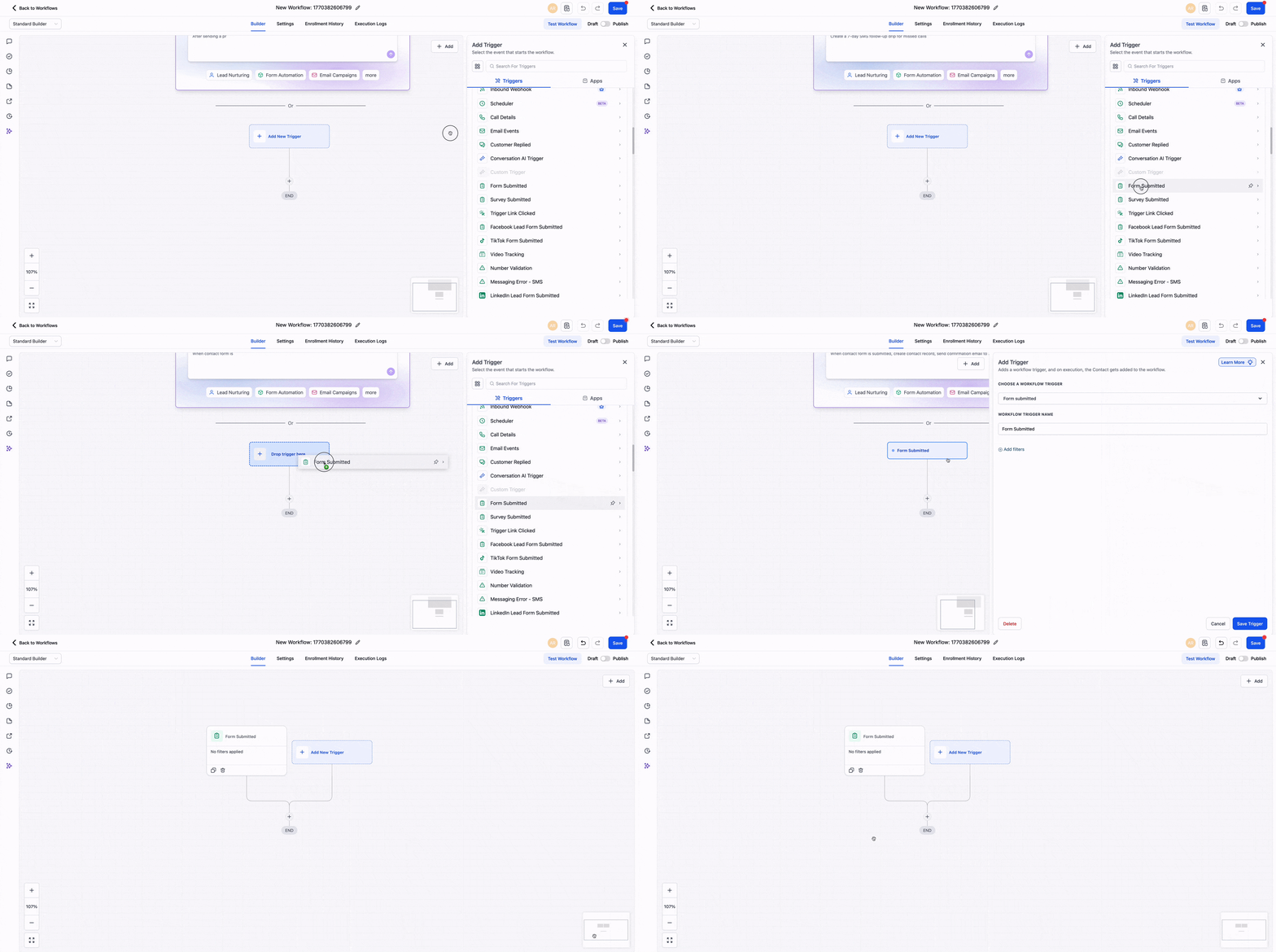
Locate the trigger or action you want to add. Drag the selected item into the desired position.
Step 3
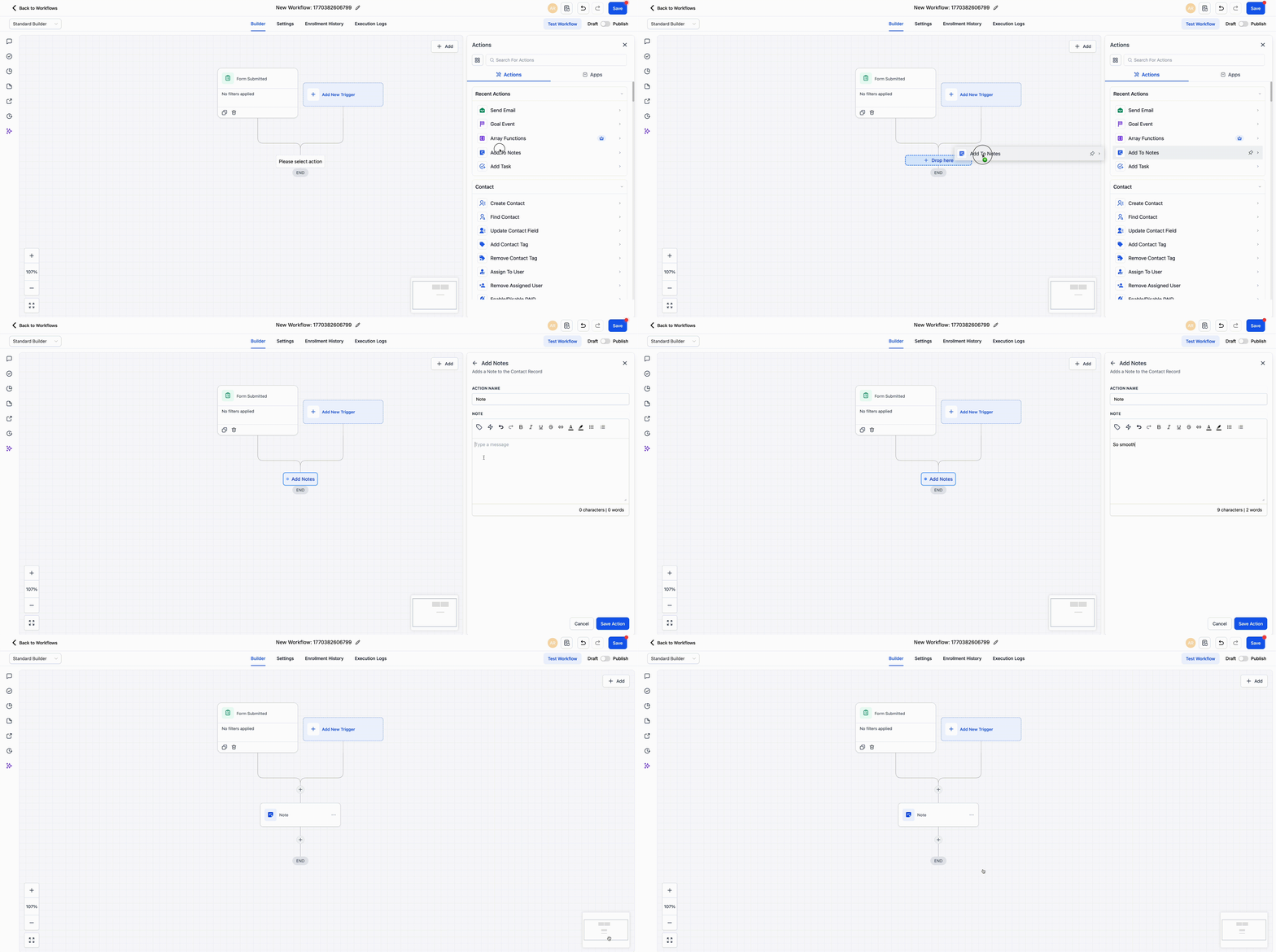
Move triggers or actions by dragging them to a new position. Click each item to set its rules and settings.
What does drag and drop add to the standard builder?
• It allows triggers and actions to be added and reordered visually.
Do I need to enable drag and drop manually?
• No, it is available automatically.
Can I reorder existing workflows using drag and drop?
• Yes, existing workflows can be rearranged visually.
Does this change how workflows run?
• No, it only improves how workflows are built and edited.
Is drag and drop available for all triggers and actions?
• Most standard triggers and actions support this behavior.
