Communities now support private course access within the learning tab. Course visibility can be limited to selected members, ensuring only the intended audience can view and access specific learning content while keeping the community experience organized and secure.
• Private courses available in the communities learning tab
• Ability to restrict course access to selected members
• Improved control over learning content visibility
• Better organization of public and private courses
• Enhanced experience for member-based learning
• Use private courses for premium or internal training
• Assign access carefully to avoid confusion
• Keep course names clear to indicate access level
• Review member access regularly as roles change
• Test visibility using a member account before launch
Step 1
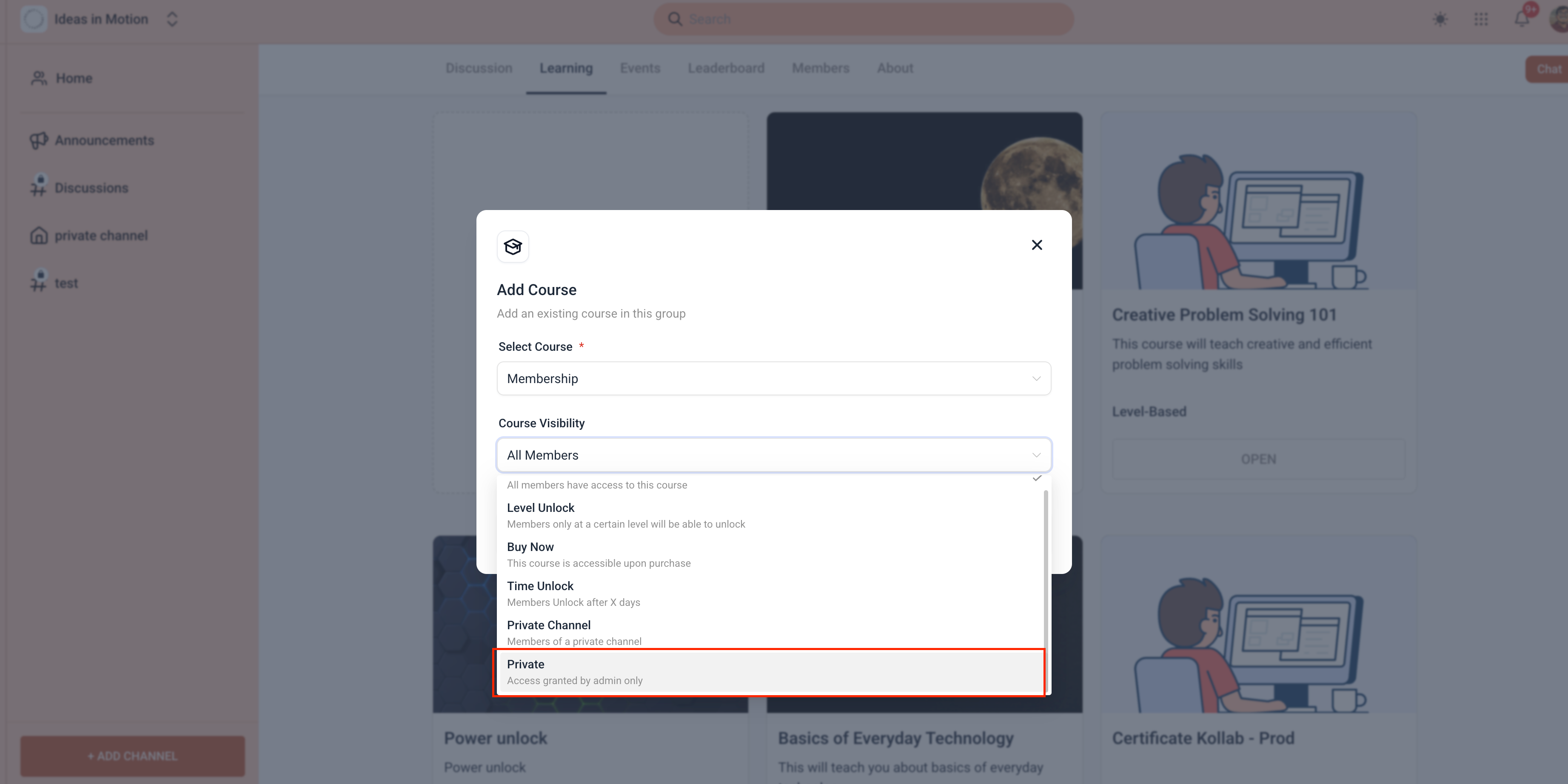
Navigate to your communities area and open the learning tab settings. Select an existing course or create a new one. Choose the option to make the course private.
Step 2
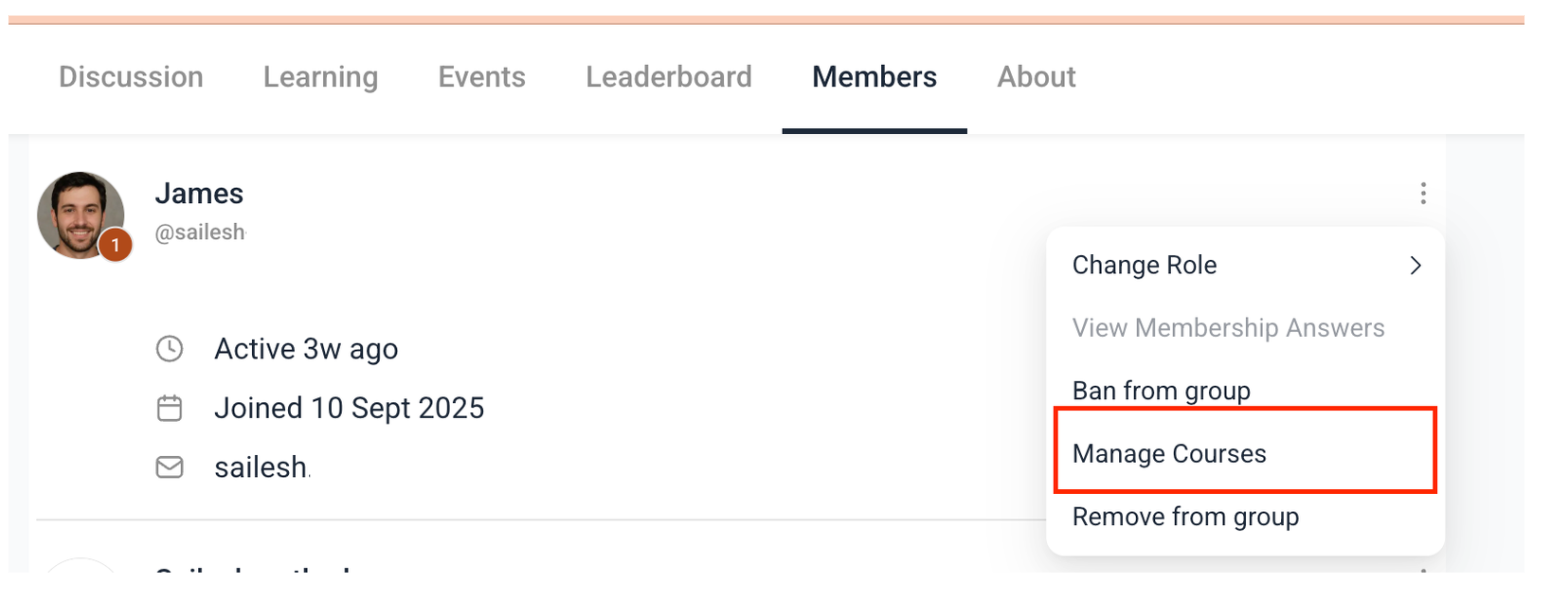
Assign which members are allowed to access the course.
What does private course access mean in communities?
• Only selected members can view and access the course.
Is this limited to the learning tab?
• Yes, private access applies to courses shown in the learning tab.
Do I need to enable this feature manually?
• Yes, privacy and member access must be configured per course.
Can access be changed later?
• Yes, members can be added or removed at any time.
Does this affect existing courses?
• Existing courses remain unchanged unless privacy is updated.
