Workflows now include expanded error highlighting to show where configuration problems exist clearly. This improvement helps users quickly locate missing settings, invalid fields, or logic errors, reducing troubleshooting time and improving automation reliability.
• Expanded visual error highlighting in workflows
• Clear identification of misconfigured steps
• Faster detection of missing or invalid settings
• Improved workflow troubleshooting experience
• Better reliability before activating automations
• Review highlighted steps before publishing workflows
• Fix all visible errors to prevent execution issues
• Use error indicators during workflow edits
• Test workflows after resolving highlighted issues
• Keep workflow steps organized for easier debugging
Step 1
Navigate to your automation section and open a workflow.
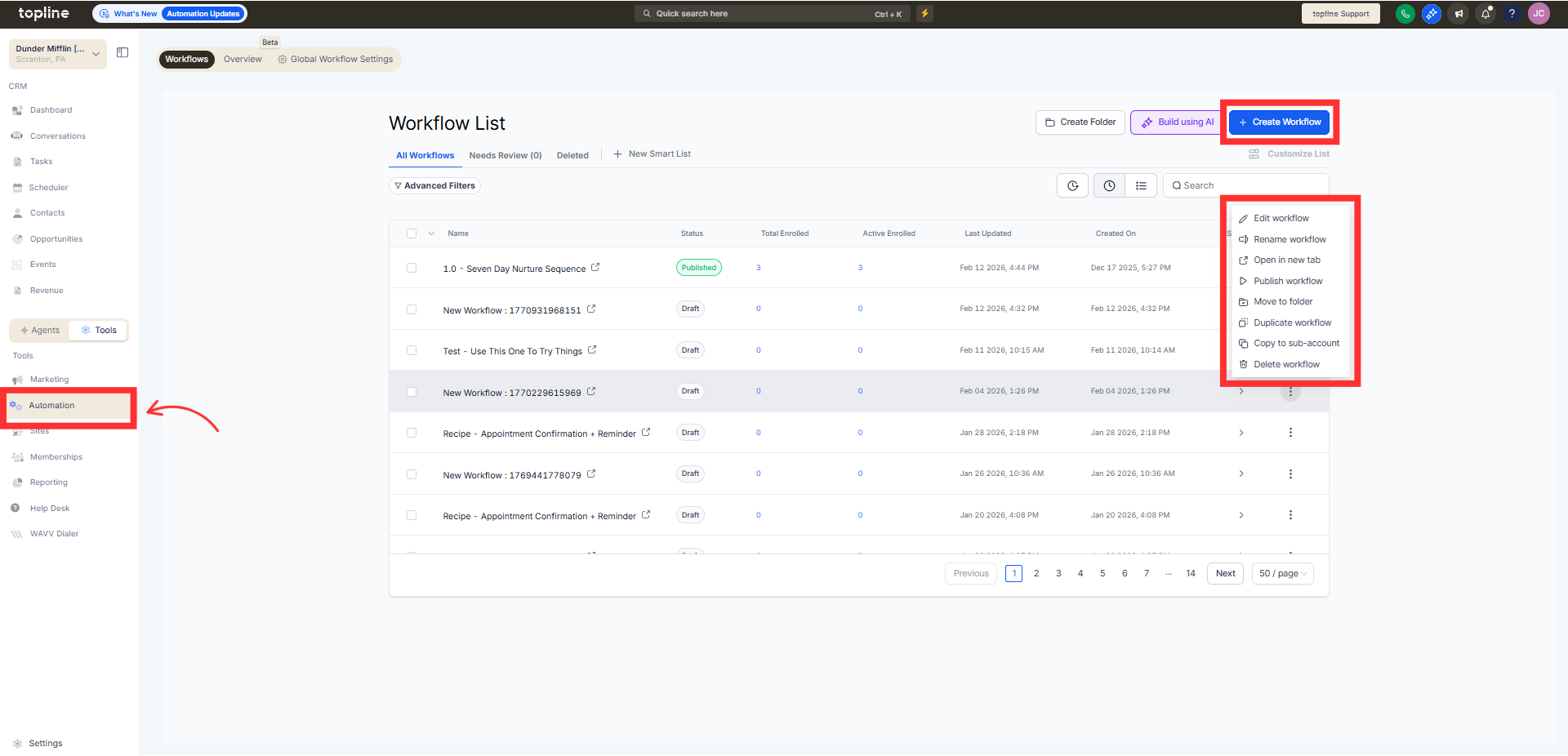
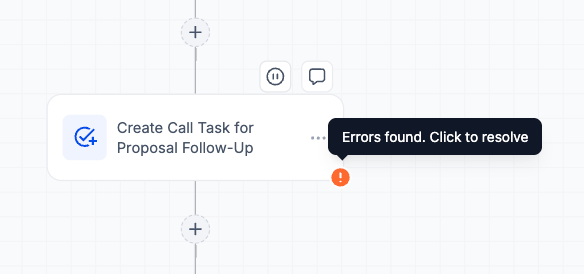
Step 2
Look for visually marked steps that indicate configuration issues. Click on highlighted actions or triggers to view error details.
What does the expanded error highlight feature do?
• It visually marks workflow steps with configuration issues.
Do I need to enable this feature?
• No, it is available automatically in the workflow builder.
Does this affect how workflows run?
• No, it only improves visibility of configuration errors.
Can errors prevent workflow activation?
• Yes, unresolved errors may block activation.
Are existing workflows supported?
• Yes, error highlighting works with new and existing workflows.
