You can now connect Canva to your media storage and create or import designs without leaving the platform. This streamlines content creation, improves workflow efficiency, and makes it easier to manage visual assets in one centralized location.
• Canva integration inside media storage
• Ability to create designs directly from the media library
• Easy import of Canva graphics into storage
• Faster content creation workflow
• Centralized management of visual assets
• Use Canva templates for faster design creation
• Keep design sizes consistent for different use cases
• Organize imported media into folders
• Review image quality before publishing
• Update outdated visuals regularly
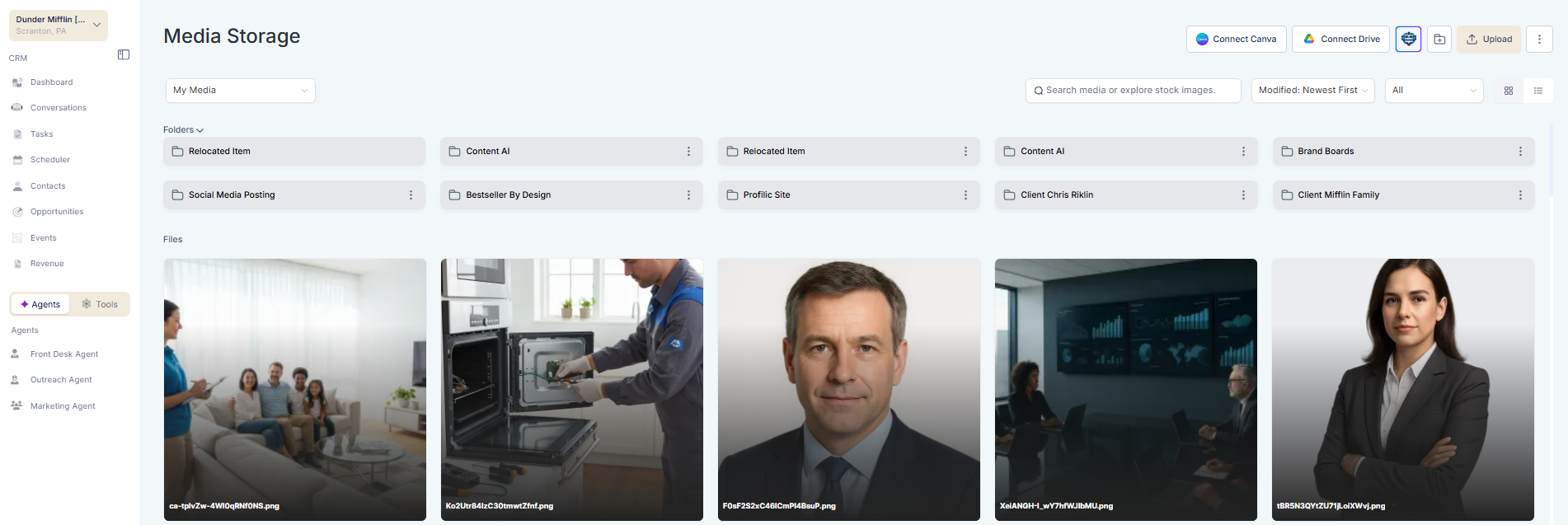
Step 1
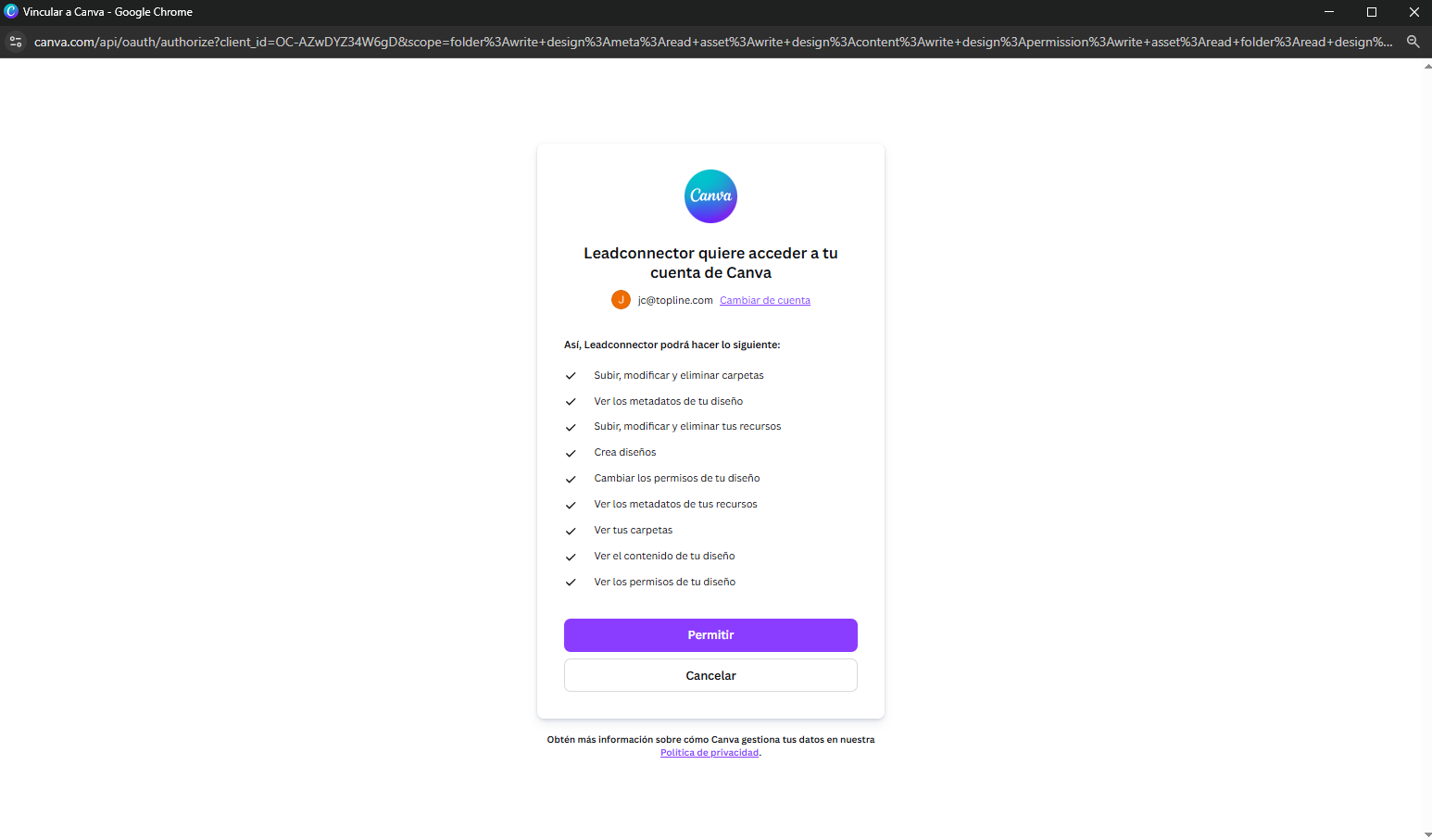
Navigate to the media library section. Authorize your Canva account connection.
Step 2
Choose to create a new design or import an existing one. Save the selected design into your media storage.
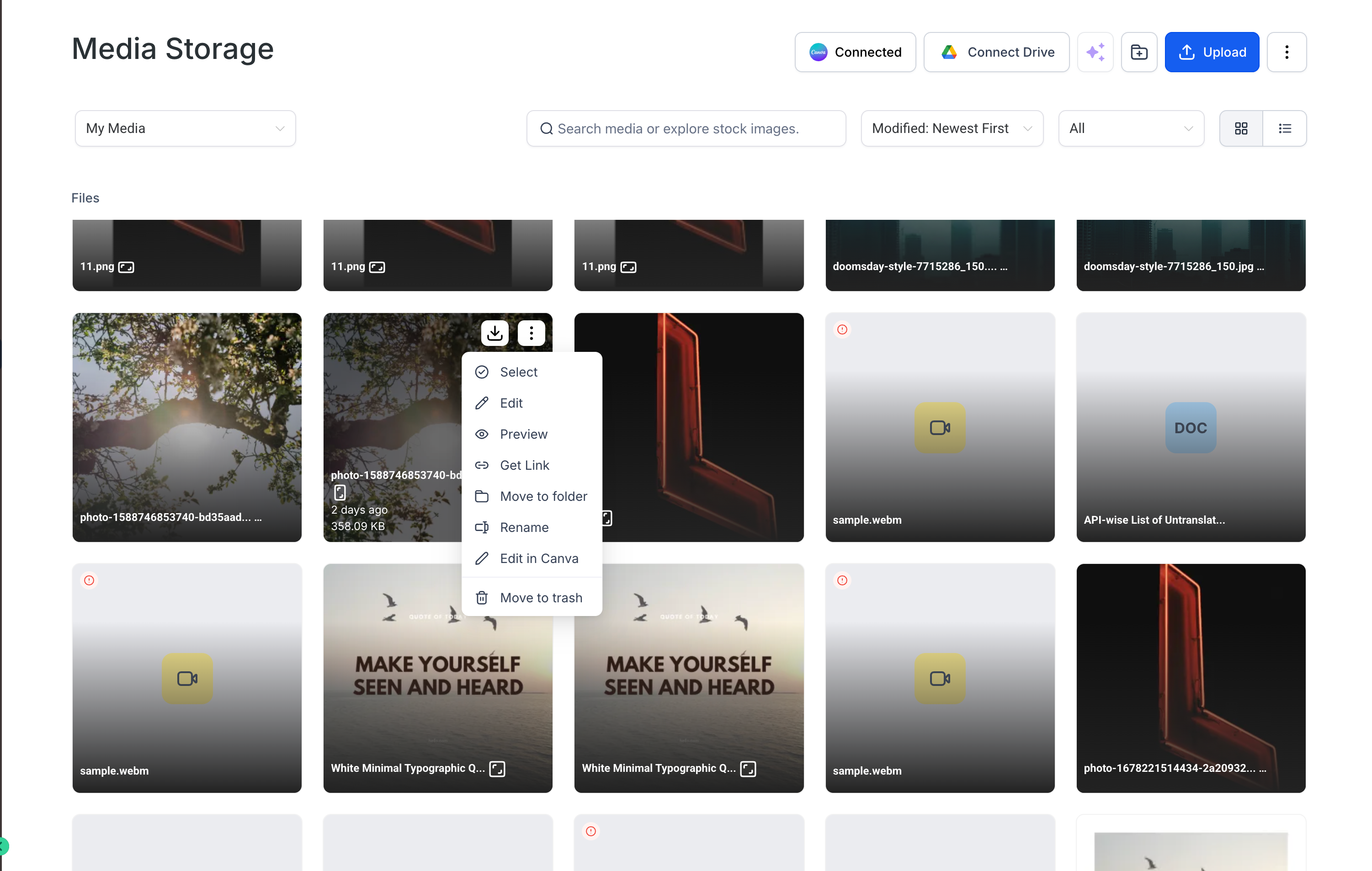
Step 3
Place the imported file into the appropriate folder. Select the media asset when building content.
What does Canva integration in media storage allow?
• It allows creating and importing Canva designs directly into the media library.
Do I need to connect my Canva account?
• Yes, authorization is required before using the integration.
Can I edit designs after importing?
• Edits are made in Canva and can be re-imported if needed.
Does this replace uploading files manually?
• It provides an additional option, but manual uploads are still available.
Are all Canva templates supported?
• Available templates depend on your Canva account access.
