The advanced builder now automatically connects steps as you add them, reducing manual linking and speeding up workflow design. This enhancement improves usability, minimizes setup errors, and allows users to focus on logic instead of connections.
• Auto-connecting steps in the advanced builder
• Reduced manual linking between workflow actions
• Faster workflow creation process
• Improved builder usability
• Lower risk of disconnected steps
• Add steps sequentially to take advantage of auto connections
• Review connections after making major edits
• Use visual layout to confirm workflow logic
• Keep workflows organized for easier maintenance
• Test automations after building
Step 1
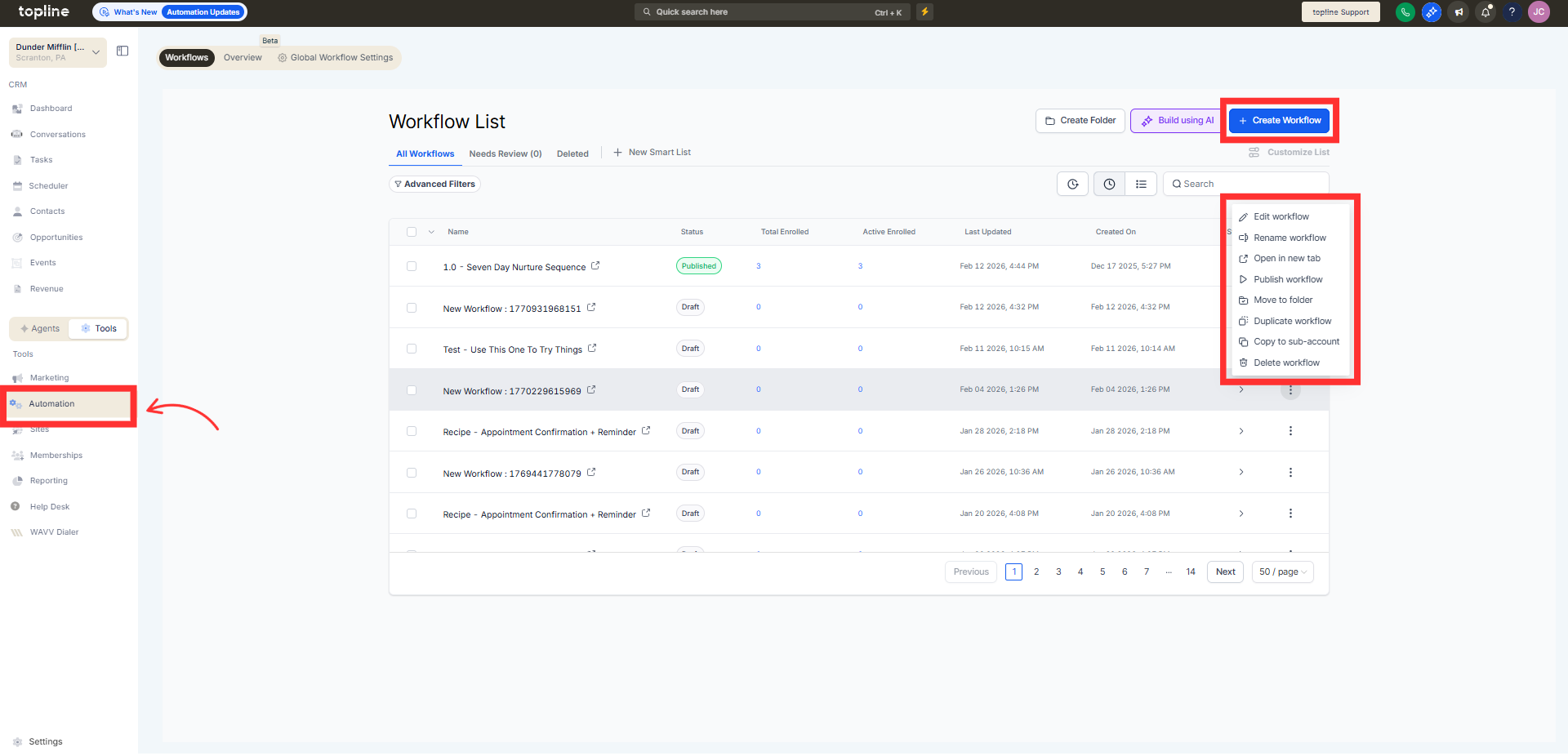
Navigate to your automation section and open the advanced builder.
Step 2
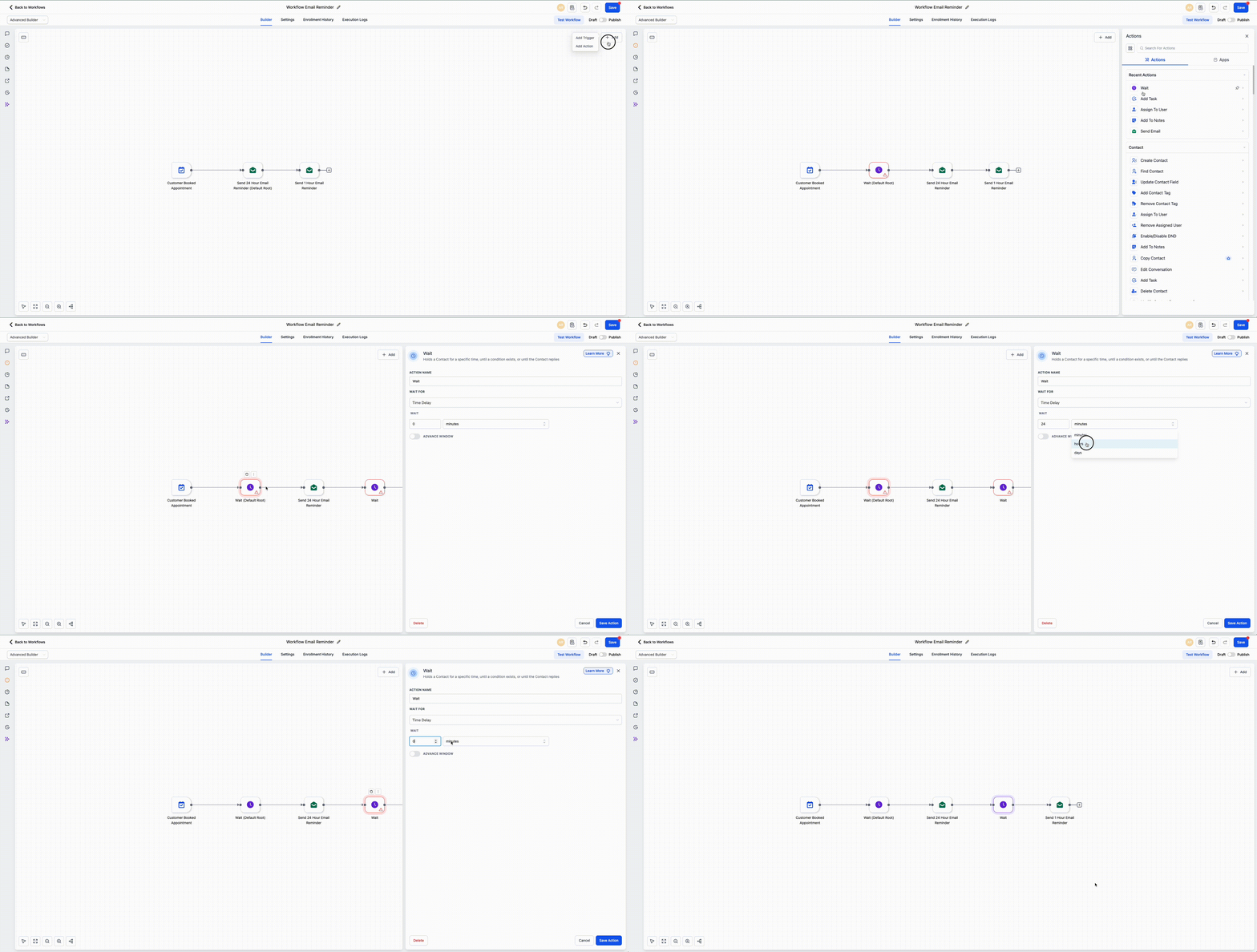
Start with the trigger that initiates the workflow. Add actions conditions or wait steps.
Step 3
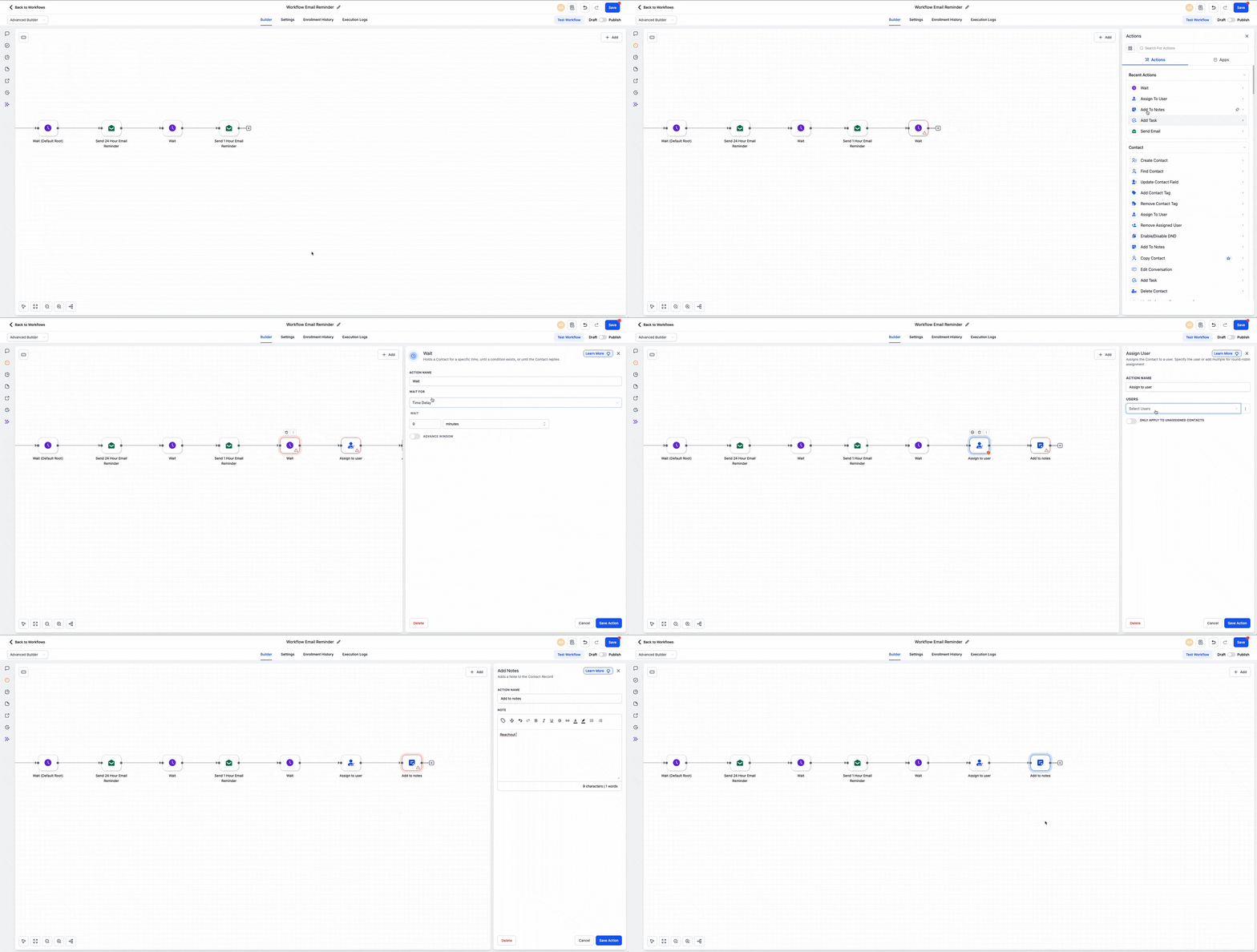
Notice that new steps connect automatically.
FAQ’s
What does auto-connecting steps mean?
• Steps automatically link together as they are added.
Do I need to enable this feature?
• No, it is available automatically in the advanced builder.
Can I still manually adjust connections?
• Yes, connections can be edited if needed.
Does this affect existing workflows?
• No, it applies when building or editing workflows.
Will this reduce setup errors?
• Yes, it helps prevent disconnected steps.
