You can now edit schedules in bulk within multi-user calendars. This improvement allows administrators to quickly update availability rules across several users without editing each calendar individually, saving time and improving scheduling consistency.
• Bulk editing for schedules in multi-user calendars
• Faster updates across multiple user schedules
• Reduced need to edit calendars individually
• Improved efficiency for managing team availability
• Better consistency in scheduling settings
• Use bulk edit when updating company-wide availability
• Double-check selected users before applying changes
• Test schedule updates after applying bulk edits
• Keep calendar rules consistent across teams
• Document major schedule changes for team awareness
Step 1
Navigate to the calendar or scheduling management section.
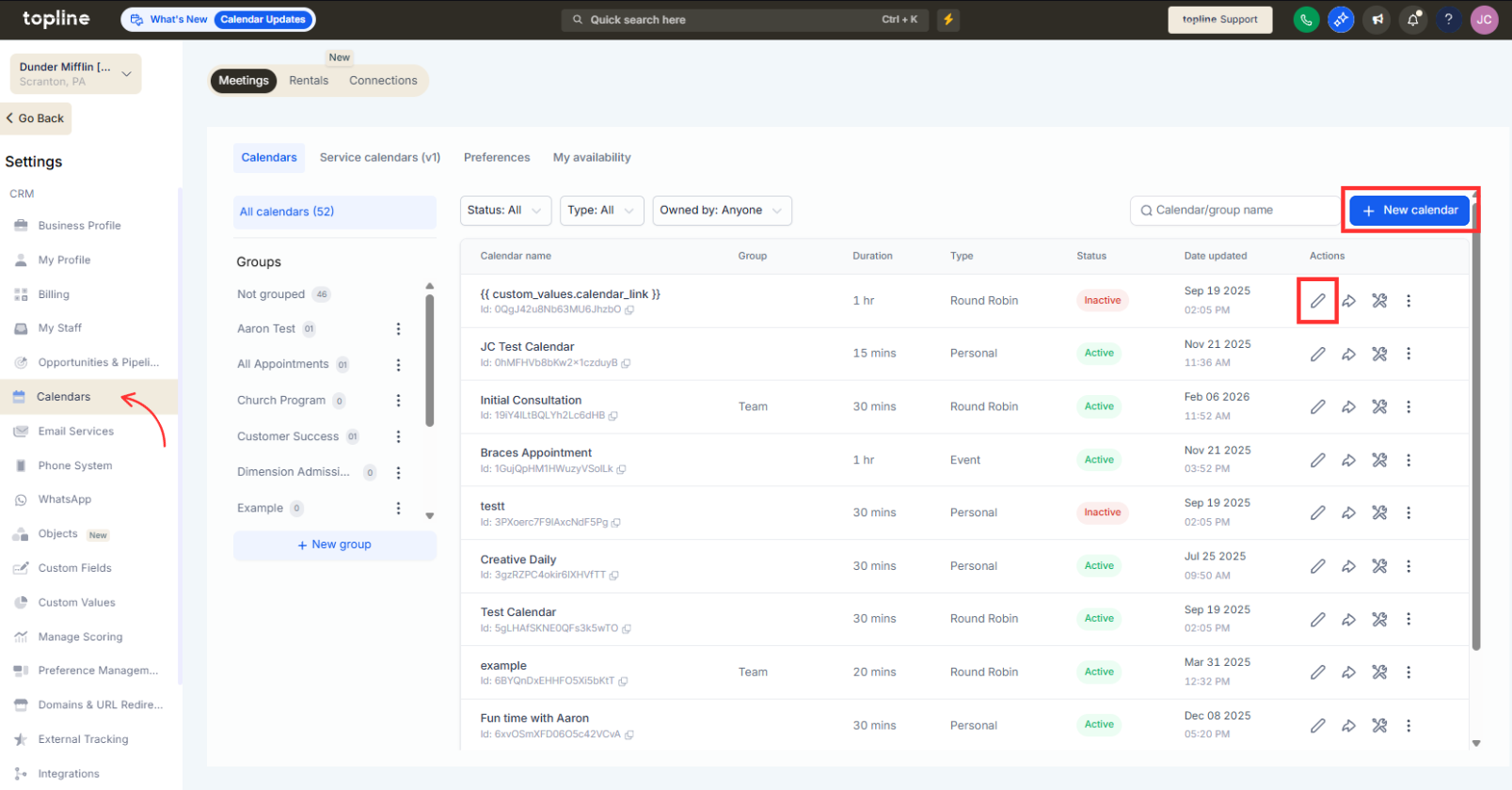
Step 2
Choose the calendar that includes multiple team members.
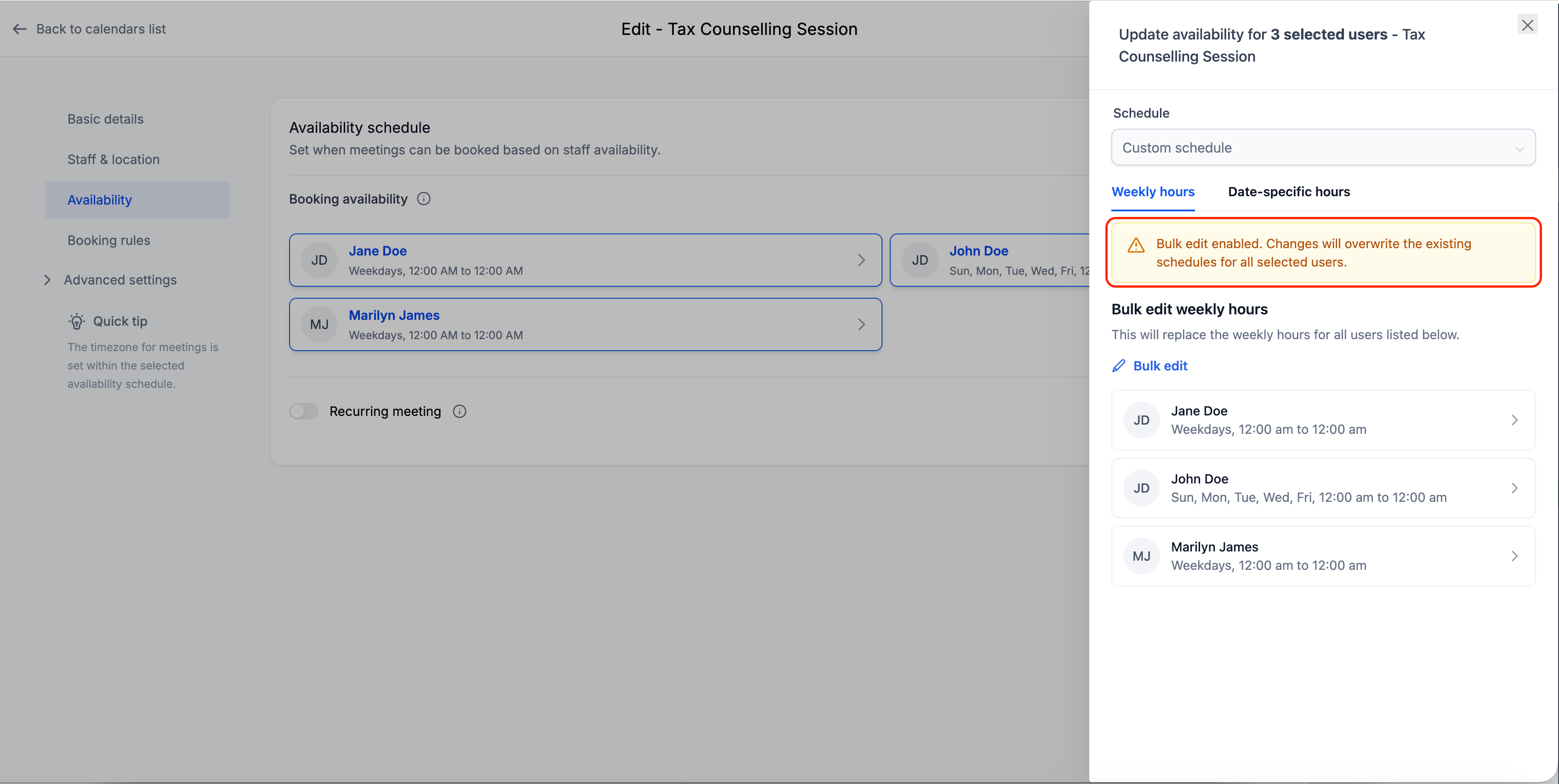
Step 3
Open the schedule configuration for the calendar. Choose the option to edit schedules for multiple users.
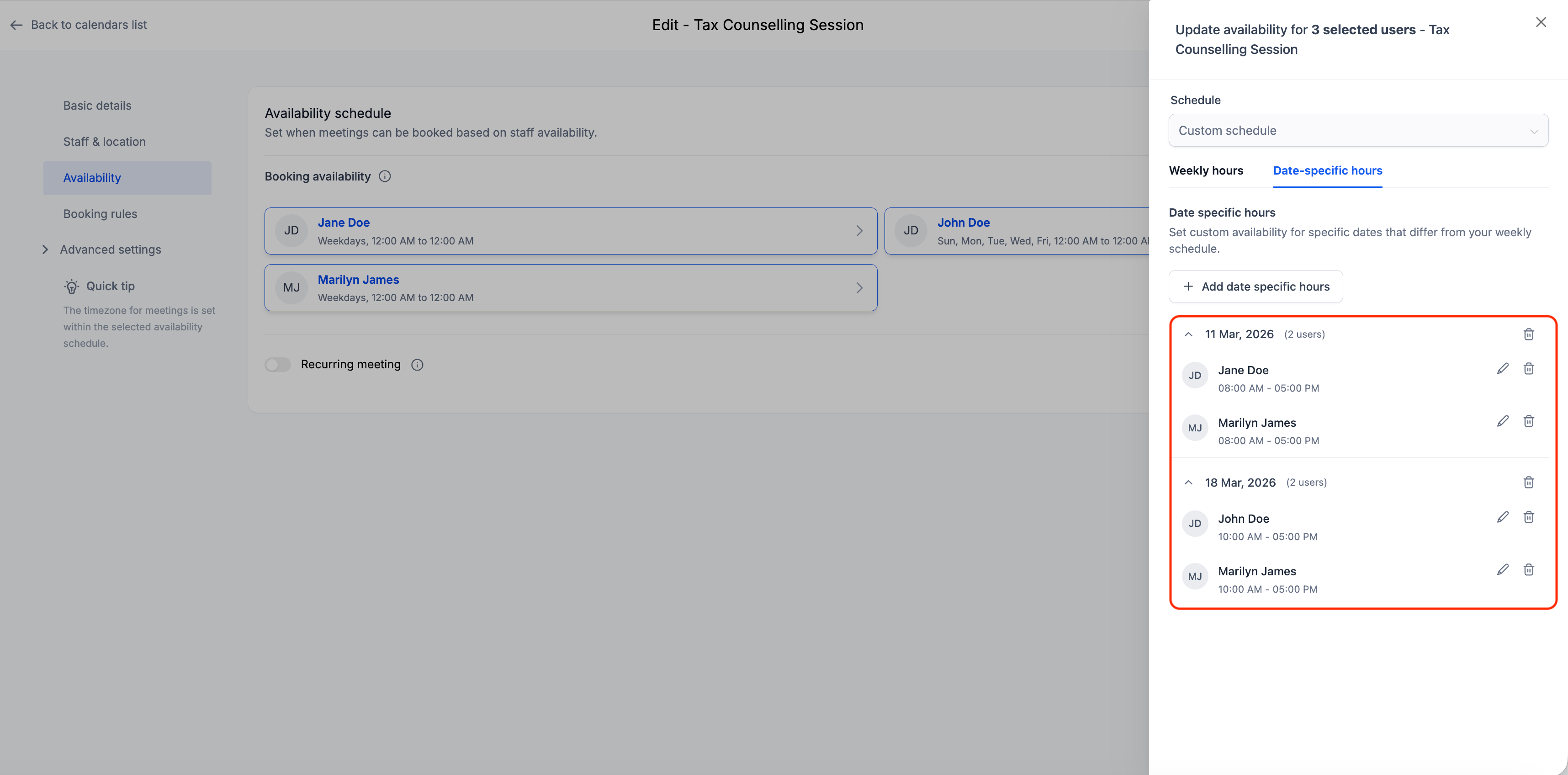
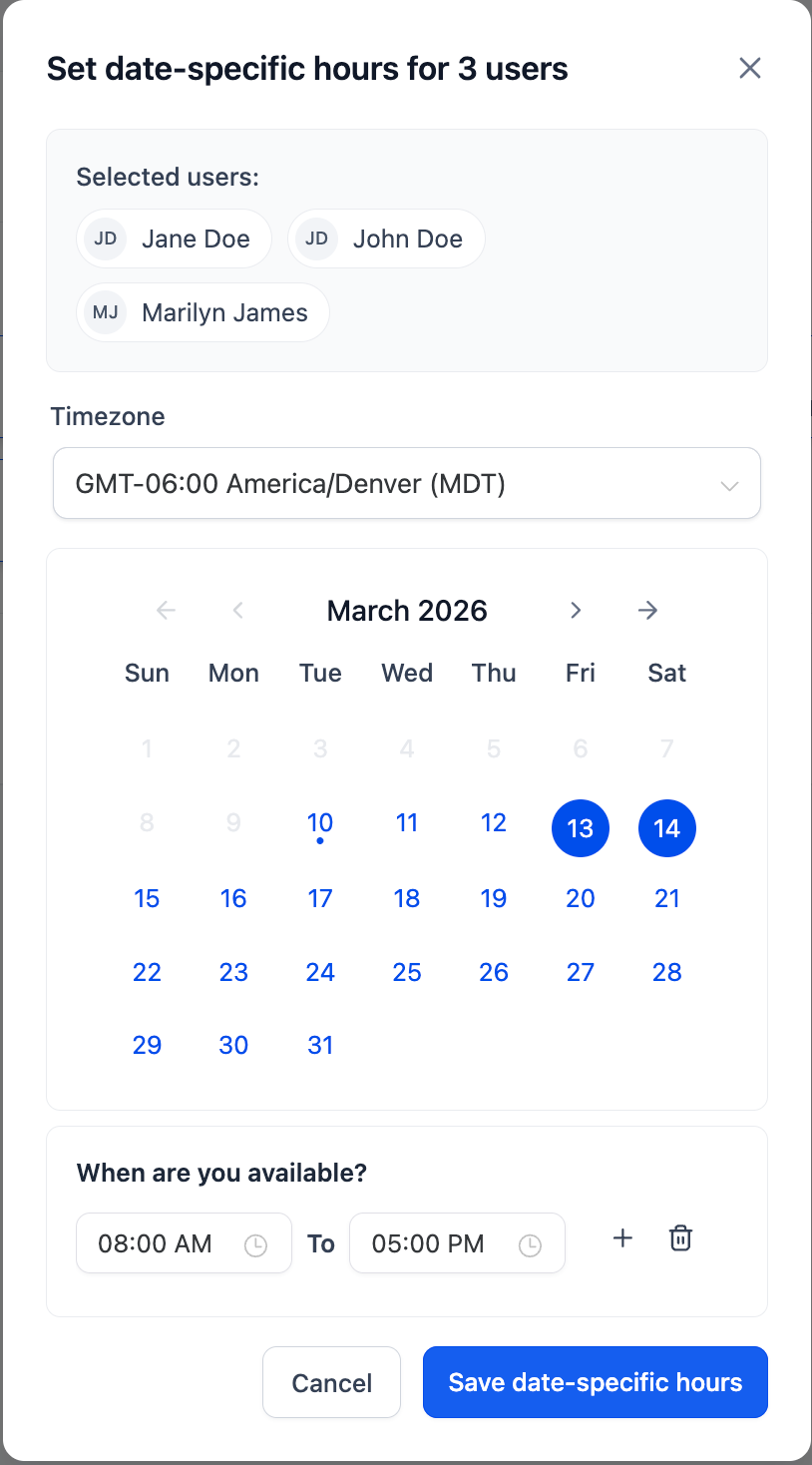
Step 4
Update availability times days or rules for selected users.
What does smarter bulk edit for schedules allow?
• It allows updating schedules for multiple users at the same time.
Do I need to enable this feature manually?
• No, the bulk edit option appears in multi-user calendar settings.
Can I apply different schedules to different users?
• Bulk editing applies the selected schedule changes to all chosen users.
Does this affect existing bookings?
• Existing appointments remain unchanged.
Is this useful for team-wide schedule changes?
• Yes, it is designed for faster updates across multiple team members.
