Rental bookings now include enhancements to the payments tab and booking interface. These improvements make it easier to review payment details manage transactions and provide a more streamlined booking experience for both administrators and customers.
• Improved payments tab for rental bookings
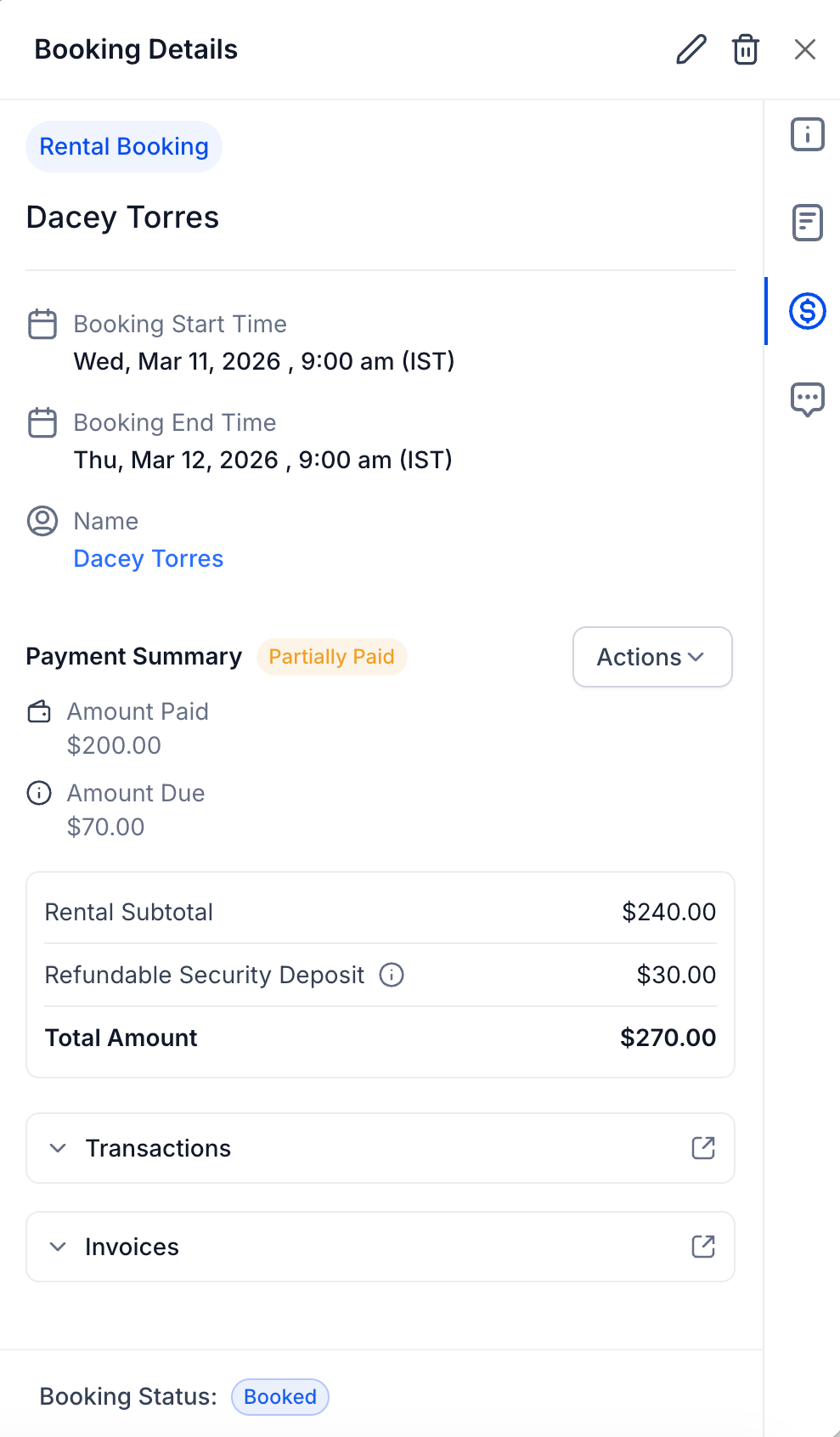
• Clearer visibility into rental payment details
• Enhanced booking interface for rentals
• Better transaction tracking for rental services
• More intuitive booking management experience
• Review payment information after each rental booking
• Ensure rental pricing and taxes are configured correctly
• Test the booking flow after updating rental settings
• Monitor payment records for accurate reporting
• Use the improved interface to quickly review transaction details
Step 1
Navigate to the section where rental services and bookings are managed.
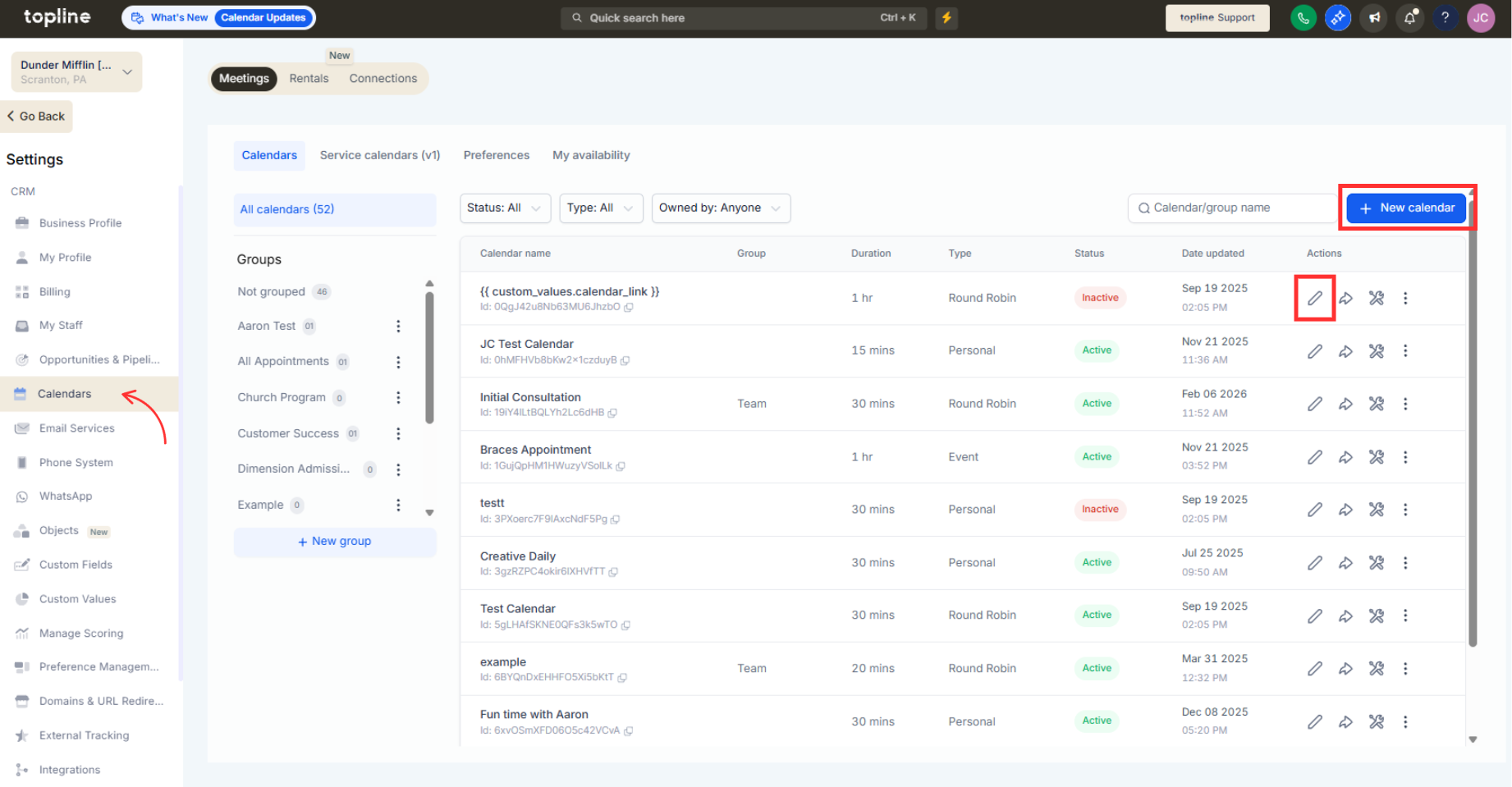
Step 2
Open the payments tab within the rental booking interface. Check the pricing, taxes, and payment records associated with the booking.
What improvements were made to the payments tab for rentals?
• The tab now provides clearer visibility into payment details for rental bookings.
Does this update change how payments are processed?
• No, it mainly improves how payment information is displayed and managed.
Is the booking interface different for rentals now?
• Yes, the interface has been enhanced for a smoother booking experience.
Do I need to enable these improvements manually?
• No, the enhancements are available automatically.
Can I still review past payment records?
• Yes, previous rental payment information remains accessible.
