Users can now collapse and resize pipeline stages within the Kanban view to better manage screen space and focus on relevant data. This makes it easier to navigate large pipelines and improves overall usability when working with multiple stages.
• Ability to collapse pipeline stages in Kanban view
• Resize pipeline columns for better visibility
• Improved control over workspace layout
• Easier navigation for large pipelines
• Enhanced user experience when managing opportunities
• Collapse unused stages to reduce clutter
• Resize columns to focus on important stages
• Organize pipelines for easier tracking
• Use collapsing when working with large datasets
• Adjust layout based on your workflow needs
Step 1
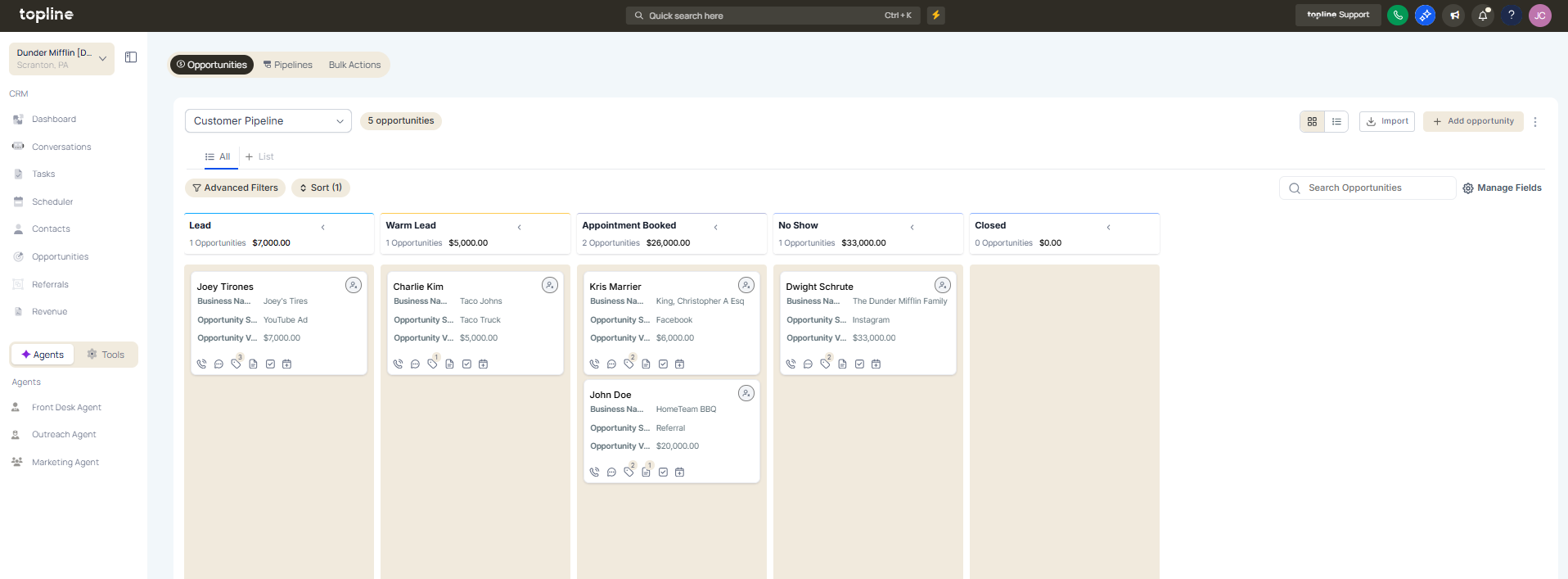
Navigate to the pipelines or opportunities area.
Step 2
Ensure you are viewing your pipeline in Kanban format. Select the option to collapse a stage you do not need to view.

Step 3
Drag column edges to adjust width as needed. Customize the layout for better visibility.

What does collapsing pipeline stages do?
• It hides stages to reduce clutter in the Kanban view.
Can I resize pipeline columns?
• Yes, columns can be adjusted for better visibility.
Do I need to enable this feature manually?
• No, it is available automatically in Kanban view.
Does this affect pipeline data?
• No, it only changes how stages are displayed.
Can collapsed stages be expanded again?
• Yes, stages can be reopened at any time.
