QR codes can now be customized with different shapes borders and rim text, giving businesses more control over how codes appear. This helps improve branding visibility and makes QR codes more engaging while maintaining functionality.
• Custom shapes for QR codes
• Border styling options for enhanced design
• Rim text support around QR codes
• Improved branding customization
• More visually engaging QR code designs
• Use shapes that match your brand style
• Add rim text to provide context or instructions
• Keep designs clean to ensure scannability
• Test QR codes after styling changes
• Use high contrast colors for better scanning performance
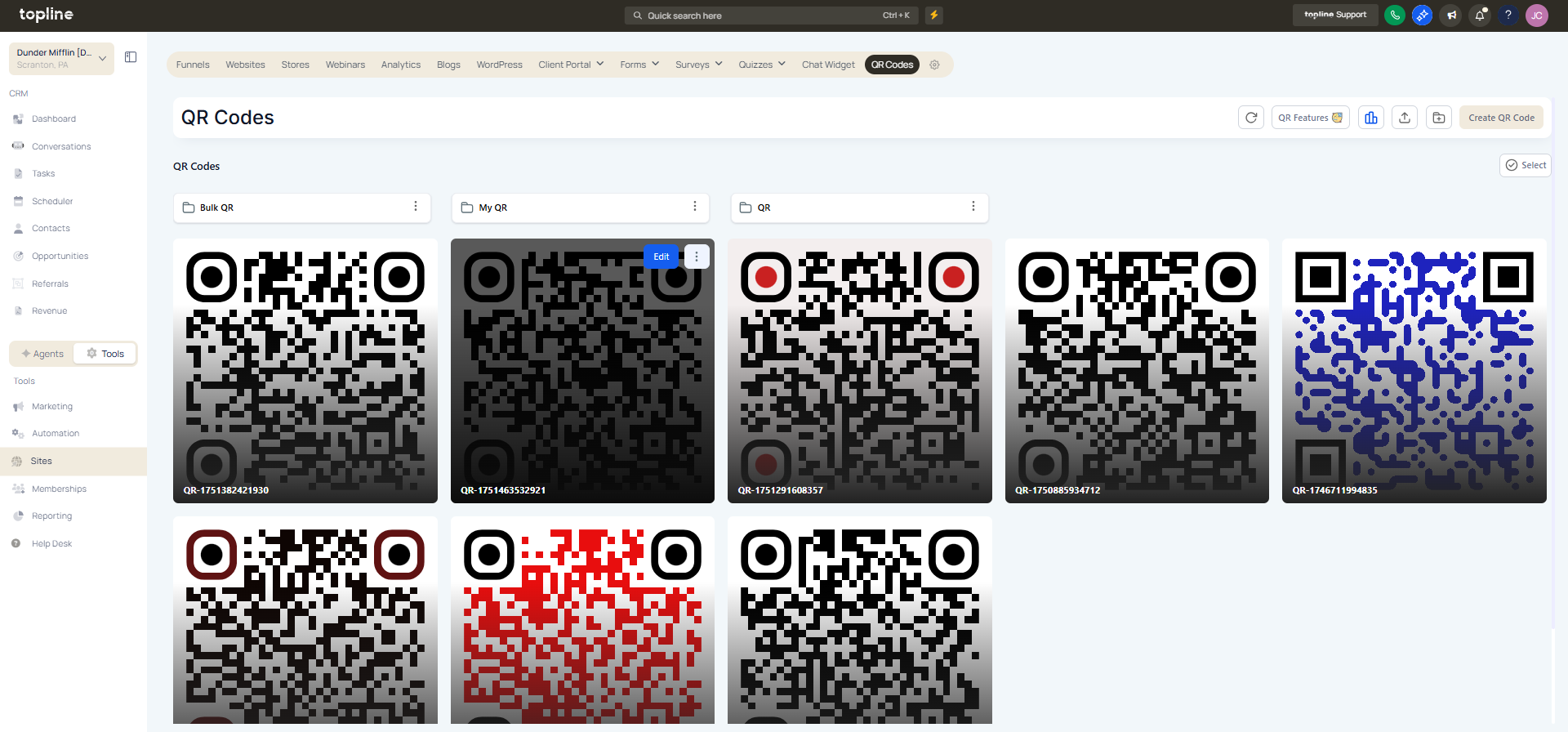
Step 1
Navigate to the section where QR codes are created. Select an existing code or generate a new one
Step 2
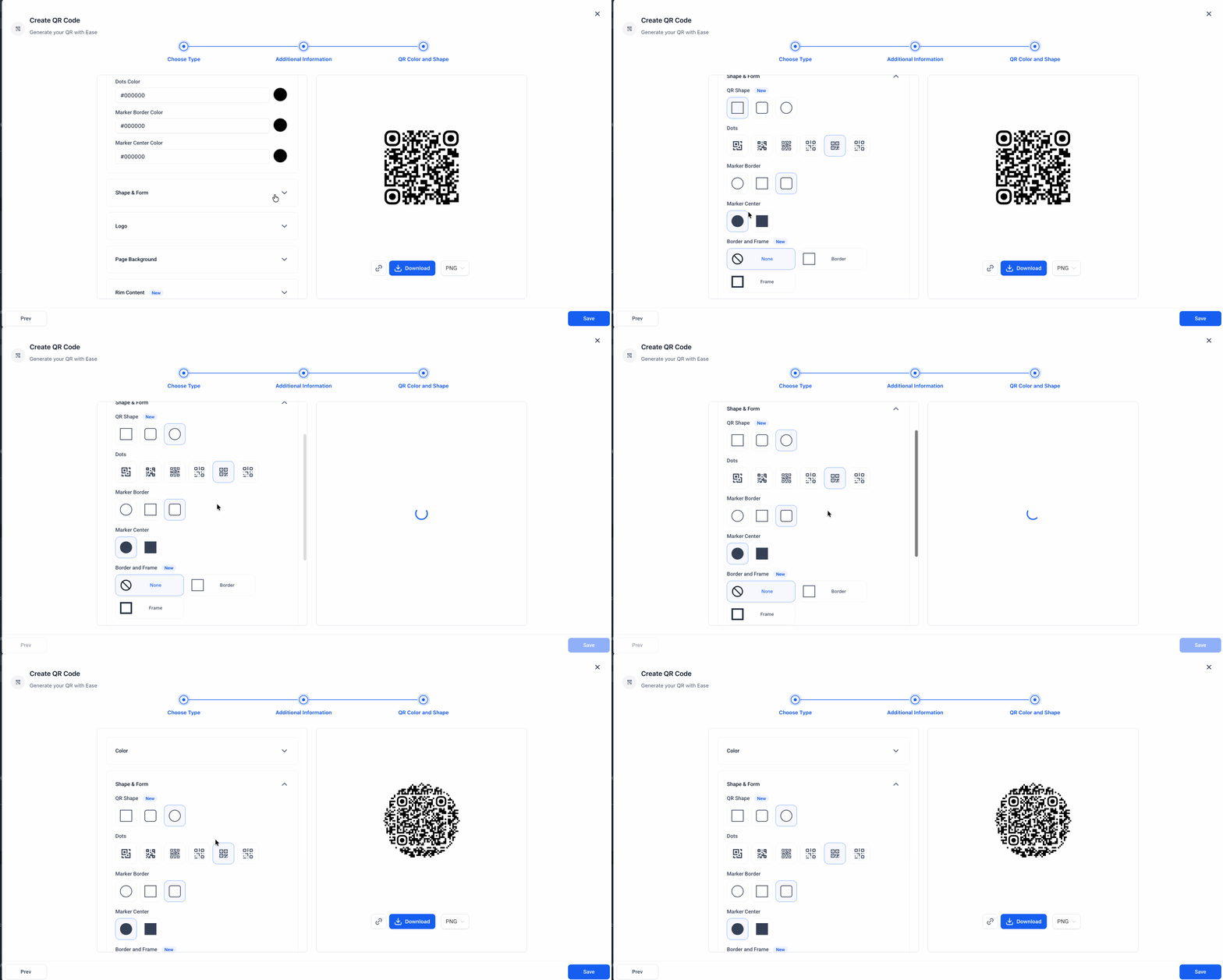
Select a custom shape for the QR code. Add and customize borders around the code.
Step 3
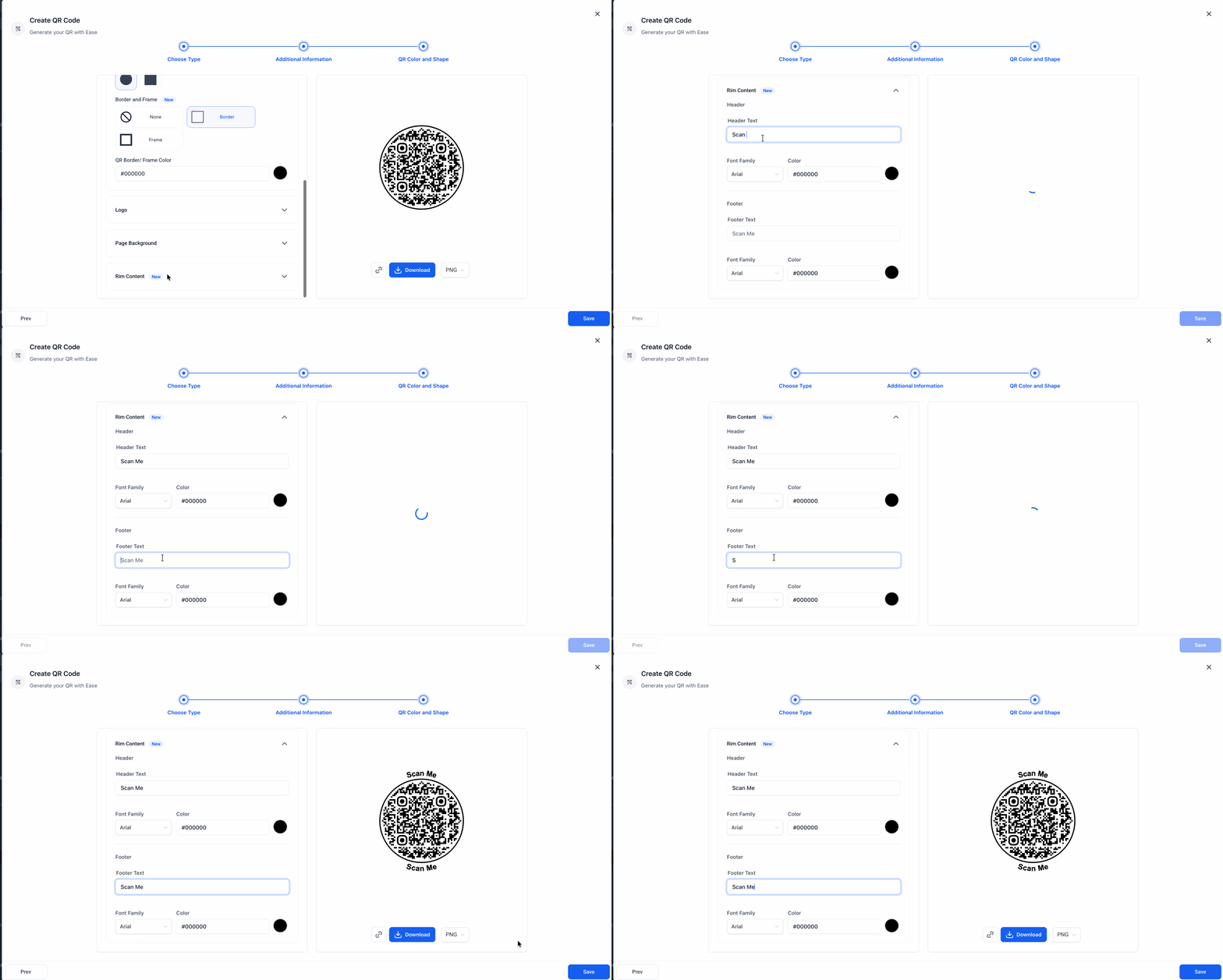
Enter text to display around the QR code.
What new styling options are available for QR codes?
• Shapes, borders, and rim text customization are now supported.
Do I need to enable these features manually?
• No, styling options are available within the QR code editor.
Can I customize multiple elements at once?
• Yes, you can combine shapes, borders, and text.
Does styling affect QR code functionality?
• No, functionality remains the same if scannability is maintained.
Can I update the QR code design later?
• Yes, designs can be edited anytime.
