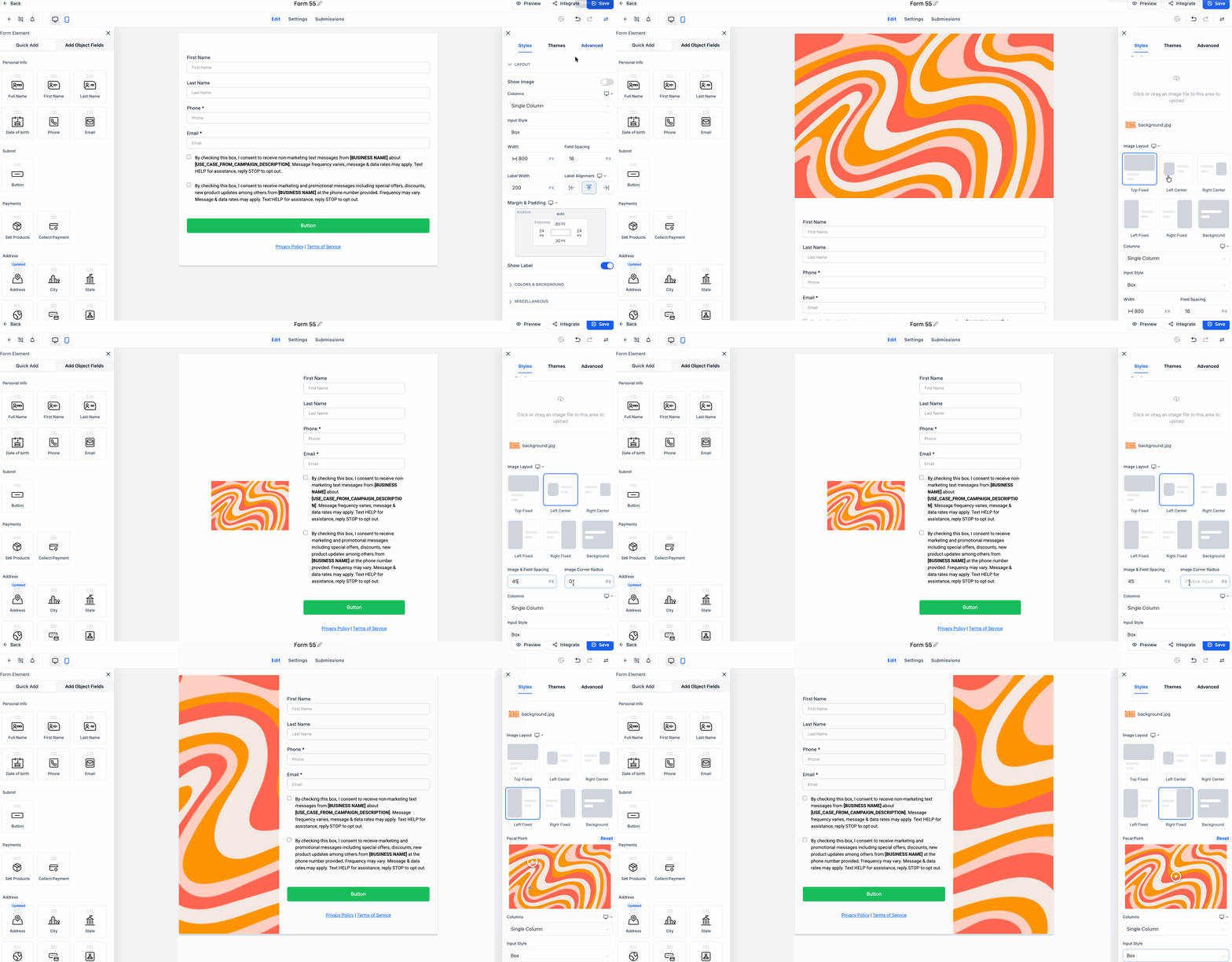
Forms and surveys now include enhanced image layout controls, allowing users to adjust how images appear within questions and sections. This improves visual presentation and helps create more engaging and organized form experiences.
• New image layout controls for forms and surveys
• Improved customization of image placement and display
• Better visual alignment within form elements
• Enhanced user experience for respondents
• More flexibility in form design
• Use images to make forms more engaging
• Keep layouts clean to avoid distractions
• Align images with related questions for clarity
• Test forms on different devices for consistency
• Optimize image size for faster loading
Step 1
Navigate to your forms or surveys builder.
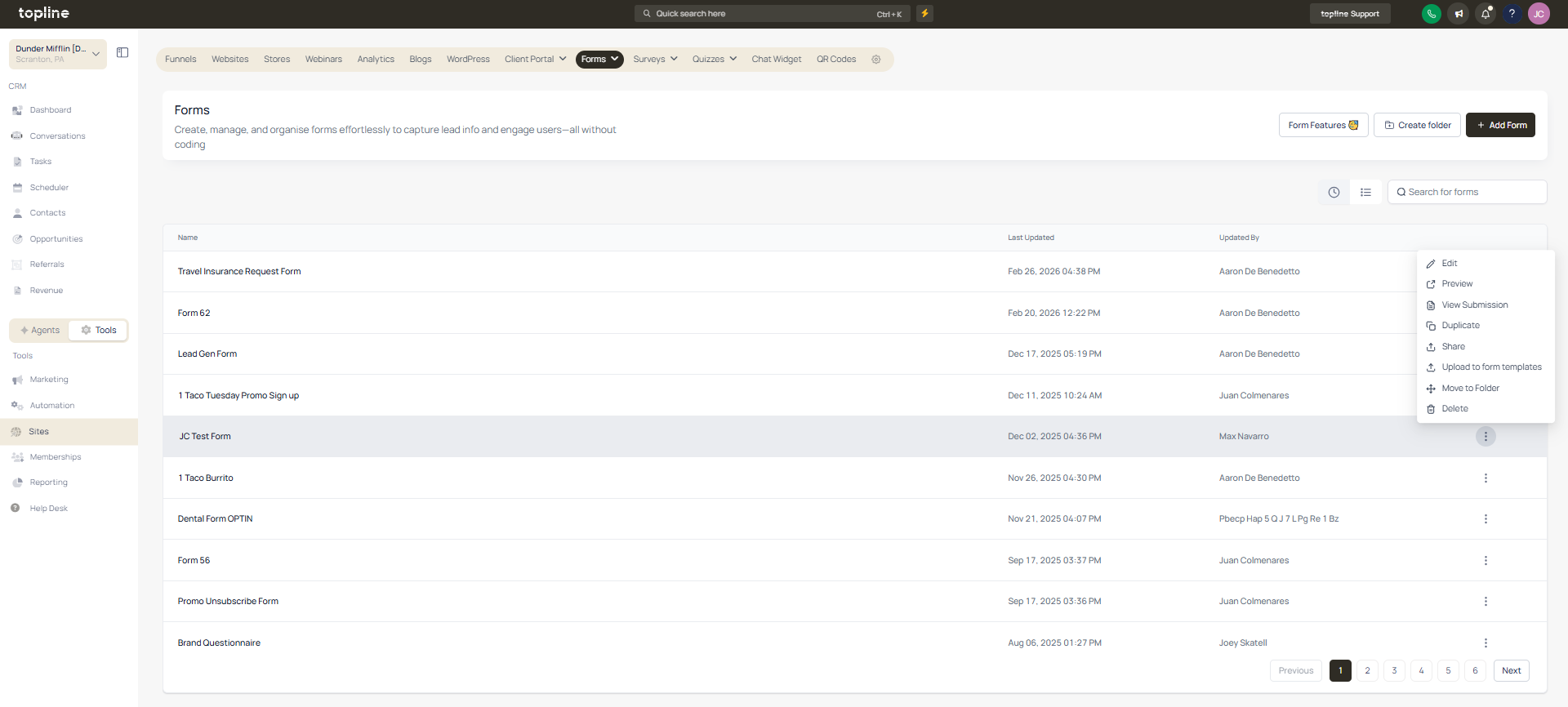
Step 2
Choose an existing form or create a new one. Insert an image or click on an existing one. Open the image settings to adjust layout options.
What do image layout controls allow?
• They allow customization of how images appear in forms and surveys.
Do I need to enable this feature manually?
• No, layout controls are available within image settings.
Can I adjust image alignment?
• Yes, alignment and positioning can be customized.
Does this affect existing forms?
• Existing forms can be updated with new layout options.
Can images improve form engagement?
• Yes, visuals can make forms more interactive and appealing.
