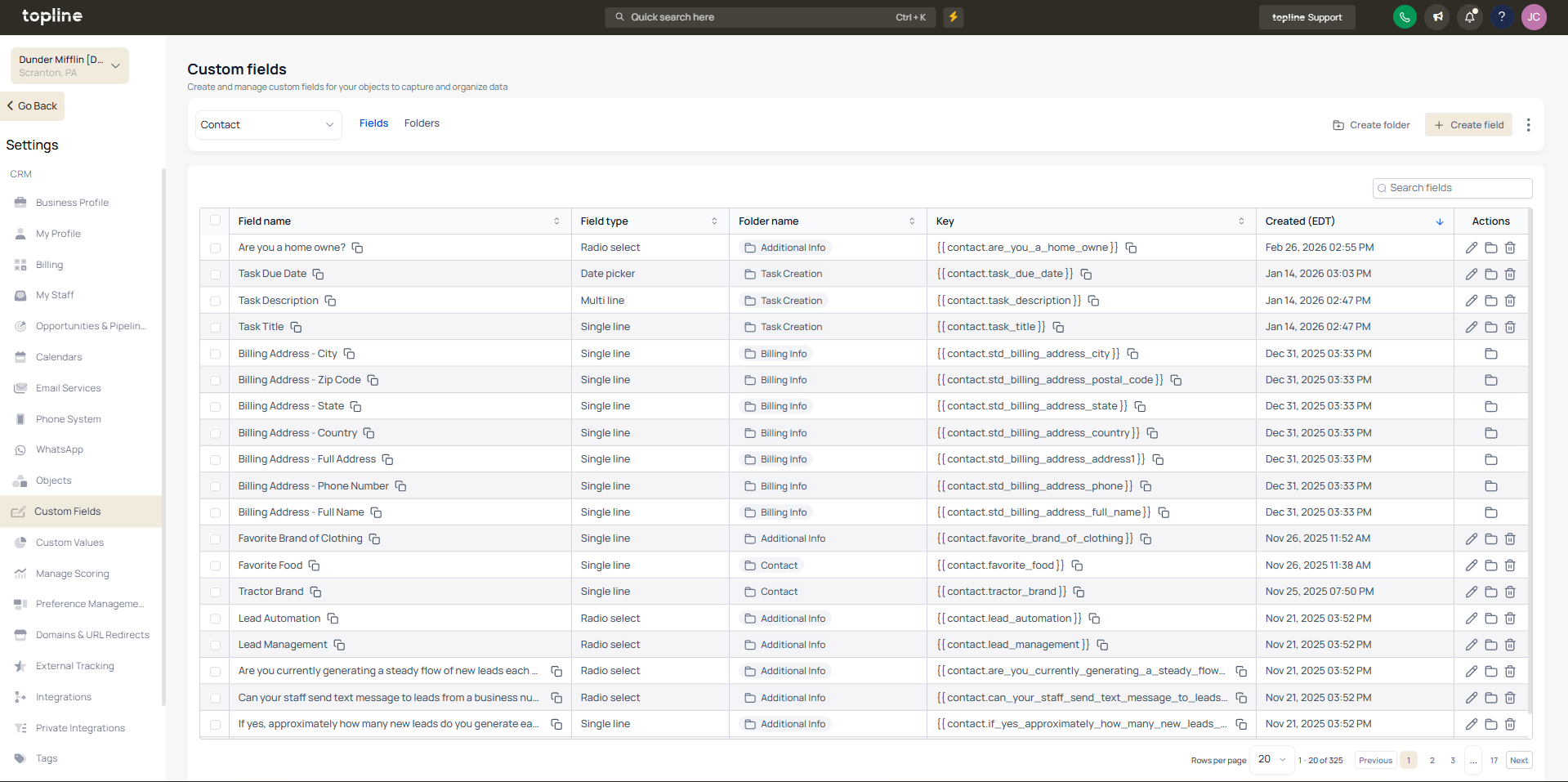
The custom fields and folders experience has been redesigned to make managing fields more intuitive and efficient. With a cleaner layout and improved organization, users can quickly find, edit, and structure custom fields without confusion.
• Updated interface for custom fields and folders
• Improved organization and navigation
• Cleaner and more intuitive layout
• Faster access to field management options
• Enhanced usability for managing custom data
• Organize fields into folders for better structure
• Use clear naming for easier identification
• Review folder structure regularly
• Group related fields together
• Clean up unused fields to keep things organized
Step 1
Navigate to the custom fields management area.
Step 2
Review the new layout and navigation options. Add new fields or update existing ones. Group fields into folders for better structure.
What changed in the custom fields and folders interface?
• The interface has been redesigned for better usability and organization.
Do I need to enable this update manually?
• No, the updated interface is available automatically.
Can I still create and edit custom fields?
• Yes, all existing functionality remains available.
What are folders used for?
• They help organize custom fields into logical groups.
Does this affect existing fields?
• Existing fields remain and can be reorganized.
