A post call disposition picker is now available in the Web Dialer. Teams can define custom outcomes, then filter on Custom Disposition inside workflows to send messages, tag records, or re enqueue contacts in the Power Dialer. Dispositions are saved to the call record for reporting and auditing, improving speed, clarity, and automation accuracy.
Post call disposition picker inside the Web Dialer
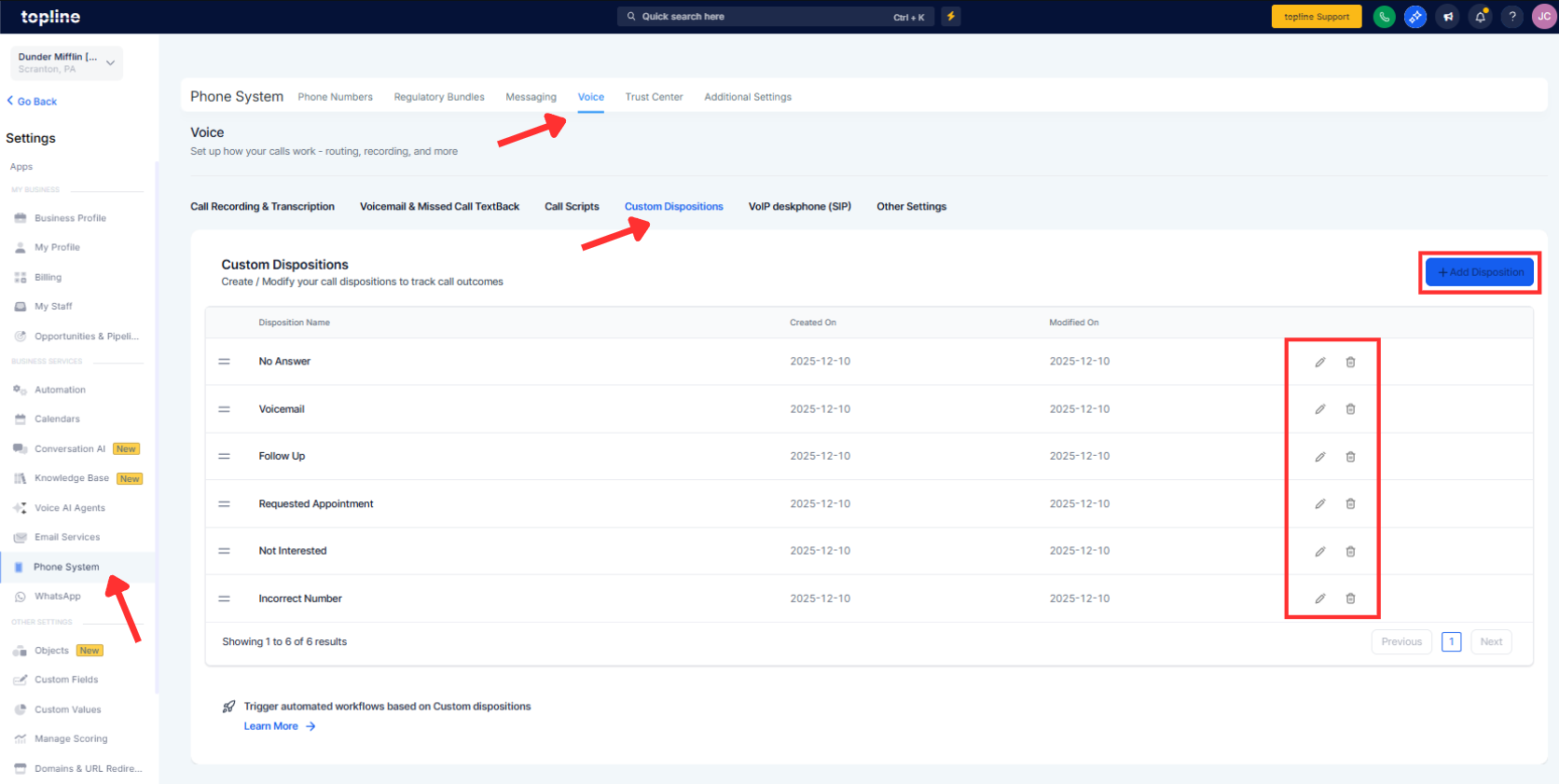
Create, edit, and delete custom dispositions with a configurable list
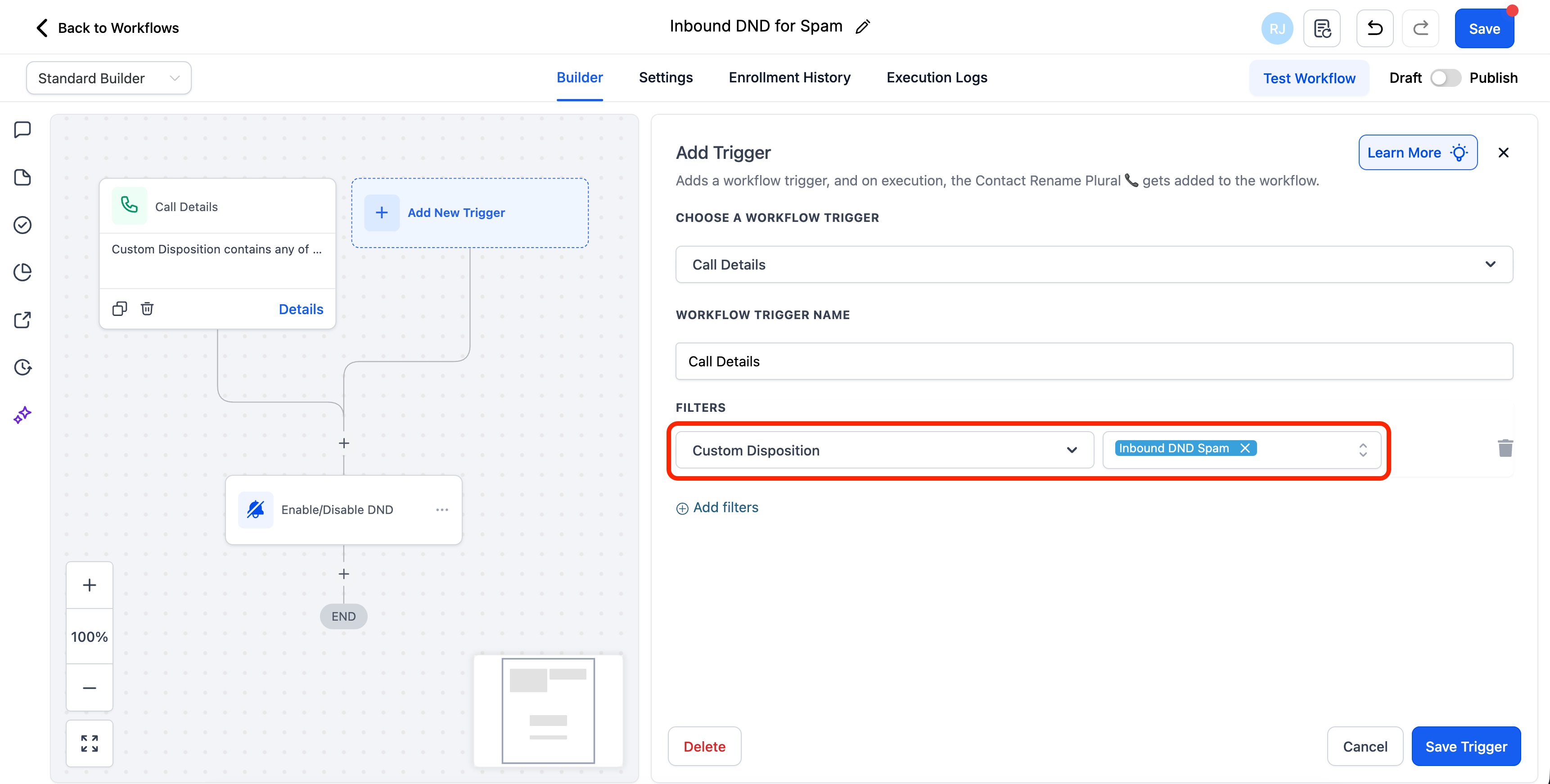
New workflow filter under Call Details named Custom Disposition
Use dispositions to trigger messages, tags, tasks, and dialer re entry
Dispositions saved to the call record with reporting and filters coming soon
Keep the list short with clear names to reduce agent decision time
Map each disposition to a single next action to avoid ambiguity
Use color or prefix patterns like FU Follow Up and NI Not Interested for quick scanning
Train reps to select a disposition before moving to the next call to keep data clean
Review top dispositions monthly and prune rarely used ones
Step 1
Open Settings, then Phone System, then Voicemail, and select Call Dispositions. Add or edit up to ten clear outcomes that fit your process.
Step 2
In Workflows, add a condition using Call Details, then Custom Disposition. For each disposition, define actions such as sending an SMS, tagging a contact, or re-enqueuing in the Power Dialer.
FAQ’s
How do agents select a disposition after a call?
A post-call picker appears in the Web Dialer, where one outcome can be selected.
Can I customize the list of dispositions?
Yes, you can create, edit, and delete entries and keep up to ten total.
How do workflows use dispositions?
Add a Call Details Custom Disposition filter and branch actions based on the selected outcome.
Where are dispositions stored?
They are saved on the call record and will be available in reporting and filters.
What happens if I rename a disposition?
Existing workflows continue to work with the updated name.
