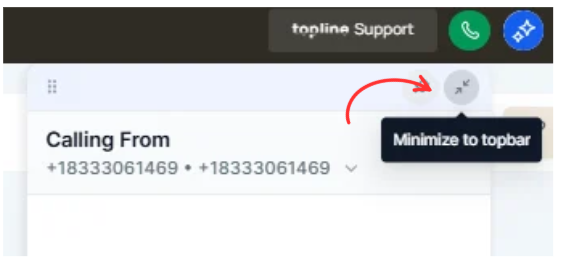
The dialer now supports auto minimize, along with the ability to pin and drag it across the screen. This allows users to continue working while on calls without losing access to the dialer, creating a more efficient and seamless calling experience.
• Auto minimize functionality for the dialer
• Ability to pin the dialer on the screen
• Drag and reposition the dialer freely
• Improved multitasking during calls
• More flexible and user-friendly call experience
• Use auto minimize to keep your workspace uncluttered
• Pin the dialer when you need constant visibility
• Drag the dialer to avoid blocking important content
• Test different positions for better workflow efficiency
• Combine with call workflows for smoother operations
Step 1
Navigate to the calling or dialer interface.
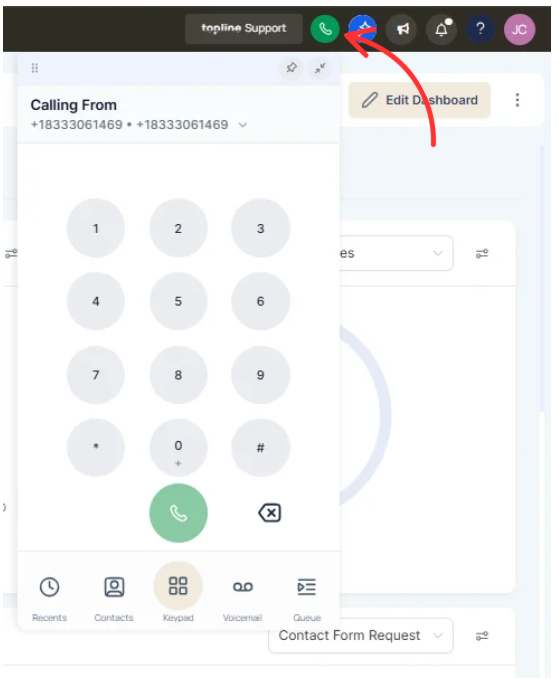
Step 2
Begin a call to activate dialer controls. Allow the dialer to minimize automatically during use.
What does auto-minimize do for the dialer?
• It reduces the dialer view automatically while keeping it accessible.
Can I keep the dialer visible at all times?
• Yes, you can pin the dialer on the screen.
Can the dialer be moved around?
• Yes, it can be dragged to different positions.
Does this affect call functionality?
• No, it only improves how the dialer is displayed.
Is this useful for multitasking?
• Yes, it allows you to work while on calls.
